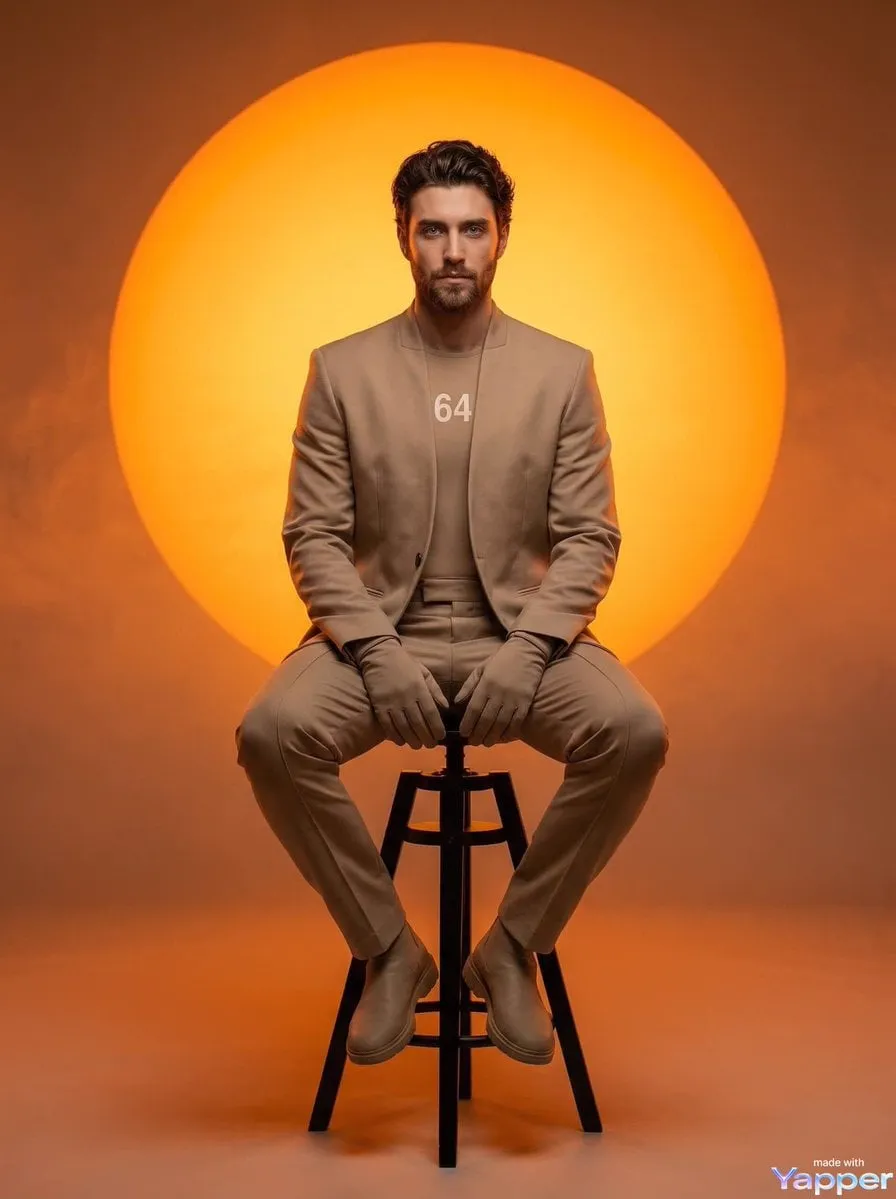
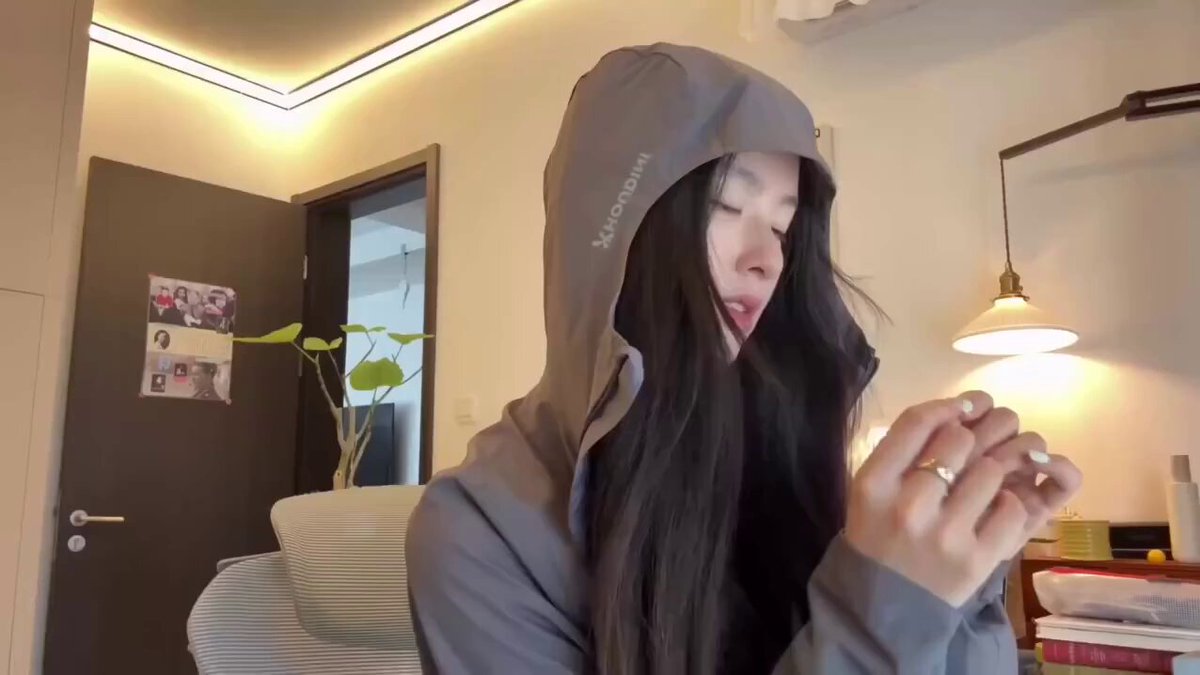
An ai branded photo editor takes your uploaded photos and applies consistent colors, tones, or visual styles based on your text description. You review the output before downloading to ensure it matches your brand.
ai branded photo editor for consistent visuals
Brand colors
Input
Upload a product photo and write: apply brand colors teal and coral, clean white background, keep product details sharp.
Expected output
A product photo with teal and coral accents and a clean white background. Review color accuracy and product clarity.
Unified set
Input
Upload a set of lifestyle photos and write: apply consistent warm tone and soft lighting, keep subjects and composition unchanged.
Expected output
A set of lifestyle photos with a unified warm tone and soft lighting. Check each image for consistent color and lighting.
Header image
Input
Upload a wide workspace photo and write: apply brand accent color blue to walls and objects, keep desk and details intact.
Expected output
A wide workspace photo with the brand's blue accent color applied. Verify that the desk and objects remain natural.
Apply brand colors, consistent tone, or visual style to photos so they match your brand guidelines or content theme.
Start with your own photos
Upload images you have permission to edit instead of building scenes from scratch.
Direct brand color and style
Describe your brand colors, tone, or visual style in plain language, then compare the output with your guidelines.
Review before publishing
Check color accuracy, consistency, and overall appearance before deciding to use the images.
How It Works
1
Upload the image you want to refine
Start with an image you have the right to edit.
2
Describe the profile-picture changes you want
Keep the requested edits specific so the intended profile look is clear.
3
Generate, compare, and download
Review the output for likeness, accuracy, and the final profile crop before using it.
Getting brand-consistent edits
A clear source photo and a specific description of brand colors, tone, or style help you judge the edited result.
Input Constraints
Only upload images you have permission to edit and use.
Keep the requested changes focused on the profile-picture outcome you need.
Review the final image for likeness and context before sharing it.
Practical Tips
Use a source image with a visible face and enough detail around the subject.
Ask for one or two concrete changes, such as a neutral background or a square crop.
Compare the result with the original image before choosing a version to use.
Privacy
Do not upload personal or sensitive material unless you have permission to use it.
Usage Rights
Confirm that you have the rights needed for the inputs and intended use of the result.
Prompt recipes
Copy a structure, then adjust the subject, lighting, camera, and output details for your own result.
Apply brand colors to product photos
Apply brand colors navy blue and gold to the product and background. Keep product shape and details unchanged.
Specifies exact brand colors and preserves product details, making it easy to verify brand consistency.
Unify tone across lifestyle photos
Apply a warm orange tone with soft lighting to all lifestyle photos. Keep subjects, poses, and composition intact.
Creates visual consistency across a set of images, important for social media or marketing campaigns.
Create branded header images
Apply brand accent color teal to walls and large objects. Keep furniture, lighting, and framing unchanged.
Integrates brand color without altering the scene's composition, suitable for website headers or banners.
Match lighting and color in photo sets
Apply consistent cool blue lighting with high contrast to all images. Keep subjects and backgrounds intact.
Ensures uniform lighting and color across multiple images, useful for product catalogs or portfolios.
Recolor backgrounds for brand guidelines
Change all backgrounds to brand color soft gray. Keep subjects, lighting, and details the same.
A simple background color change that aligns with brand guidelines without affecting the subject.
Best use cases
Match the workflow to the input you have and the result you need before opening the generator.
Use case
Best input
Expected result
Tool
Unify product photo colors
A set of product photos with varying backgrounds or lighting
A unified set with consistent brand colors and tone
Image to Image with brand-color prompt
Create branded social media images
Lifestyle or behind-the-scenes photos
Images with consistent brand tone and style
Image to Image with tone-unification prompt
Design website header images
Wide workspace or scene photos
Header images with brand accent colors applied
Image to Image with accent-color prompt
Match lighting across photo sets
Multiple photos with inconsistent lighting
A set with consistent lighting and color tone
Image to Image with lighting-consistency prompt
Unify product photo colors
Input: A set of product photos with varying backgrounds or lighting
Result: A unified set with consistent brand colors and tone
Tool: Image to Image with brand-color prompt
Create branded social media images
Input: Lifestyle or behind-the-scenes photos
Result: Images with consistent brand tone and style
Tool: Image to Image with tone-unification prompt
Design website header images
Input: Wide workspace or scene photos
Result: Header images with brand accent colors applied
Tool: Image to Image with accent-color prompt
Match lighting across photo sets
Input: Multiple photos with inconsistent lighting
Result: A set with consistent lighting and color tone
Tool: Image to Image with lighting-consistency prompt
Limitations to know before generating
Results depend on the quality and lighting of your source photos. Poor lighting or low resolution reduces edit quality.
Brand color accuracy varies with the complexity of the scene. Always compare output with your brand guidelines.
Applying colors to complex backgrounds may introduce edge artifacts. Review subject edges and color transitions.
The tool does not replace professional brand asset design. Use it for drafts and previews, not final marketing materials.
You are responsible for confirming you have permission to edit and share the images.
Creative Suite: AI Video Generator & AI Image Generator Tools
Power up your creative workflow with our AI-driven tools. Generate stunning videos, create images, and apply custom adjustments - our AI Video Generator and AI Image Generator offer a complete solution for all your creative needs.