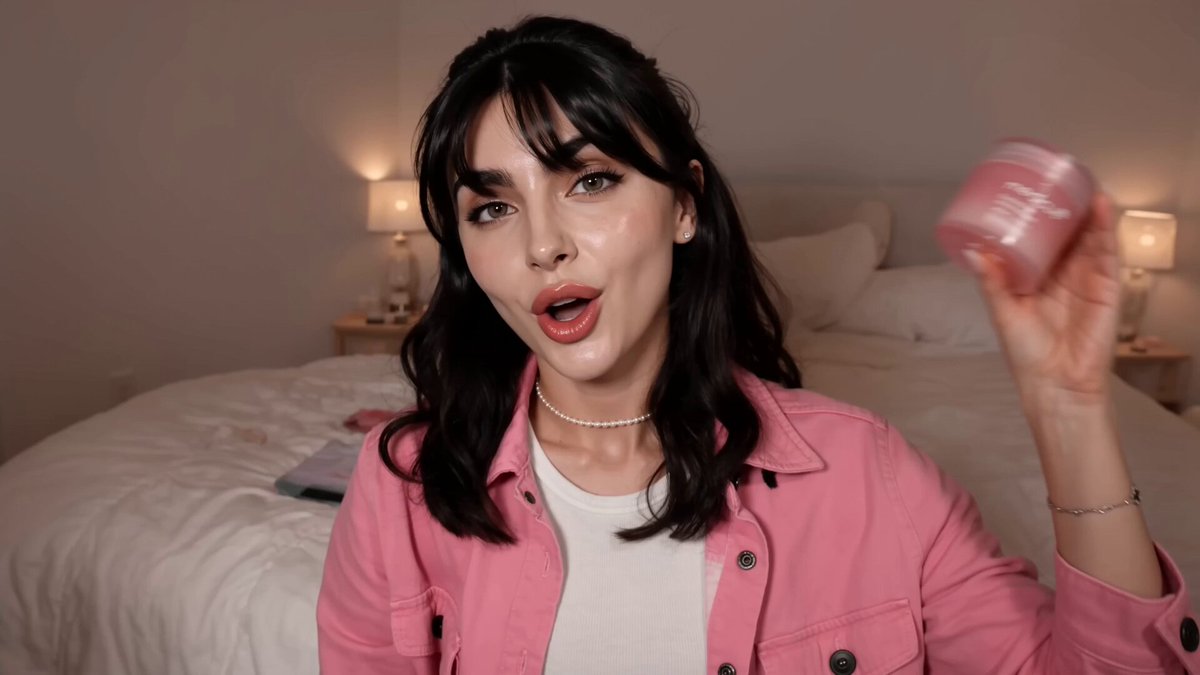
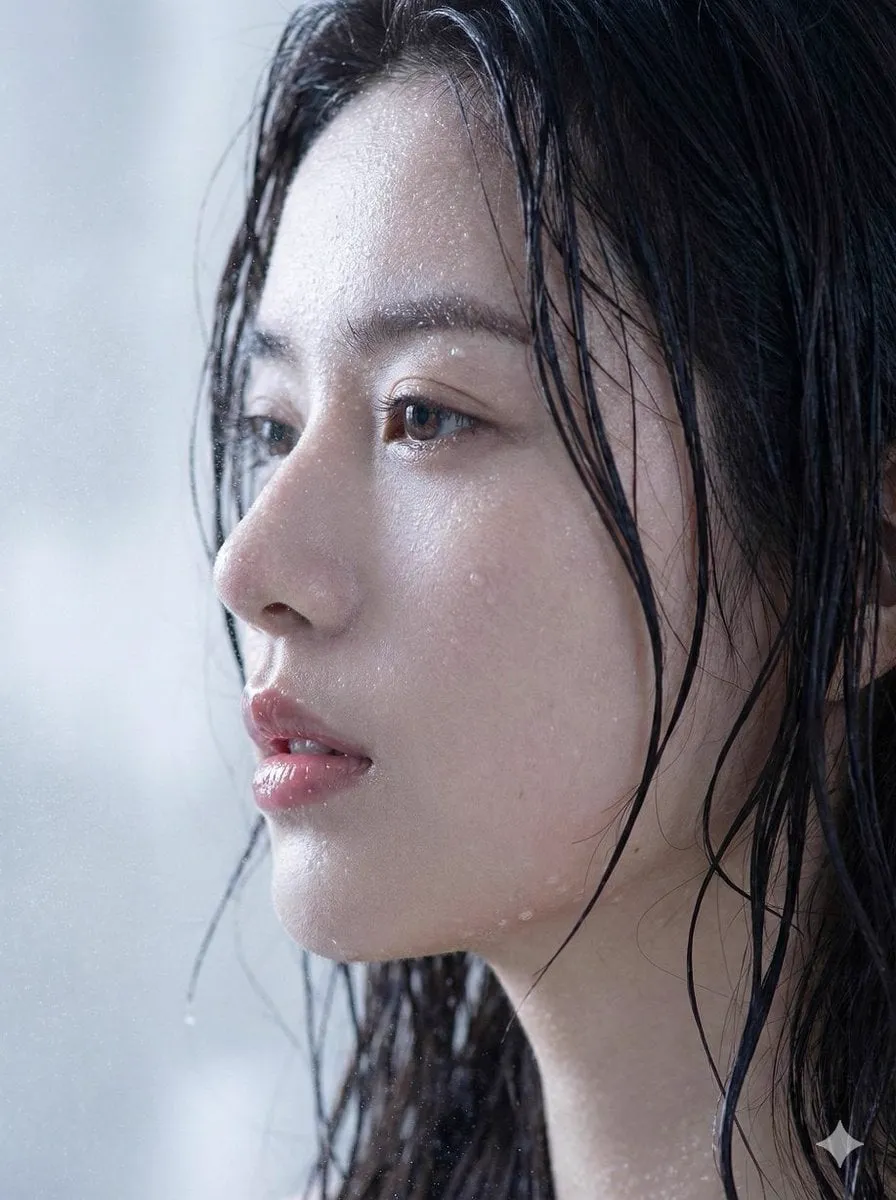
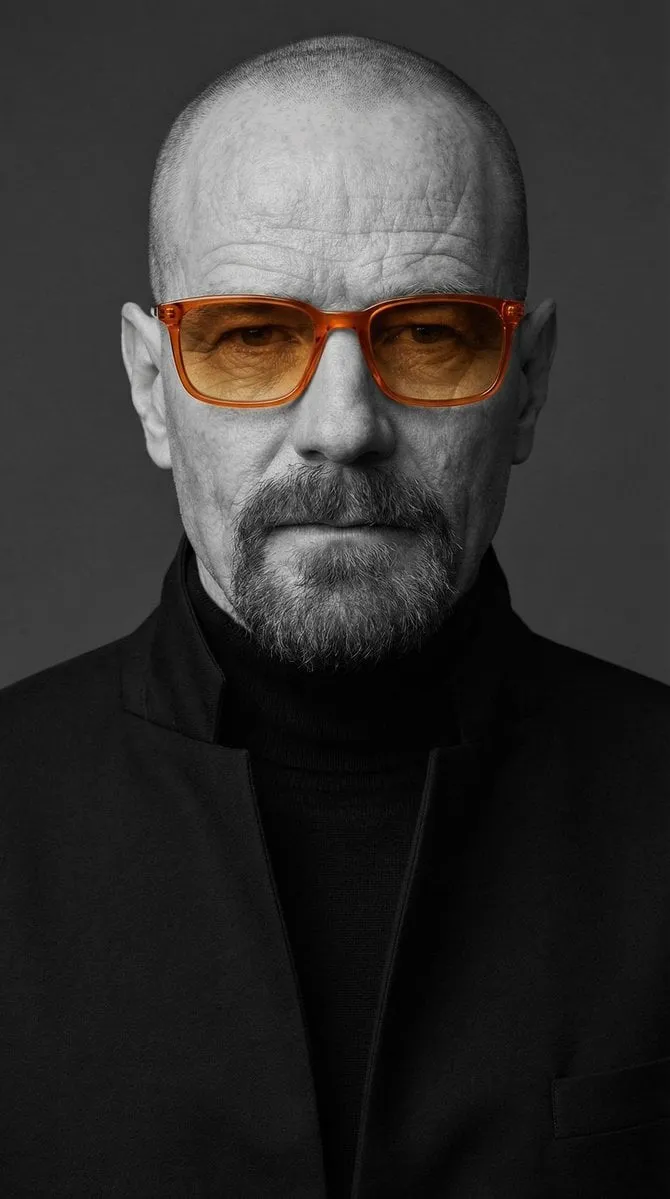
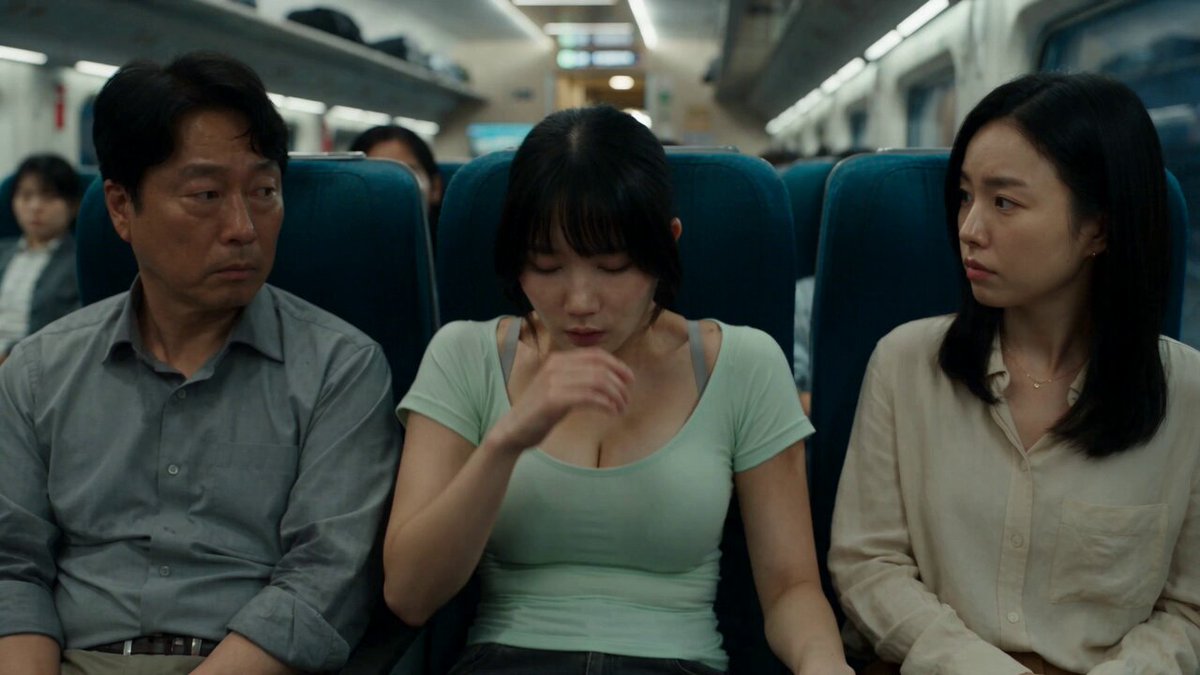
An AI flash photo editor adjusts or adds flash lighting effects to a photo by interpreting the lighting description you provide, producing a result you review before use.
AI Flash Photo Editor for Lighting Effects
Soft camera flash glow on portrait
Input
Portrait brightened with a soft, even flash glow on the subject, keeping the background slightly darker
Expected output
The portrait brightened with a soft flash glow on the subject, ready to compare with the original.
Hard flash for night scene
Input
Night scene brightened with a hard, direct flash look, stronger contrast, and sharper shadows
Expected output
The scene brightened with a hard flash look and stronger contrast, ready to review for accuracy.
Soften existing harsh flash
Input
Photo with existing flash lighting softened to a warmer, gentler glow with reduced harsh shadows
Expected output
The same photo with gentler, warmer flash lighting, ready to compare with the original.
Adjust or add flash lighting effects to a photo by describing the look you want, then review the result before saving.
Start with your own photo
Upload an existing image instead of reshooting, so the tool can adjust the lighting after the fact.
Describe the lighting in plain language
Request flash adjustments or lighting effects, then compare the result with your original image.
Review before you save
Check the adjusted image for lighting, mood, and naturalness before downloading or posting it.
How It Works
1
Upload the image you want to refine
Start with an image you have the right to edit.
2
Describe the profile-picture changes you want
Keep the requested edits specific so the intended profile look is clear.
3
Generate, compare, and download
Review the output for likeness, accuracy, and the final profile crop before using it.
Adjusting flash lighting
A clear source image and a focused lighting request make it easier to judge the result.
Input Constraints
Only upload images you have permission to edit and use.
Keep requested changes focused on the lighting outcome you need.
Review the final image for naturalness and mood before sharing it.
Practical Tips
Use a source image with the subject clearly visible and decent starting lighting.
Request one or two concrete changes, such as softer flash or brighter foreground.
Compare the result with the original image before choosing a version to use.
Privacy
Do not upload personal or sensitive material unless you have permission to use it.
Usage Rights
Confirm that you have the rights needed for the inputs and intended use of the result.
Prompt recipes
Copy a structure, then adjust the subject, lighting, camera, and output details for your own result.
Soft portrait flash
Portrait with a soft, even flash glow on the subject, slightly brighter face, and the background kept darker for depth
Soft flash brightens the subject without creating harsh shadows, suited to portraits and social media posts.
Hard flash for night photos
Night photo with a hard, direct flash look, stronger contrast, sharper shadows, and brighter foreground
Hard flash creates drama and clarity in low-light scenes, suited to event photography and urban shots.
Soften existing harsh flash
Photo with existing harsh flash softened to a warmer, gentler glow, reduced shadows, and more even lighting
Softening flash reduces harshness and creates a more flattering, natural look suited to portraits and group photos.
Add fill flash to backlit portrait
Backlit portrait with fill flash added to brighten the subject's face, keeping the bright background for a glowing edge
Fill flash balances exposure between subject and background, creating a professional, well-lit portrait.
Bounce flash effect
Photo with a soft, diffused bounce flash effect, even lighting across the subject, and no harsh shadows
Bounce flash mimics professional studio lighting, creating even, flattering light suited to portraits and product photos.
Party snapshot flash
Party photo with a bright, direct flash on the subjects, vibrant colors, and a casual snapshot mood
Direct flash captures the energy and spontaneity of parties and events, suited to casual social media posts.
Best use cases
Match the workflow to the input you have and the result you need before opening the generator.
Use case
Best input
Expected result
Tool
Portrait with better face lighting
A portrait with the subject visible but underlit
A brighter portrait with improved lighting on the face
Image to Image
Night or low-light event photo
A night or indoor photo with dim lighting
A brightened photo with flash-like lighting and stronger contrast
Image to Image
Fix harsh existing flash
A photo with harsh, direct flash and strong shadows
A softer version with gentler lighting and reduced shadows
Image to Image
Product photo with studio lighting
A product photo with uneven or dim lighting
A brighter, more evenly lit product photo with professional flash-like lighting
Image to Image
Portrait with better face lighting
Input: A portrait with the subject visible but underlit
Result: A brighter portrait with improved lighting on the face
Tool: Image to Image
Night or low-light event photo
Input: A night or indoor photo with dim lighting
Result: A brightened photo with flash-like lighting and stronger contrast
Tool: Image to Image
Fix harsh existing flash
Input: A photo with harsh, direct flash and strong shadows
Result: A softer version with gentler lighting and reduced shadows
Tool: Image to Image
Product photo with studio lighting
Input: A product photo with uneven or dim lighting
Result: A brighter, more evenly lit product photo with professional flash-like lighting
Tool: Image to Image
Limitations to know before generating
Results depend on the clarity and lighting of the source image; a very dark or blurry photo may not improve significantly.
AI-generated lighting adjustments can introduce unintended artifacts, color shifts, or unnatural shadows; always compare the result with the original.
Flash effects may alter subject appearance or details in unintended ways; human review is necessary to confirm naturalness.
The tool cannot replicate exact camera flash behavior; results are interpretations based on your description.
Lighting descriptions may be interpreted differently by the model; specific prompts produce more predictable results.
Creative Suite: AI Video Generator & AI Image Generator Tools
Power up your creative workflow with our AI-driven tools. Generate stunning videos, create images, and apply custom adjustments - our AI Video Generator and AI Image Generator offer a complete solution for all your creative needs.