Limited Time Offer: Get 50% OFF Starter & Basic Yearly Plans 🎉
AI Photo Editor Add Background: New Scene
Use ai photo editor add background to upload an image, describe the background scene you want added or replaced, review the result, and download the version.
Upload a source image, describe the background scene you want to add or replace, and generate a modified version. Review the result to confirm the subject and new background fit together before using it.
AI Photo Editor Add Background: New Scene
Portrait in a City Scene
Input
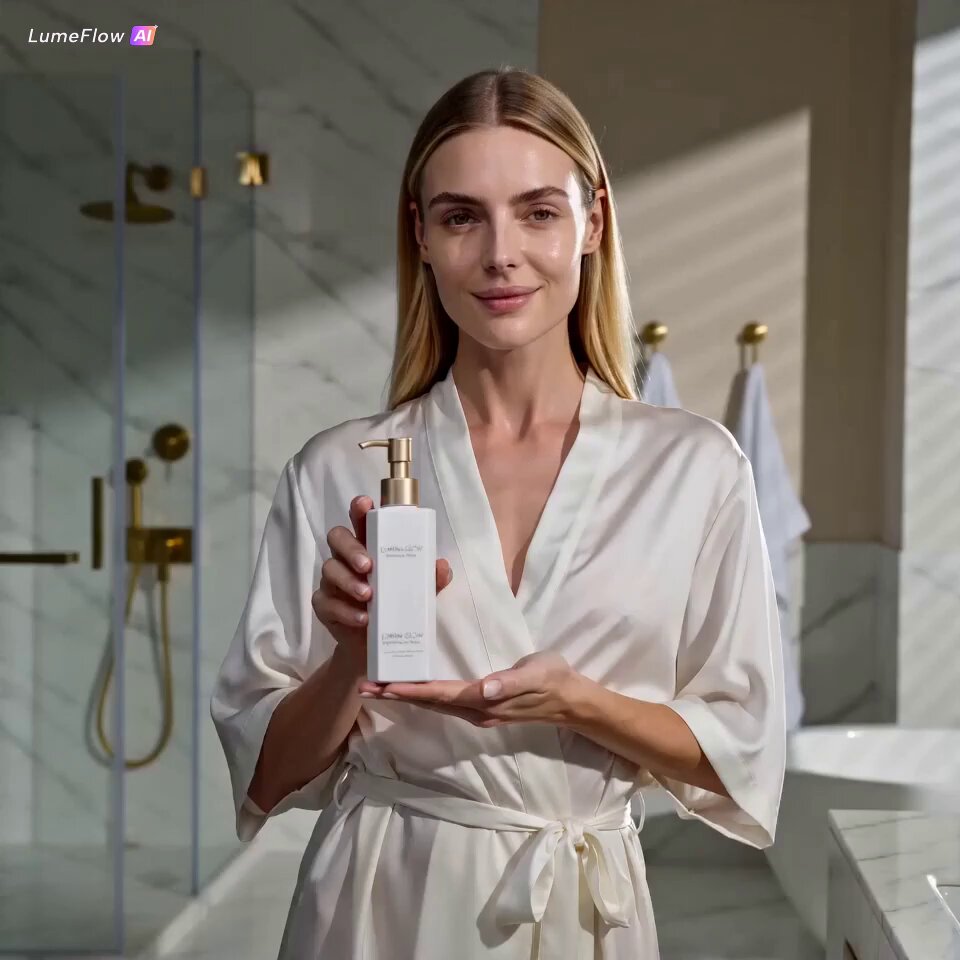
Upload a portrait with a plain or cluttered background, then describe: 'Place the subject in front of a busy city street with buildings, streetlights, and pedestrians in soft focus.'
Expected output
The subject in front of a city street with buildings and light in the background. Review the edited result for scale and lighting consistency.
Product on a Colored Backdrop
Input
Upload a product photo, then describe: 'Place the item centered on a soft pastel pink background with a subtle gradient and no other objects.'
Expected output
The product centered in front of a soft pastel background. Review the edited result to confirm the product edges are clean.
Travel Photo with a Beach
Input
Upload a portrait with a plain background, then describe: 'Add a beach setting with ocean waves, sand, and a clear blue sky in the background.'
Expected output
The person with a beach and ocean added to the background. Review the edited result to ensure the lighting and perspective match.
Replace or add a background to a source image by describing the scene you want, then review the result before using it.
Start with your own image
Use an image you have permission to edit instead of recreating the subject from a text-only description.
Direct the changes
State the framing, background, and style you want, then compare the result with the original image.
Choose before you use it
Review the edited image for likeness, context, and crop before downloading or posting it.
How It Works
1
Upload the image you want to refine
Start with an image you have the right to edit.
2
Describe the profile-picture changes you want
Keep the requested edits specific so the intended profile look is clear.
3
Generate, compare, and download
Review the output for likeness, accuracy, and the final profile crop before using it.
Making a profile-picture edit that stays clear
A clear source image and a focused edit request make it easier to judge the result.
Input Constraints
Only upload images you have permission to edit and use.
Keep the requested changes focused on the profile-picture outcome you need.
Review the final image for likeness and context before sharing it.
Practical Tips
Use a source image with a visible face and enough detail around the subject.
Ask for one or two concrete changes, such as a neutral background or a square crop.
Compare the result with the original image before choosing a version to use.
Privacy
Do not upload personal or sensitive material unless you have permission to use it.
Usage Rights
Confirm that you have the rights needed for the inputs and intended use of the result.
Prompt recipes
Copy a structure, then adjust the subject, lighting, camera, and output details for your own result.
Place Portrait in Urban Street Scene
Upload a portrait with a plain or cluttered background, then describe: 'Place the subject in front of a busy city street at dusk with blurred buildings, streetlights, and a few pedestrians in the distance.'
An urban background adds context and visual interest to portraits, making them suitable for creative portfolios, social media, or storytelling projects.
Product on Soft Gradient Background
Upload a product photo, then describe: 'Isolate the product and place it on a soft pastel gradient background with smooth color transition from light pink to cream.'
A gradient background keeps the focus on the product while adding subtle visual appeal, ideal for e-commerce or marketing materials.
Travel Portrait with Beach Setting
Upload a portrait with a plain background, then describe: 'Add a tropical beach setting with clear blue sky, ocean waves, white sand, and palm trees in the distance.'
A beach background creates a vacation or travel mood, enhancing personal photos for social media or travel blogs.
Office Portrait with Modern Interior
Upload a headshot with a cluttered background, then describe: 'Replace the background with a modern office interior featuring soft neutral tones, blurred bookshelves, and natural light from a window.'
An office setting adds professionalism and context, making the portrait suitable for LinkedIn, company websites, or business communications.
Nature Background for Outdoor Product
Upload a product photo, then describe: 'Place the item in a natural outdoor setting with grass, wildflowers, and soft daylight in the background.'
A nature background emphasizes organic or outdoor product qualities, appealing to eco-conscious audiences and lifestyle branding.
Studio Background with Colored Sweep
Upload a portrait, then describe: 'Replace the background with a clean studio sweep in sage green, with soft shadows and professional lighting.'
A colored studio sweep creates a professional yet distinctive look, suitable for creative portfolios, branding, or social profiles.
Best use cases
Match the workflow to the input you have and the result you need before opening the generator.
Use case
Best input
Expected result
Tool
You want to add context or mood to a portrait by placing it in an urban or creative setting.
A clear portrait with a plain or cluttered background and good subject lighting.
The same portrait placed in a city street, modern interior, or other described setting.
Image to Image
You need product images with consistent colored or gradient backgrounds.
Product photos with the item clearly visible, even if the original background is messy.
Clean product shots on colored or gradient backgrounds with professional presentation.
Image to Image
You want to create travel or lifestyle photos with specific scenic backgrounds.
A portrait with decent lighting and a visible subject, even if the original background is plain.
The same portrait placed in a beach, mountain, or other described outdoor setting.
Image to Image
You need professional headshots with office or studio backgrounds.
A clear headshot or portrait, even if the original background is cluttered or distracting.
The same portrait with a modern office interior or clean studio background.
Image to Image
You want to add context or mood to a portrait by placing it in an urban or creative setting.
Input: A clear portrait with a plain or cluttered background and good subject lighting.
Result: The same portrait placed in a city street, modern interior, or other described setting.
Tool: Image to Image
You need product images with consistent colored or gradient backgrounds.
Input: Product photos with the item clearly visible, even if the original background is messy.
Result: Clean product shots on colored or gradient backgrounds with professional presentation.
Tool: Image to Image
You want to create travel or lifestyle photos with specific scenic backgrounds.
Input: A portrait with decent lighting and a visible subject, even if the original background is plain.
Result: The same portrait placed in a beach, mountain, or other described outdoor setting.
Tool: Image to Image
You need professional headshots with office or studio backgrounds.
Input: A clear headshot or portrait, even if the original background is cluttered or distracting.
Result: The same portrait with a modern office interior or clean studio background.
Tool: Image to Image
Limitations to know before generating
The edited image is a generated variation that combines your subject with a new background, not a precise photographic composite.
Lighting, perspective, and scale consistency between the subject and new background depend on the quality of your source image and description.
Complex or highly detailed backgrounds may not render perfectly and may require iteration.
Generated results may include visual artifacts, edge inconsistencies, or unexpected interpretations of your background description.
You are responsible for confirming you have the rights to edit and use both the source image and the generated result.
Creative Suite: AI Video Generator & AI Image Generator Tools
Power up your creative workflow with our AI-driven tools. Generate stunning videos, create images, and apply custom adjustments - our AI Video Generator and AI Image Generator offer a complete solution for all your creative needs.