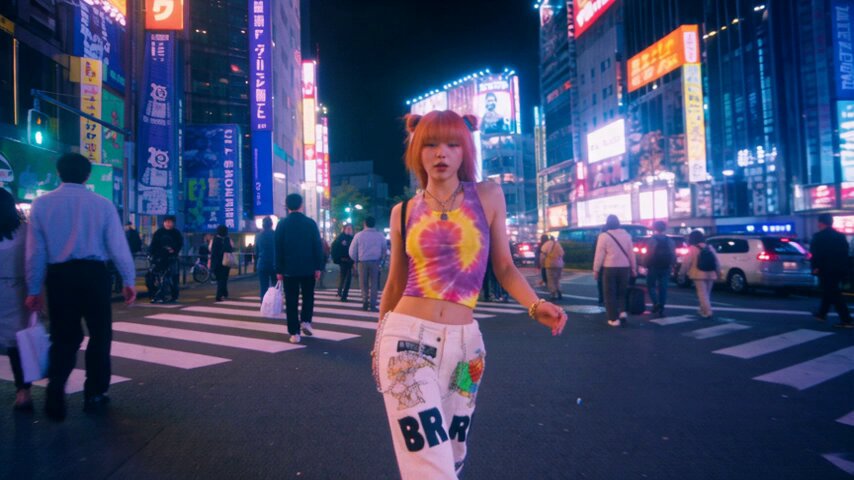
How do I change hair color to black with an AI photo editor?
Upload a portrait photo and describe the black hair shade you want—such as 'natural black with subtle highlights' or 'deep glossy black'—then generate and review the result. The tool applies the black hair color while preserving the face, lighting, and background, letting you compare the output with the original before downloading.
AI Photo Editor Change Hair Color to Black
Natural black for a portrait
Input
Upload a portrait and write 'change the hair to natural black with subtle highlights, keep the face and skin tone unchanged'
Expected output
A portrait with natural black hair and soft highlights, original facial features and lighting preserved
Deep glossy black for a selfie
Input
Upload a selfie and write 'change the hair to deep glossy black, maintain the original lighting and background'
Expected output
A selfie with rich, shiny black hair and the same lighting and framing
Match a reference look
Input
Upload a photo and write 'change the hair to black with a cool undertone, keep the background and pose the same'
Expected output
A photo with cool-toned black hair that fits naturally with the original scene
Change the hair color in a portrait to black by describing the shade, then review the result for accuracy.
Preview black hair before committing
Test how black hair looks on your photo without dyeing your hair or scheduling a salon visit.
Describe the shade in plain language
Skip manual color editing; just describe the black tone you want and review the result.
Work from your own photo
Start with an existing portrait you own rather than searching for reference images or filters.
How It Works
1
Upload the image you want to refine
Start with an image you have the right to edit.
2
Describe the profile-picture changes you want
Keep the requested edits specific so the intended profile look is clear.
3
Generate, compare, and download
Review the output for likeness, accuracy, and the final profile crop before using it.
Getting accurate black hair color
A well-lit portrait with visible hair and a specific shade description help the tool produce a recolored version you can confidently review.
Input Constraints
Only upload images you have permission to edit and use.
Keep the requested changes focused on the profile-picture outcome you need.
Review the final image for likeness and context before sharing it.
Practical Tips
Use a portrait with clear, well-lit hair for the most accurate color change.
Describe the black shade specifically—such as 'natural black,' 'deep glossy black,' or 'cool-toned black.'
Compare the recolored version with the original to ensure the change looks natural.
Privacy
Do not upload personal or sensitive material unless you have permission to use it.
Usage Rights
Confirm that you have the rights needed for the inputs and intended use of the result.
Prompt recipes
Copy a structure, then adjust the subject, lighting, camera, and output details for your own result.
Natural black with subtle warmth
Upload a portrait and write 'change the hair to natural black with subtle warm highlights, keep the face and lighting natural'
Warm highlights add dimension to black hair and make the color look more natural under most lighting.
Deep glossy black
Upload a portrait and write 'change the hair to deep glossy black with a high-shine finish, maintain the original pose and background'
Glossy black hair looks polished and healthy, ideal for formal or professional portraits.
Cool-toned black for contrast
Upload a portrait and write 'change the hair to black with a cool blue undertone, keep the skin tone and lighting unchanged'
Cool-toned black creates striking contrast with warm skin tones and is popular for edgy or artistic looks.
Matte black for a subtle look
Upload a portrait and write 'change the hair to matte black with minimal shine, fit the natural lighting'
Matte black is understated and works well in casual or everyday portraits.
Black with soft highlights
Upload a portrait and write 'change the hair to black with soft subtle highlights near the face, blend naturally'
Highlights around the face add dimension and make black hair look less flat.
Best use cases
Match the workflow to the input you have and the result you need before opening the generator.
Use case
Best input
Expected result
Tool
Preview black hair on your photo
A clear portrait with well-lit, visible hair
A recolored version showing how black hair looks with your features and lighting
Image to Image
Test salon options before booking
A portrait taken in natural light with a simple background
A version with black hair, helping you decide whether to request the color at the salon
Image to Image
Match a reference or character look
A portrait where you want to preview black hair for a specific style or costume
A stylized version with black hair that matches your reference or character vision
Image to Image
Preview black hair on your photo
Input: A clear portrait with well-lit, visible hair
Result: A recolored version showing how black hair looks with your features and lighting
Tool: Image to Image
Test salon options before booking
Input: A portrait taken in natural light with a simple background
Result: A version with black hair, helping you decide whether to request the color at the salon
Tool: Image to Image
Match a reference or character look
Input: A portrait where you want to preview black hair for a specific style or costume
Result: A stylized version with black hair that matches your reference or character vision
Tool: Image to Image
Limitations to know before generating
Black hair color accuracy depends on the clarity and lighting of the source photo; complex hairstyles or shadows may produce uneven results.
The tool aims to preserve natural-looking highlights and shine, but extreme lighting conditions may affect the final appearance.
Always review the output to ensure the black shade blends naturally with the face and lighting.
This tool is not a substitute for professional color consultation; use it as a preview, not a guarantee of real-world results.
You remain responsible for verifying that you have the rights to edit and use both the source and recolored versions.
Creative Suite: AI Video Generator & AI Image Generator Tools
Power up your creative workflow with our AI-driven tools. Generate stunning videos, create images, and apply custom adjustments - our AI Video Generator and AI Image Generator offer a complete solution for all your creative needs.