
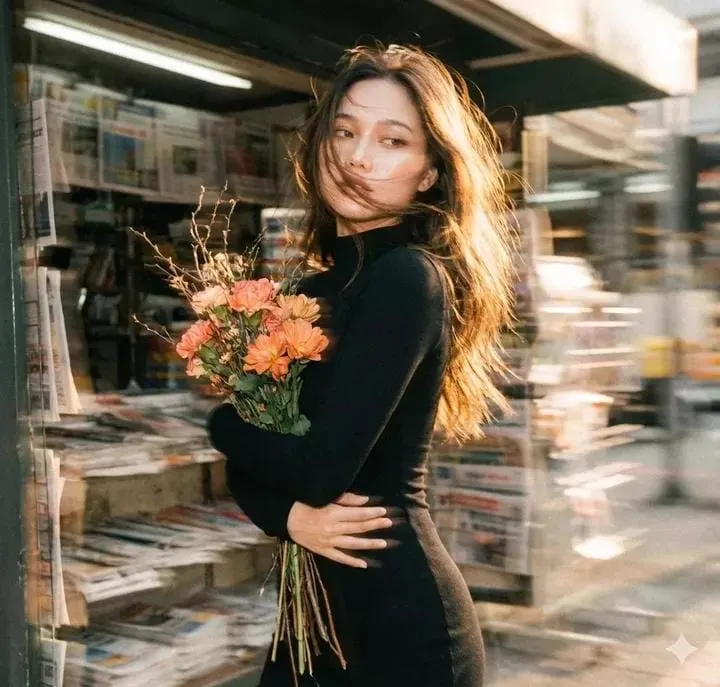
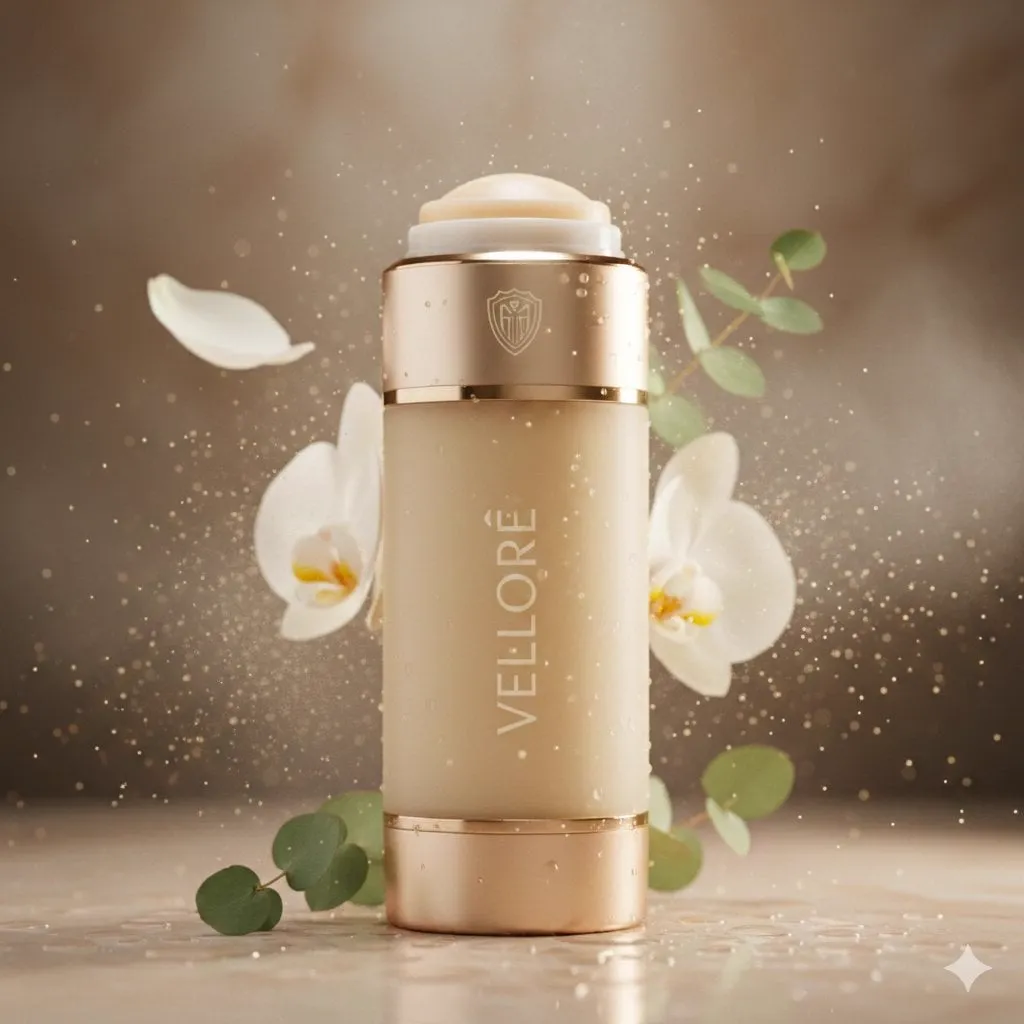
Person in new scene
Input
Upload a portrait and describe placing the person on a beach with natural afternoon light.
Expected output
The person positioned naturally in the beach scene with consistent lighting and shadow direction.
Use ai photo editor combine two photos to upload a source image, describe how to blend elements from a second photo, and review the merged result before you.
Loading...
An AI photo editor combines two photos by letting you upload a source image and describe how to integrate a subject, object, or scene from a second photo. The tool generates a merged image with adjusted lighting and perspective, which you review before downloading.
Input
Upload a portrait and describe placing the person on a beach with natural afternoon light.
Expected output
The person positioned naturally in the beach scene with consistent lighting and shadow direction.
Input
Upload a room photo and ask to add a vase from a second image onto the table with matching perspective.
Expected output
The vase placed on the table with scale and lighting adjusted to match the room.
Input
Upload two overlapping mountain views and request a single wide panoramic composition.
Expected output
The two scenes blended into one panorama with smooth transitions and consistent sky color.
Use photos you already have instead of recreating the composition from a text-only prompt.
Describe which elements to combine, where they should appear, and how the lighting should match.
Compare the merged image with your sources before deciding whether it works for your purpose.
Start with an image you have the right to edit.
Keep the requested edits specific so the intended profile look is clear.
Review the output for likeness, accuracy, and the final profile crop before using it.
Starting with images that have similar lighting and perspective makes it easier to produce a believable merge.
Copy a structure, then adjust the subject, lighting, camera, and output details for your own result.
Take this portrait and place the person on the right side of the group photo at the picnic table, matching the outdoor midday light.
Specifies the subject, position, context, and lighting to guide a natural addition to the existing scene.
Add this sneaker to the left of the desk setup photo, positioned on the wood surface with the same window light from above.
Describes the product, placement, surface, and light direction for a cohesive lifestyle composition.
Combine these two overlapping forest trail photos into one wide image with a smooth transition at the tree line.
Defines the content, overlap area, and blend requirement for a seamless panorama.
Place this dog photo in the center foreground of the family portrait, sitting on the grass with the same afternoon sunlight.
Specifies subject, position, surface, and lighting to integrate the pet naturally into the group scene.
Take the vase from this studio shot and place it on the kitchen counter in the second image, matching the warm indoor lighting.
Identifies the object, target location, and lighting style to guide a believable transfer between scenes.
Match the workflow to the input you have and the result you need before opening the generator.
Input: A clear portrait and a group photo with similar lighting
Result: The person integrated naturally into the group with matching perspective
Tool: Image to Image with subject placement description
Input: High-resolution product shot and lifestyle scene photo
Result: Product placed on the surface with lighting and shadows matching the scene
Tool: Image to Image with product positioning prompt
Input: Two landscape photos with a clear overlap area
Result: Wide panoramic view with smooth blending at the transition
Tool: Image to Image with panorama merge instructions
Input: Subject photo with clean background and destination scene
Result: Subject placed in the new environment with adjusted lighting and scale
Tool: Image to Image with environment transfer prompt
Power up your creative workflow with our AI-driven tools. Generate stunning videos, create images, and apply custom adjustments - our AI Video Generator and AI Image Generator offer a complete solution for all your creative needs.
Choose the credit package that works best for you.
No hidden fees • Cancel anytime • Unused credits roll over
Perfect for trying out AI creation.
Credits
2,400 credits per year
$59.99/year billed yearly
You save $60 · the equivalent of 6 months free
What's included
Perfect for light creators.
Credits
6,000 credits per year
$119.99/year billed yearly
You save $120 · the equivalent of 6 months free
What's included
Best value for creators.
Credits
14,400 credits per year
$399.99/year billed yearly.
Save $80 compared to monthly
What's included
For video creators and power users.
Credits
60,000 credits per year
$999.99/year billed yearly.
Save $200 compared to monthly
What's included
Questions? Contact us at support@domer.io
Open Image to Image, upload your primary image, describe the combination, and review the result before you use it.





