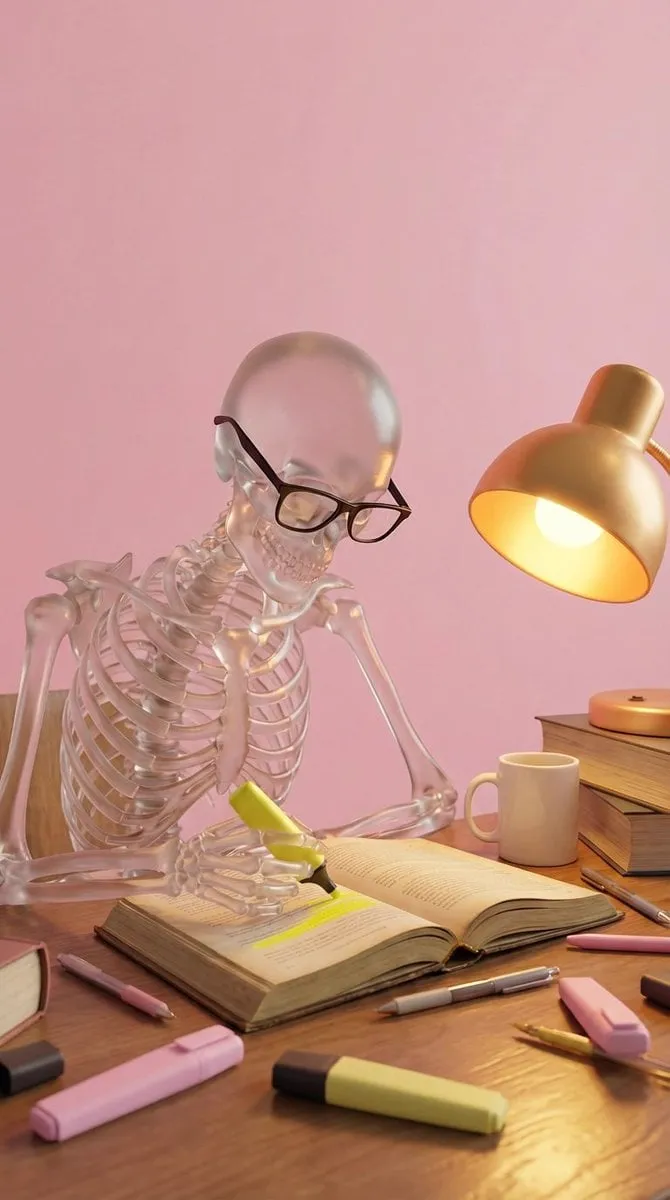
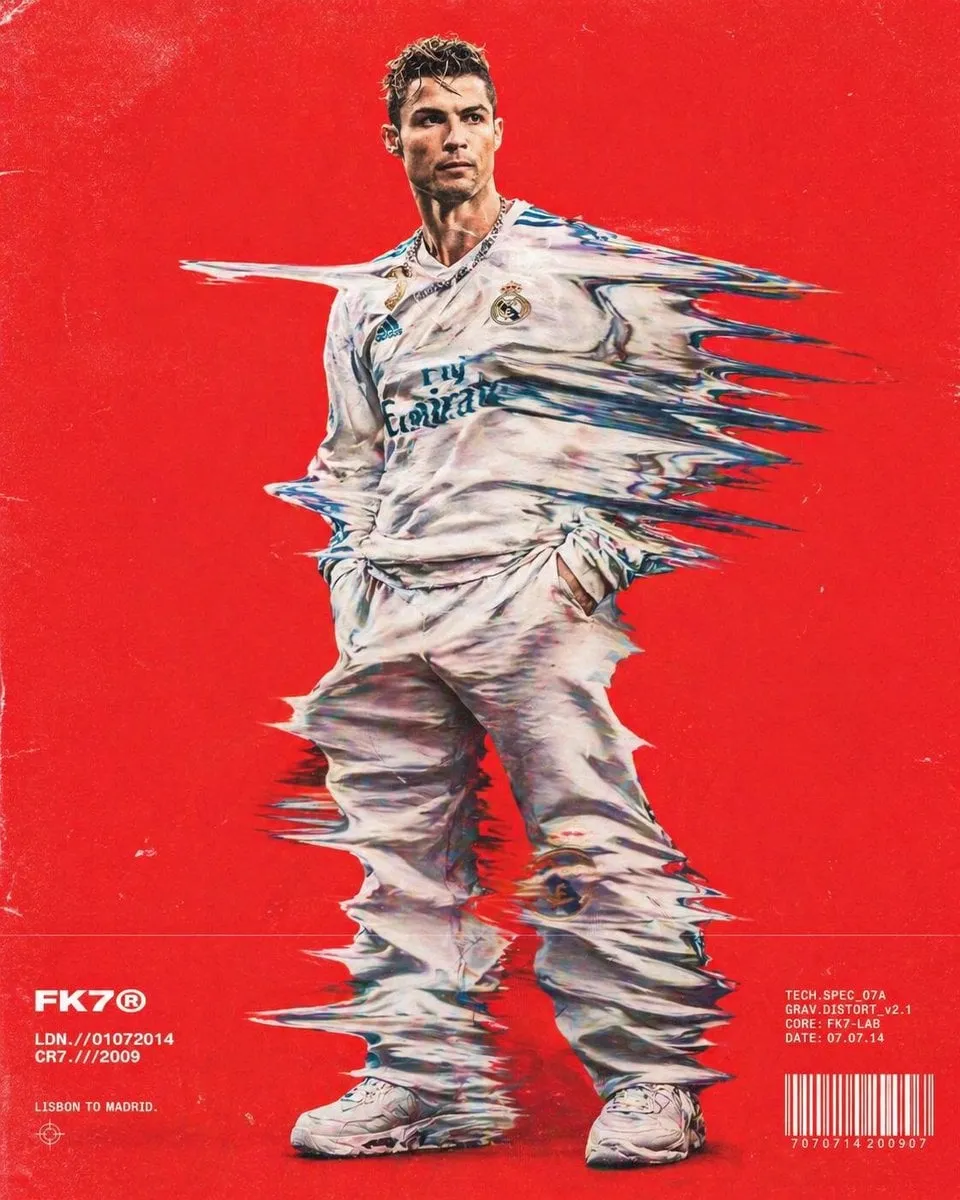
How do I edit a photo starting from another photo?
Upload a photo you own to the Image to Image tool, describe the style, season, mood, or background transformation you want, and review the changed version before saving. Starting from an existing photo lets you keep the composition while changing the visual look.
AI Photo Editor from Photo: Change the Look
Street scene to illustration
Input
Upload a street photo and ask for a graphic illustration style with bold outlines, flat colors, and simplified details.
Expected output
A graphic illustration version of the street scene. Compare the style with your original photo.
Summer park to winter
Input
Upload a summer park scene and request a winter transformation with snow, bare trees, and cool blue tones.
Expected output
The same park shown in winter with snow and cool tones. Review the seasonal details before using it.
Minimalist room
Input
Upload a room photo and ask for a minimalist style with neutral tones, simplified furniture, and clean lines.
Expected output
The room shown in a minimalist style. Compare the simplification with your original composition.
Transform photos by uploading an existing image and describing the visual changes you want
Keep the framing
Start with the composition you already have while changing the visual style or mood.
Explore transformations
Try different seasons, styles, or moods without reshooting the scene.
Review before deciding
Compare the transformed version with the original and choose which one fits your intent.
How It Works
1
Upload the image you want to refine
Start with an image you have the right to edit.
2
Describe the profile-picture changes you want
Keep the requested edits specific so the intended profile look is clear.
3
Generate, compare, and download
Review the output for likeness, accuracy, and the final profile crop before using it.
Photo-to-photo transformation guidance
Clear source photos and specific transformation instructions help you achieve the look you want while keeping the original composition recognizable.
Input Constraints
Only upload images you have permission to edit and use.
Keep the requested changes focused on the profile-picture outcome you need.
Review the final image for likeness and context before sharing it.
Practical Tips
Use photos with clear composition where the main subject is visible.
Describe the transformation style, season, or mood separately from smaller details.
Compare transformed outputs with originals to decide which version works best.
Privacy
Do not upload personal or sensitive material unless you have permission to use it.
Usage Rights
Confirm that you have the rights needed for the inputs and intended use of the result.
Prompt recipes
Copy a structure, then adjust the subject, lighting, camera, and output details for your own result.
Street scene illustration transformation
Upload the street photo. Transform it into a graphic illustration with bold black outlines, flat vibrant colors, simplified building details, and a clean vector look.
Combining bold outlines, flat color, and simplified details creates a cohesive illustration style.
Summer park to winter scene
Upload the summer park photo. Change the season to winter by adding snow on the ground and trees, remove leaves, add cool blue-gray tones, and create a crisp cold atmosphere.
Seasonal visual elements combined with color temperature shifts create a believable season transformation.
Room minimalist style shift
Upload the room photo. Transform it into a minimalist style with neutral gray and white tones, simplified furniture shapes, clean lines, and reduced visual clutter.
Color reduction and shape simplification together produce a cohesive minimalist aesthetic.
Nature photo to painting
Upload the landscape. Transform it into an oil painting style with visible brush strokes, rich color saturation, textured details, and a traditional art look.
Brush texture, color richness, and traditional art cues create a painterly feel.
Urban photo cyberpunk transformation
Upload the city street photo. Add neon lights in pink and blue, increase contrast, add a rainy reflective surface, deepen shadows, and create a cyberpunk night atmosphere.
Neon lighting, rain reflections, and high contrast combine to evoke a cyberpunk mood.
Portrait vintage sepia tone
Upload the portrait. Transform it into a vintage sepia-toned photo with reduced saturation, warm brown tones, subtle film grain, soft focus, and a light vignette.
Sepia tone, grain, soft focus, and vignette together produce a cohesive vintage portrait style.
Best use cases
Match the workflow to the input you have and the result you need before opening the generator.
Use case
Best input
Expected result
Tool
Transform a photo into an illustration
Photo with clear composition and distinct subjects
Graphic illustration with bold outlines and flat colors
Image to Image with illustration style instructions
Change a scene's season
Outdoor photo that should show a different season
Same location with seasonal elements like snow or autumn leaves
Image to Image with seasonal transformation request
Apply a minimalist style
Interior or object photo that needs simplification
Simplified version with neutral tones and clean lines
Image to Image with minimalist style instructions
Create a painting from a photo
Photo that should look like a traditional painted artwork
Painterly version with brush strokes and rich color
Image to Image with painting style request
Transform a photo into an illustration
Input: Photo with clear composition and distinct subjects
Result: Graphic illustration with bold outlines and flat colors
Tool: Image to Image with illustration style instructions
Change a scene's season
Input: Outdoor photo that should show a different season
Result: Same location with seasonal elements like snow or autumn leaves
Tool: Image to Image with seasonal transformation request
Apply a minimalist style
Input: Interior or object photo that needs simplification
Result: Simplified version with neutral tones and clean lines
Tool: Image to Image with minimalist style instructions
Create a painting from a photo
Input: Photo that should look like a traditional painted artwork
Result: Painterly version with brush strokes and rich color
Tool: Image to Image with painting style request
Limitations to know before generating
Heavy transformations can change composition details or subject likeness; compare results carefully.
Output quality depends on source resolution; low-res photos may not transform cleanly.
Style transformations are interpretations of your text; achieving a specific look may need iteration.
Complex transformations like season changes work best on outdoor scenes with clear elements.
The tool preserves general composition but may not keep every small detail from the original.
Creative Suite: AI Video Generator & AI Image Generator Tools
Power up your creative workflow with our AI-driven tools. Generate stunning videos, create images, and apply custom adjustments - our AI Video Generator and AI Image Generator offer a complete solution for all your creative needs.