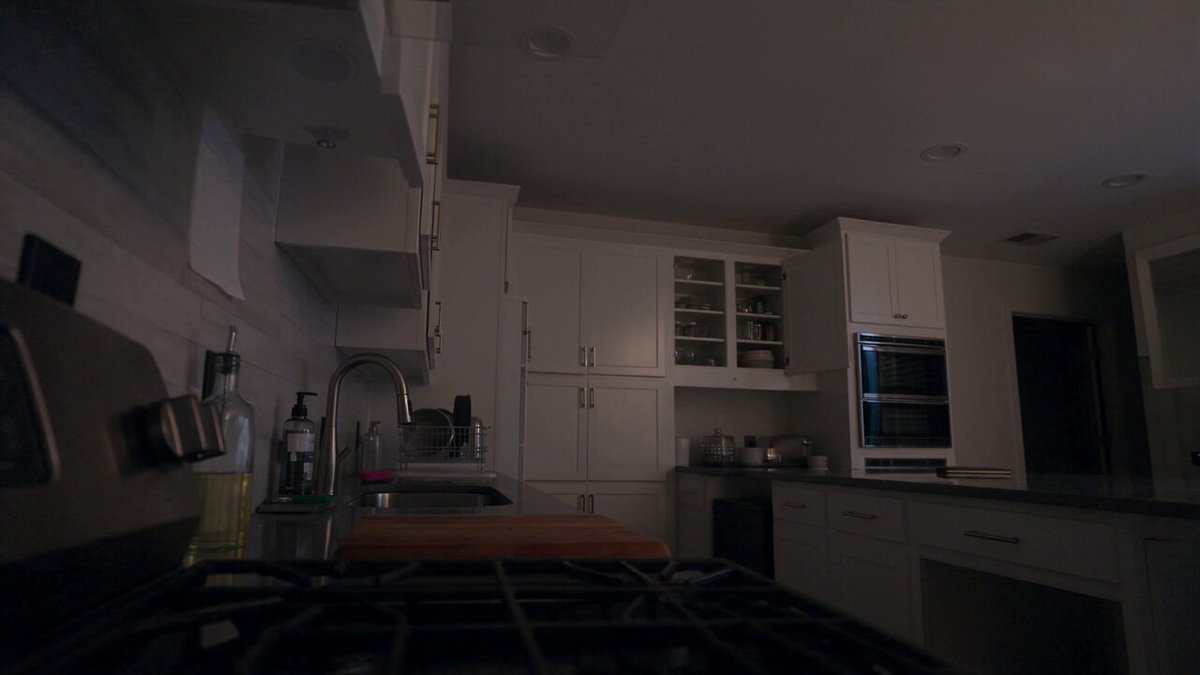
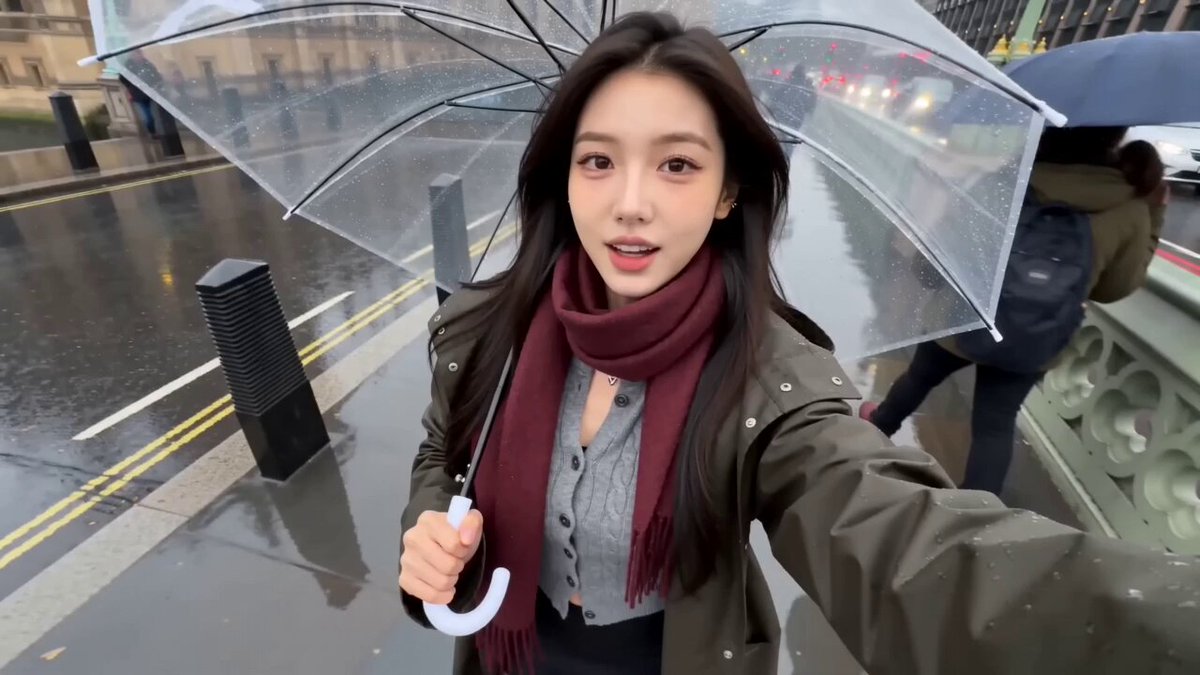
Upload a photo you own to the Image to Image tool, type a description of the lighting, color, background, or object changes you want, and review the edited version before saving. Text instructions let you direct edits without using sliders or manual tools.
AI Photo Editor from Text: Edit by Describing
Evening sky change
Input
Upload a street scene and type: add a deeper blue evening sky with softer cloud shapes and warmer light on buildings.
Expected output
The street with an evening sky and warm light. Compare the sky and lighting with your original.
Tabletop props
Input
Upload a tabletop photo and type: add a notebook and pen beside the cup in a similar style and lighting.
Expected output
The tabletop with added objects. Review the new items for style and lighting match before using it.
Warm tones for a room
Input
Upload a room photo and type: increase warmth across the image, soften shadows, and add a gentle evening glow.
Expected output
The room with warmer tones and softer shadows. Compare the mood with your original photo.
Edit photos by uploading an image and describing changes with text instructions
Direct edits with text
Describe the changes you want instead of using sliders, layers, or manual selection tools.
Start with your photo
Upload an existing image and add or change specific elements without rebuilding the scene.
Review before saving
Compare the edited result with the original and decide which version works better.
How It Works
1
Upload the image you want to refine
Start with an image you have the right to edit.
2
Describe the profile-picture changes you want
Keep the requested edits specific so the intended profile look is clear.
3
Generate, compare, and download
Review the output for likeness, accuracy, and the final profile crop before using it.
Text-based photo editing guidance
Clear source photos and specific text instructions help you get the edits you want without manual tool work.
Input Constraints
Only upload images you have permission to edit and use.
Keep the requested changes focused on the profile-picture outcome you need.
Review the final image for likeness and context before sharing it.
Practical Tips
Use photos where the main subject is clearly visible.
Describe one or two specific changes at a time for clearer results.
Compare edited outputs with originals to see if the text instructions worked as intended.
Privacy
Do not upload personal or sensitive material unless you have permission to use it.
Usage Rights
Confirm that you have the rights needed for the inputs and intended use of the result.
Prompt recipes
Copy a structure, then adjust the subject, lighting, camera, and output details for your own result.
Sky replacement evening mood
Upload the outdoor scene. Replace the sky with a deeper blue evening sky, add soft horizontal clouds, and add warm orange light on the horizon.
Specific sky description with color and lighting detail creates a cohesive atmospheric change.
Add tabletop objects
Upload the table photo. Add a closed notebook and silver pen beside the cup, match the lighting and shadows to the existing scene, and keep the style consistent.
Object description with lighting and style matching instructions helps the added items blend naturally.
Room warmth increase
Upload the room photo. Increase overall warmth by adding golden tones, soften shadows near the window, and add a gentle evening glow from the lamp direction.
Warmth adjustment with directional lighting cues creates a believable time-of-day shift.
Portrait background simplification
Upload the portrait. Simplify the background by reducing detail and clutter, keep the person sharp and unchanged, and add a soft neutral gray backdrop.
Background simplification with subject preservation instructions maintains focus on the person.
Product photo shadow softening
Upload the product shot. Soften the shadows beneath the product, increase brightness slightly, and keep the product sharp and colors accurate.
Shadow and brightness adjustments with color accuracy instruction create a cleaner product presentation.
Landscape contrast boost
Upload the landscape. Increase contrast between the foreground and sky, deepen greens in the grass, brighten highlights in the clouds, and sharpen foreground details.
Targeted contrast and color adjustments enhance visual impact without over-processing.
Best use cases
Match the workflow to the input you have and the result you need before opening the generator.
Use case
Best input
Expected result
Tool
Change the sky in an outdoor photo
Outdoor scene where the sky is visible and clear
New sky with specified color and mood
Image to Image with sky description
Add objects to a scene
Photo with space where new objects should appear
Scene with added objects matching style and lighting
Image to Image with object and placement description
Adjust color and warmth
Photo that needs overall color or temperature shift
Image with adjusted warmth or color tone
Image to Image with color and warmth instructions
Simplify a busy background
Photo where the background distracts from the subject
Subject stays clear while background is simpler
Image to Image with background simplification request
Change the sky in an outdoor photo
Input: Outdoor scene where the sky is visible and clear
Result: New sky with specified color and mood
Tool: Image to Image with sky description
Add objects to a scene
Input: Photo with space where new objects should appear
Result: Scene with added objects matching style and lighting
Tool: Image to Image with object and placement description
Adjust color and warmth
Input: Photo that needs overall color or temperature shift
Result: Image with adjusted warmth or color tone
Tool: Image to Image with color and warmth instructions
Simplify a busy background
Input: Photo where the background distracts from the subject
Result: Subject stays clear while background is simpler
Tool: Image to Image with background simplification request
Limitations to know before generating
The tool interprets your text; vague instructions may produce unexpected results.
Adding complex objects or scenes requires detailed description; results may need iteration.
Background changes work best when the subject is well-separated; complex scenes may show artifacts.
Output quality depends on source resolution; low-res photos may not edit cleanly.
Text-based editing cannot precisely control every pixel; some manual refinement may be needed for final output.
Creative Suite: AI Video Generator & AI Image Generator Tools
Power up your creative workflow with our AI-driven tools. Generate stunning videos, create images, and apply custom adjustments - our AI Video Generator and AI Image Generator offer a complete solution for all your creative needs.