

Turn a snapshot into a stylized portrait
Input
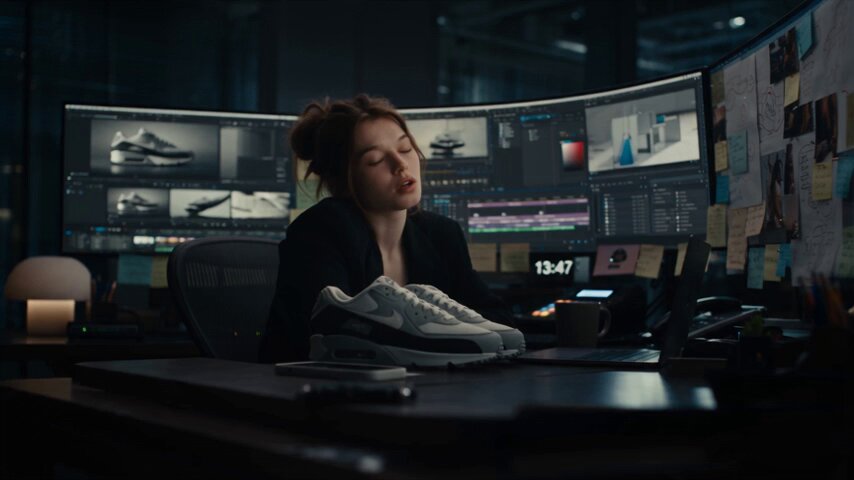
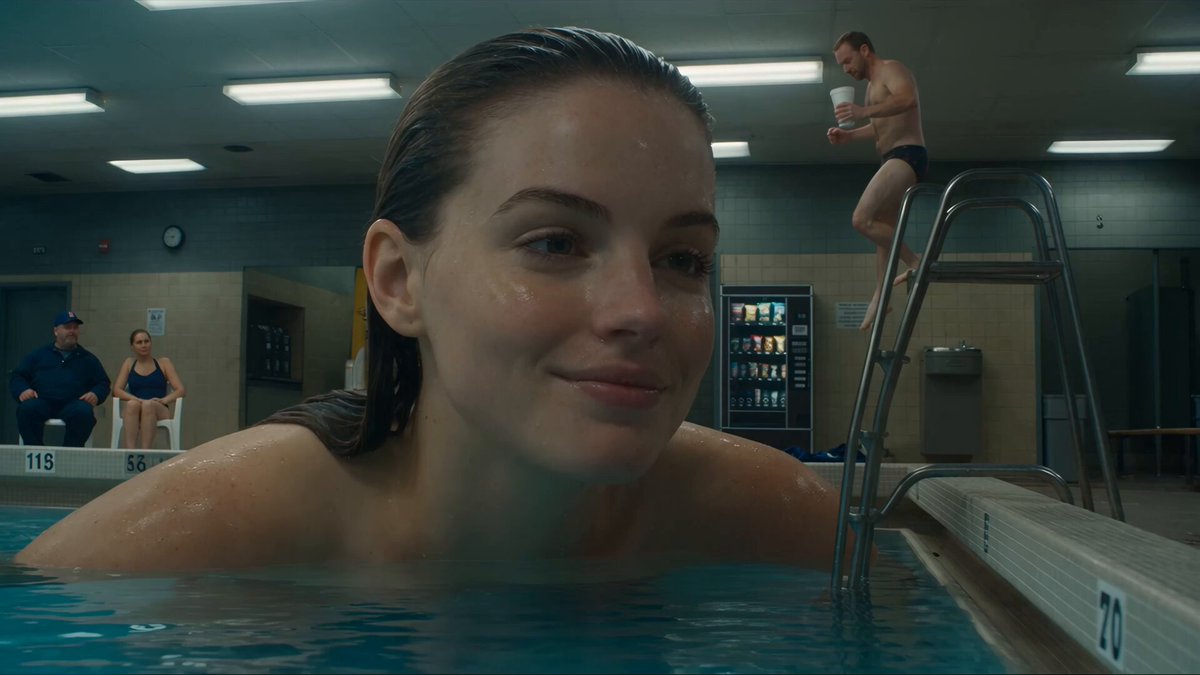
iPhone photo of a friend in casual setting
Expected output
A portrait with a clean, blurred background and enhanced lighting that looks professionally composed.
Use ai photo editor on iphone to upload a photo from your iPhone and make style, color, or composition changes by describing what you want—no app download.
Loading...
Open Image to Image in your iPhone browser, upload a photo from your camera roll, describe the edits you want—such as background changes, style adjustments, or color corrections—then download the result directly to your Photos app.
Input
iPhone photo of a friend in casual setting
Expected output
A portrait with a clean, blurred background and enhanced lighting that looks professionally composed.
Input
Modern iPhone shot of a street scene
Expected output
A vintage-filtered version with faded colors, film grain, and retro tones applied to the same composition.
Input
Dark iPhone photo from a restaurant or indoor event
Expected output
A brighter, color-balanced version with improved lighting and natural tones that reveals detail lost in the original.
Access the editor from Safari or Chrome on your iPhone without downloading, installing, or signing up for another photo app.
Type what you want changed—background, style, color, crop—and let the tool apply the adjustments.
Save the edited image directly to your iPhone camera roll and use it in messages, posts, or other apps right away.
Start with an image you have the right to edit.
Keep the requested edits specific so the intended profile look is clear.
Review the output for likeness, accuracy, and the final profile crop before using it.
A web-based workflow lets you edit iPhone photos by describing changes in plain language and downloading results directly to your device.
Copy a structure, then adjust the subject, lighting, camera, and output details for your own result.
Turn this iPhone photo into a portrait-style image with a sharp subject and a soft, blurred background that isolates the person.
Requests a specific portrait effect, describes the desired focus and background treatment, and works well for photos taken without Portrait mode.
Apply warm sunset tones to this daytime iPhone photo—add golden hour light, soft orange and pink hues in the sky, and warmer overall color temperature.
Specifies color and light direction, describes the mood transformation clearly, and gives concrete details about sky and temperature.
Keep my face and pose exactly as they are but simplify the cluttered background into a clean, neutral backdrop with soft focus.
Protects the subject from changes, clearly targets the background for cleanup, and requests a specific aesthetic outcome.
Convert this iPhone photo into a black-and-white hand-drawn sketch with pencil-like line work and shading, keeping the main subject recognizable.
Defines a clear artistic style, specifies the visual treatment, and ensures the subject remains identifiable after transformation.
Brighten this dim indoor iPhone photo, correct the yellow artificial lighting to natural white balance, and enhance detail without over-exposing highlights.
Names the lighting problem, requests specific color correction, and sets a quality constraint to avoid artificial over-processing.
Match the workflow to the input you have and the result you need before opening the generator.
Input: Recent iPhone photo with good composition but needing style or color tweaks
Result: A polished, share-ready image with improved lighting, background, or aesthetic that matches platform expectations
Tool: Image to Image with style or color correction prompt
Input: Casual iPhone photo of people, pets, or scenes
Result: An artistic or stylized version—such as cartoon, sketch, or vintage—that transforms the original into something more creative
Tool: Image to Image with style transformation prompt
Input: Dark, yellow-lit, or low-contrast iPhone photo
Result: A brighter, color-corrected version with improved detail and natural tones suitable for use or sharing
Tool: Image to Image with brightness and color correction prompt
Input: iPhone selfie or portrait with decent framing
Result: A clean, professional-looking profile picture with background simplification and flattering adjustments
Tool: Image to Image with portrait enhancement and background cleanup prompt
Power up your creative workflow with our AI-driven tools. Generate stunning videos, create images, and apply custom adjustments - our AI Video Generator and AI Image Generator offer a complete solution for all your creative needs.
Choose the credit package that works best for you.
No hidden fees • Cancel anytime • Unused credits roll over
Perfect for trying out AI creation.
Credits
2,400 credits per year
$59.99/year billed yearly
You save $60 · the equivalent of 6 months free
What's included
Perfect for light creators.
Credits
6,000 credits per year
$119.99/year billed yearly
You save $120 · the equivalent of 6 months free
What's included
Best value for creators.
Credits
14,400 credits per year
$399.99/year billed yearly.
Save $80 compared to monthly
What's included
For video creators and power users.
Credits
60,000 credits per year
$999.99/year billed yearly.
Save $200 compared to monthly
What's included
Questions? Contact us at support@domer.io
Open Image to Image in your iPhone browser, upload a photo, describe the changes you want, and download the edited result to your Photos app.





