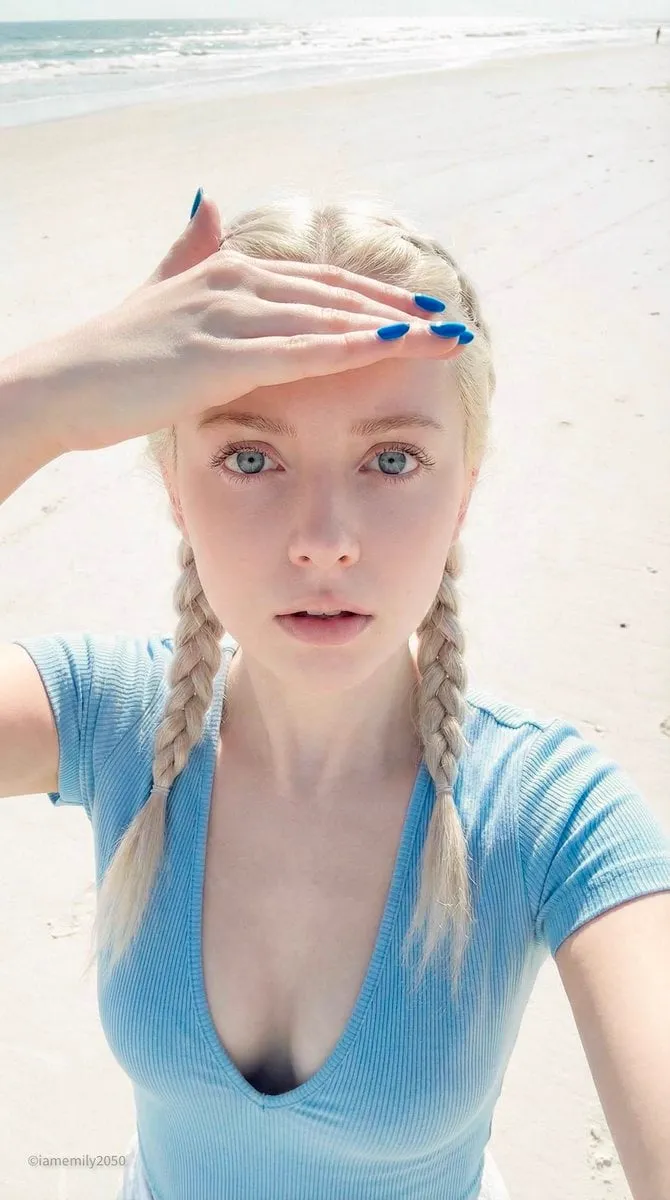
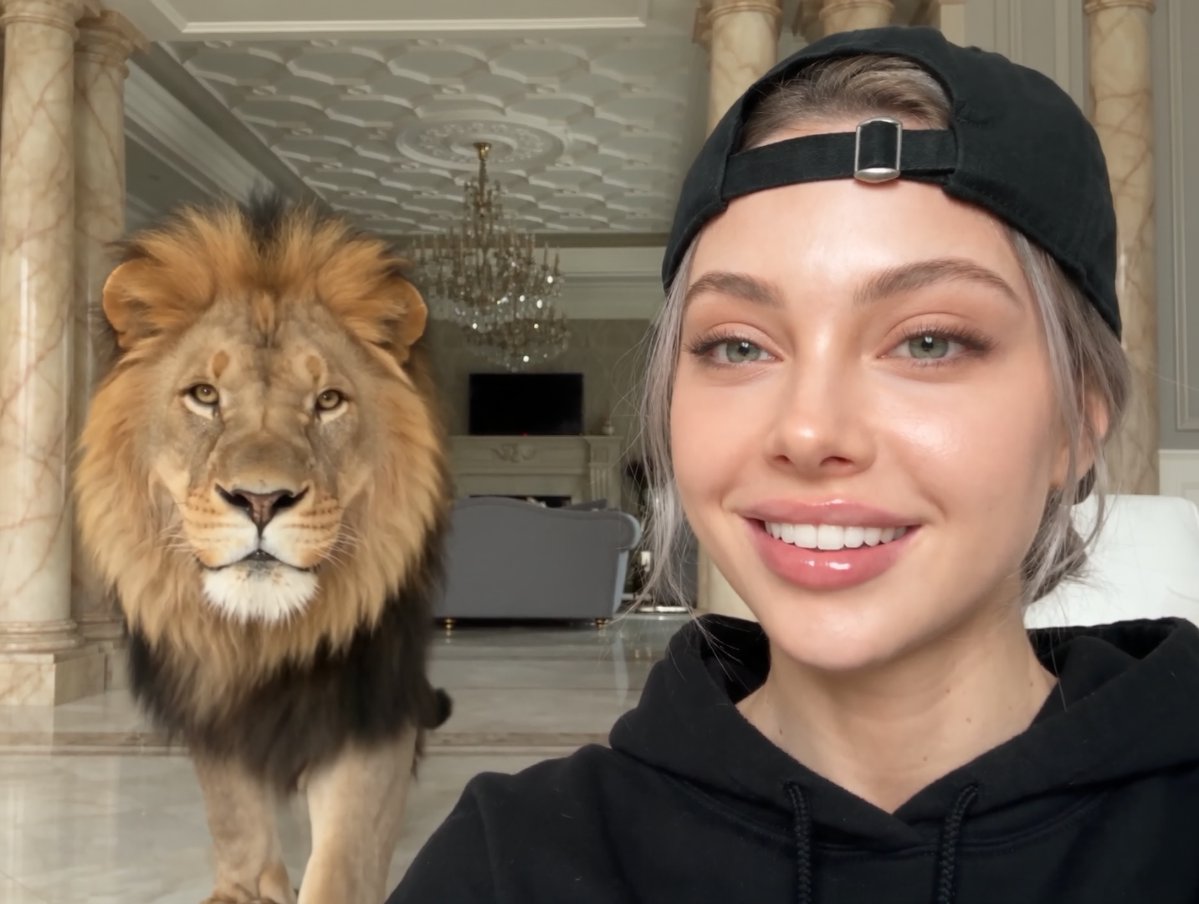
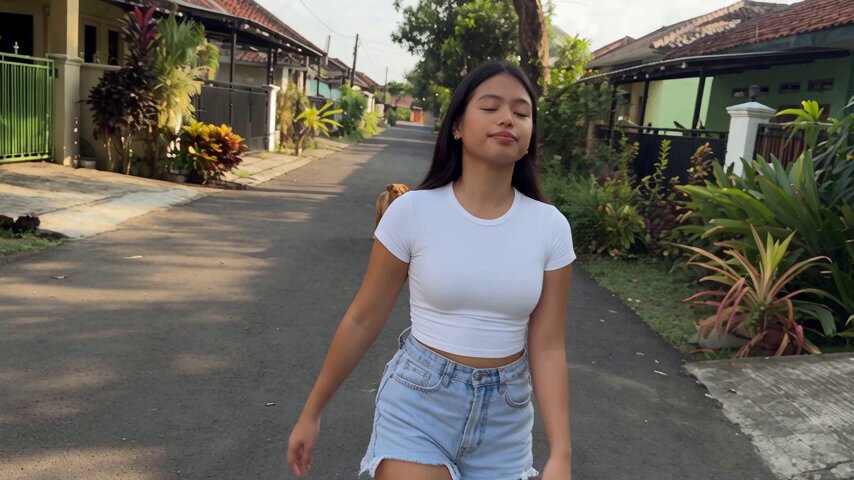
An AI photo editor for portraits accepts your uploaded image, applies the lighting, background, or framing adjustments you describe, and generates a result you can review to ensure the subject remains recognizable and the composition meets your needs.
AI Photo Editor Portrait
Softer window light
Input
Upload a portrait you own, then request softer side lighting and smoother shadows on the face for a profile picture.
Expected output
The same portrait with gentler lighting and reduced shadow contrast. Review whether the face remains clear and natural.
Plain backdrop
Input
Upload a portrait with a busy background, then ask for a plain neutral background while keeping the subject sharp and well-lit.
Expected output
The subject isolated on a clean background with consistent lighting. Check that the edges and details are accurate.
Natural color balance
Input
Upload a group portrait you can edit, then request more even skin tones and slightly brighter faces while keeping everyone recognizable.
Expected output
A version with balanced color and improved brightness on faces. Compare with the original to confirm likeness.
Upload a portrait image, request edits for lighting, background, or framing, and review the result before saving it.
Start with your own image
Use an image you have permission to edit instead of recreating the subject from a text-only description.
Direct the changes
State the framing, background, and style you want, then compare the result with the original image.
Choose before you use it
Review the edited image for likeness, context, and crop before downloading or posting it.
How It Works
1
Upload the image you want to refine
Start with an image you have the right to edit.
2
Describe the profile-picture changes you want
Keep the requested edits specific so the intended profile look is clear.
3
Generate, compare, and download
Review the output for likeness, accuracy, and the final profile crop before using it.
Making a profile-picture edit that stays clear
A clear source image and a focused edit request make it easier to judge the result.
Input Constraints
Only upload images you have permission to edit and use.
Keep the requested changes focused on the profile-picture outcome you need.
Review the final image for likeness and context before sharing it.
Practical Tips
Use a source image with a visible face and enough detail around the subject.
Ask for one or two concrete changes, such as a neutral background or a square crop.
Compare the result with the original image before choosing a version to use.
Privacy
Do not upload personal or sensitive material unless you have permission to use it.
Usage Rights
Confirm that you have the rights needed for the inputs and intended use of the result.
Prompt recipes
Copy a structure, then adjust the subject, lighting, camera, and output details for your own result.
Studio-style portrait from home photo
Upload a home portrait you own, then request studio-style lighting with a soft fill, a neutral gray background, and slight skin smoothing for a professional headshot.
Studio lighting and a neutral background create a polished look suitable for business profiles without requiring a studio session.
Outdoor portrait with natural warmth
Upload an outdoor portrait, then ask for warmer color tones, enhanced natural light, and a blurred green background to emphasize the subject.
Warming the tones and blurring the background adds emotional appeal and draws the eye to the face.
Remove distracting background elements
Upload a portrait with a cluttered background, then request the background simplified to a solid color while keeping the subject sharp and centered.
Simplifying the background removes distractions and ensures the subject is the focus in profile thumbnails.
Group photo individual spotlight
Upload a group photo where you appear, then request one person highlighted with the rest of the group softly blurred and the lighting adjusted to center attention.
Highlighting one subject while keeping group context visible creates a personal profile image that still shows social connection.
Black and white portrait refinement
Upload a color portrait you can edit, then request a black and white conversion with increased contrast, sharper facial details, and a plain dark background.
Black and white with high contrast emphasizes facial structure and removes color distractions, creating a timeless look.
Best use cases
Match the workflow to the input you have and the result you need before opening the generator.
Use case
Best input
Expected result
Tool
Professional headshot
A clear portrait with your face visible and permission to edit.
A polished version with studio-style lighting and a neutral background suitable for LinkedIn or business cards.
Image to Image
Social media profile photo
A casual portrait you own with good lighting and a simple background.
An edited version with improved lighting, color balance, or background that fits profile frame requirements.
Image to Image
Personal portrait refresh
An older portrait you want to update with modern style or better lighting.
A refreshed version with current style treatments while keeping the original likeness intact.
Image to Image
Professional headshot
Input: A clear portrait with your face visible and permission to edit.
Result: A polished version with studio-style lighting and a neutral background suitable for LinkedIn or business cards.
Tool: Image to Image
Social media profile photo
Input: A casual portrait you own with good lighting and a simple background.
Result: An edited version with improved lighting, color balance, or background that fits profile frame requirements.
Tool: Image to Image
Personal portrait refresh
Input: An older portrait you want to update with modern style or better lighting.
Result: A refreshed version with current style treatments while keeping the original likeness intact.
Tool: Image to Image
Limitations to know before generating
Portrait edits depend on the quality of your source image; blurry or poorly composed photos may produce unsatisfactory results.
Facial likeness is not guaranteed; always review the output to confirm the subject is still recognizable.
Lighting and background changes are interpretive; the result may differ from your expectation.
You are responsible for ensuring you have permission to edit the portrait and use the result.
Generated portraits may not meet all professional or commercial requirements; verify suitability for your intended use.
Creative Suite: AI Video Generator & AI Image Generator Tools
Power up your creative workflow with our AI-driven tools. Generate stunning videos, create images, and apply custom adjustments - our AI Video Generator and AI Image Generator offer a complete solution for all your creative needs.