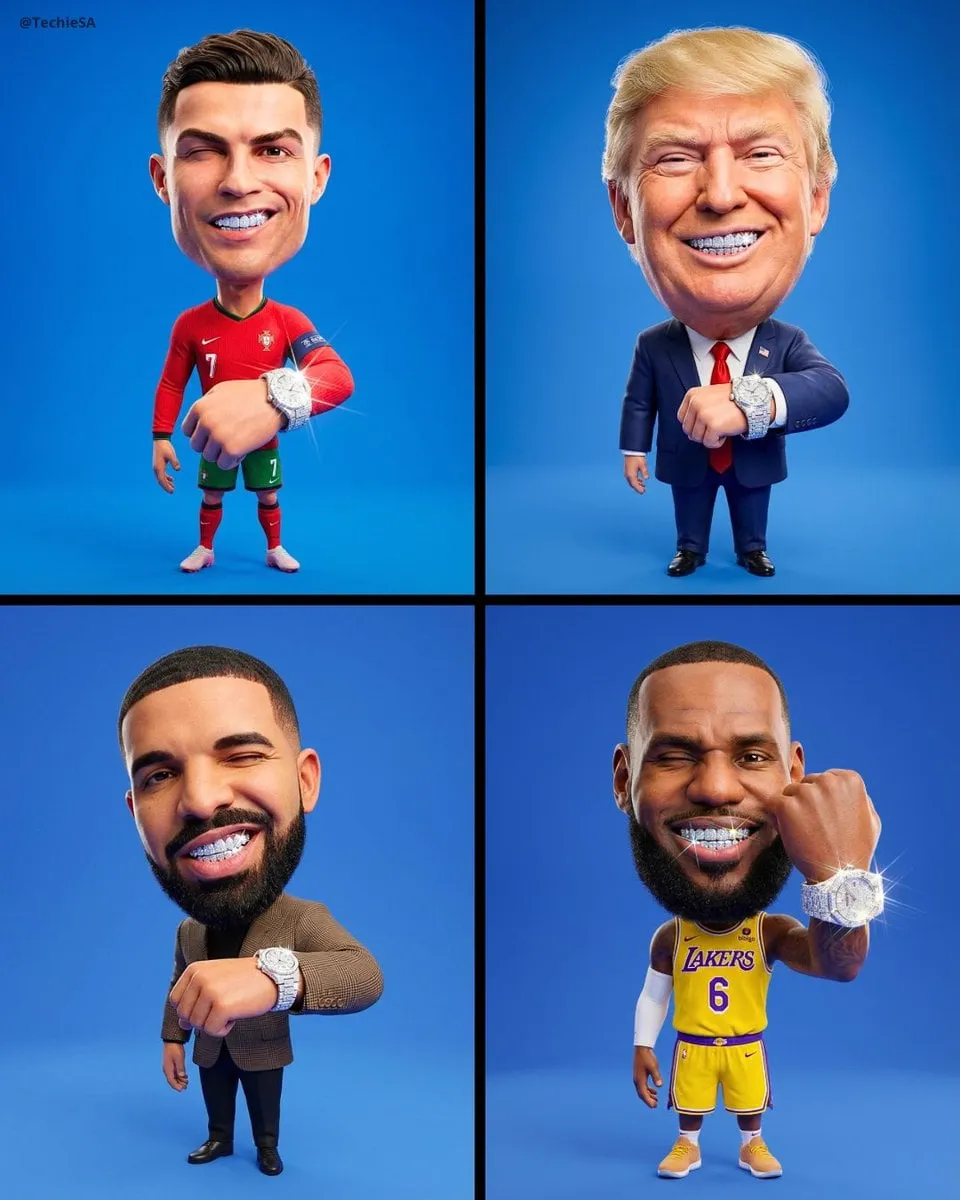
Upload your sketch, describe the framing, background, and finish you need, and generate a colored or styled version. Review the result for likeness and composition before using it for your profile or project.
AI Photo Editor Sketch to Finished Image
Finish a character sketch
Input
Upload a pencil sketch of a character, then ask for digital coloring with a fantasy background and soft lighting.
Expected output
A colored digital illustration based on the sketch. Review the edited result before deciding whether it represents the subject accurately.
Turn a rough idea into a scene
Input
Upload a quick forest layout sketch, then request a finished watercolor scene with trees, shadows, and a path.
Expected output
A finished forest scene built from the sketch. Review the edited result before deciding whether it represents the subject accurately.
Clean up a concept drawing
Input
Upload a product concept sketch, then ask for a studio-style rendering with clean lines and white background.
Expected output
A studio-style product image based on the concept. Review the edited result before deciding whether it represents the subject accurately.
Refine a sketch into a finished profile-ready image by uploading the source, describing the edits you need, and reviewing the result before you use it.
Start with your own sketch
Use a sketch you have permission to edit instead of recreating the subject from a text-only description.
Direct the finish and style
State the coloring, background, and level of detail you want, then compare the result with the original sketch.
Choose before you use it
Review the edited image for likeness, context, and finish before downloading or posting it.
How It Works
1
Upload the sketch you want to refine
Start with an image you have the right to edit.
2
Describe the finish and style you want
Keep the requested edits specific so the intended profile look is clear.
3
Generate, compare, and download
Review the output for likeness, accuracy, and the final profile crop before using it.
Making a profile-picture edit that stays clear
A clear source image and a focused edit request make it easier to judge the result.
Input Constraints
Only upload images you have permission to edit and use.
Keep the requested changes focused on the profile-picture outcome you need.
Review the final image for likeness and context before sharing it.
Practical Tips
Use a sketch with clear lines and a visible subject.
Ask for one or two concrete changes, such as adding color or changing the background.
Compare the result with the original sketch before choosing a version to use.
Privacy
Do not upload personal or sensitive material unless you have permission to use it.
Usage Rights
Confirm that you have the rights needed for the inputs and intended use of the result.
Prompt recipes
Copy a structure, then adjust the subject, lighting, camera, and output details for your own result.
Fantasy character portrait
Upload a pencil sketch of a warrior character, then ask for digital painting with armor details, dramatic lighting, and a castle background.
Specific subject, medium, lighting, and background make the edit request clear and give the tool concrete direction.
Architectural concept visualization
Upload a rough floor-plan sketch, then request a 3D-style rendering with modern furniture, natural light from windows, and warm wood tones.
Combines layout context with material, lighting, and style cues so the result matches the intended presentation.
Product design mockup
Upload a hand-drawn product sketch, then ask for a clean vector-style illustration with gradient shading and a white studio background.
Defines the finish style, shading approach, and background so the output is ready for portfolio or pitch use.
Landscape scene expansion
Upload a simple horizon-line sketch, then request a sunset landscape with mountains, clouds, and warm orange tones.
Adds atmospheric detail and color direction to a minimal sketch, giving the tool enough context to build a complete scene.
Fashion illustration refinement
Upload a clothing design sketch, then ask for a watercolor-style render with fabric texture, soft shadows, and a neutral background.
Specifies medium, texture, lighting, and background so the result feels cohesive and presentation-ready.
Best use cases
Match the workflow to the input you have and the result you need before opening the generator.
Use case
Best input
Expected result
Tool
Concept art for a game or story
A pencil or digital sketch showing character pose and basic features
A colored illustration with lighting, background, and style that matches your creative direction
Image to Image with a detailed style and background prompt
Product visualization for a pitch
A hand-drawn product sketch with clear proportions and key design elements
A clean, studio-quality rendering suitable for a presentation or mockup
Image to Image with a studio-style or vector-style finish prompt
Interior design mockup
A floor-plan or room-layout sketch with furniture outlines
A styled 3D-like view with furniture, lighting, and color that shows the design intent
Image to Image with material, lighting, and color prompts
Fashion or apparel design
A clothing sketch with silhouette and design details
A polished illustration with fabric texture and shading ready for portfolio or client review
Image to Image with a watercolor or fashion-illustration style prompt
Concept art for a game or story
Input: A pencil or digital sketch showing character pose and basic features
Result: A colored illustration with lighting, background, and style that matches your creative direction
Tool: Image to Image with a detailed style and background prompt
Product visualization for a pitch
Input: A hand-drawn product sketch with clear proportions and key design elements
Result: A clean, studio-quality rendering suitable for a presentation or mockup
Tool: Image to Image with a studio-style or vector-style finish prompt
Interior design mockup
Input: A floor-plan or room-layout sketch with furniture outlines
Result: A styled 3D-like view with furniture, lighting, and color that shows the design intent
Tool: Image to Image with material, lighting, and color prompts
Fashion or apparel design
Input: A clothing sketch with silhouette and design details
Result: A polished illustration with fabric texture and shading ready for portfolio or client review
Tool: Image to Image with a watercolor or fashion-illustration style prompt
Limitations to know before generating
The result depends on the clarity of your sketch. Simple or ambiguous lines may lead to unexpected interpretations.
Fine details such as text, intricate patterns, or exact proportions may not match your original sketch perfectly.
Likeness and accuracy should always be reviewed. The tool interprets your prompt but does not guarantee an exact match to your vision.
Complex scenes with many elements may require multiple iterations or clearer source sketches to achieve the desired result.
Rights and permissions for the original sketch and the edited result are your responsibility to confirm.
Creative Suite: AI Video Generator & AI Image Generator Tools
Power up your creative workflow with our AI-driven tools. Generate stunning videos, create images, and apply custom adjustments - our AI Video Generator and AI Image Generator offer a complete solution for all your creative needs.