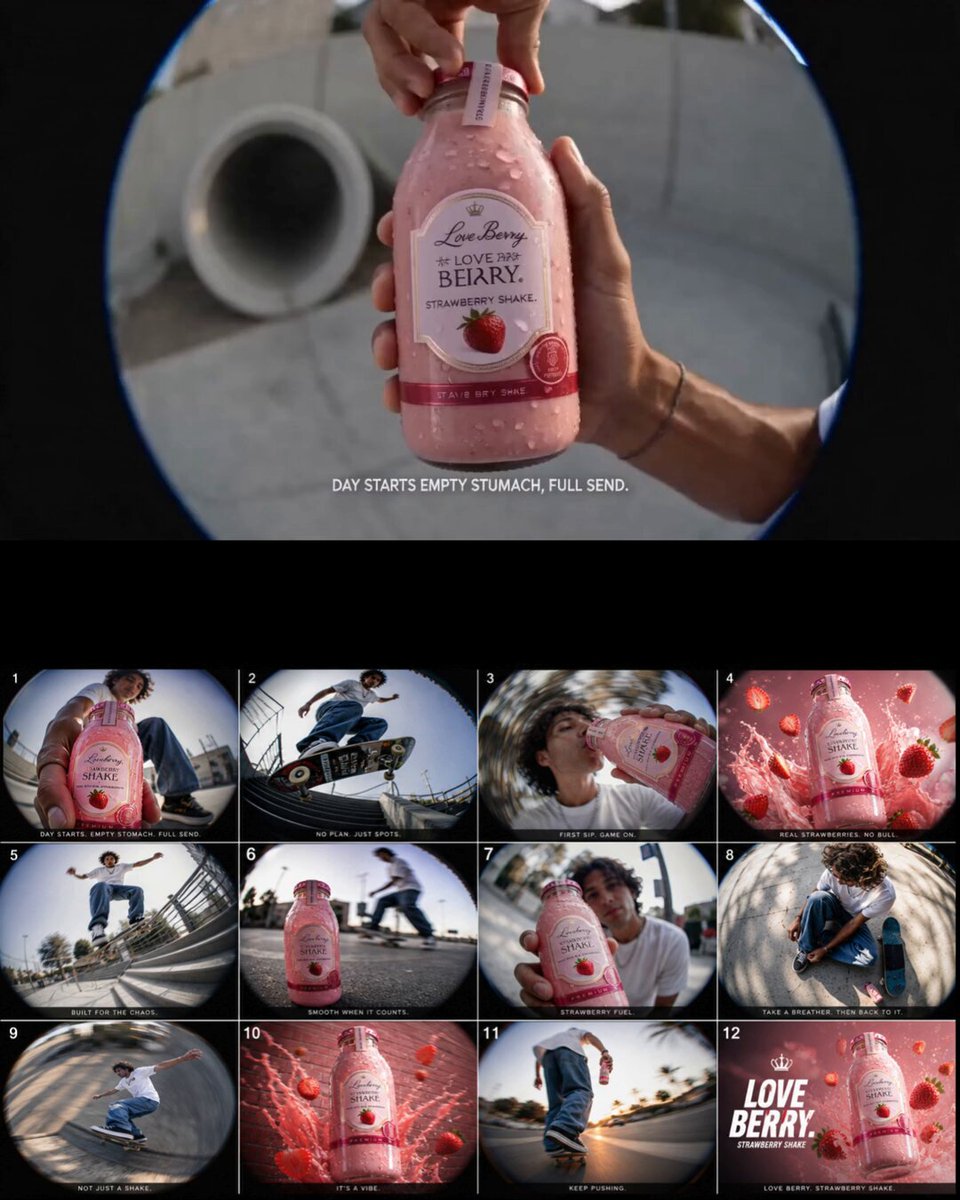
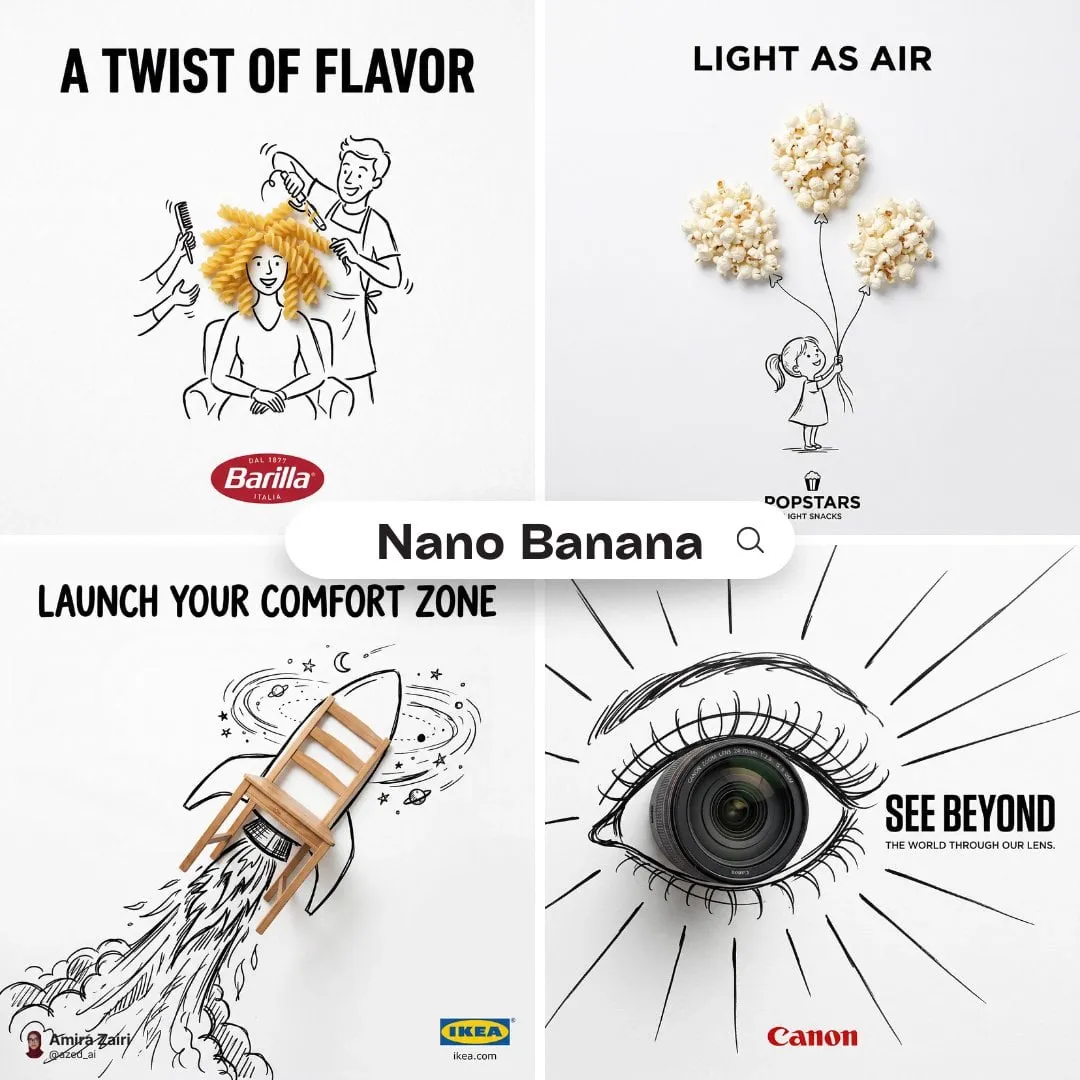
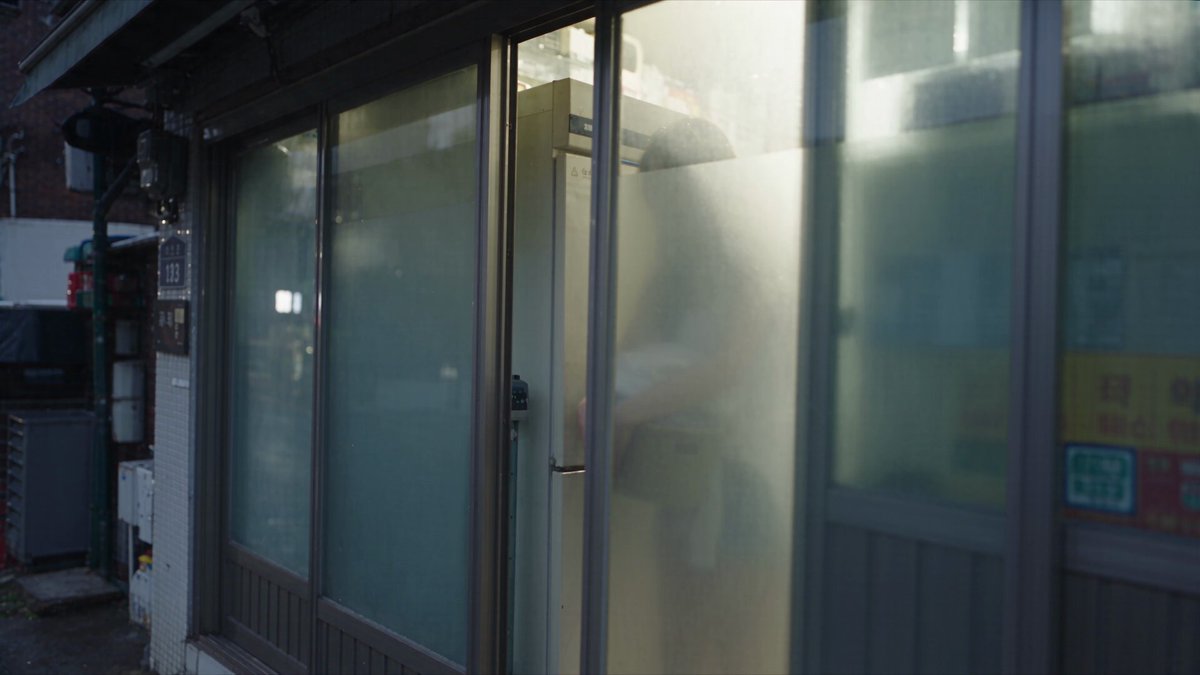
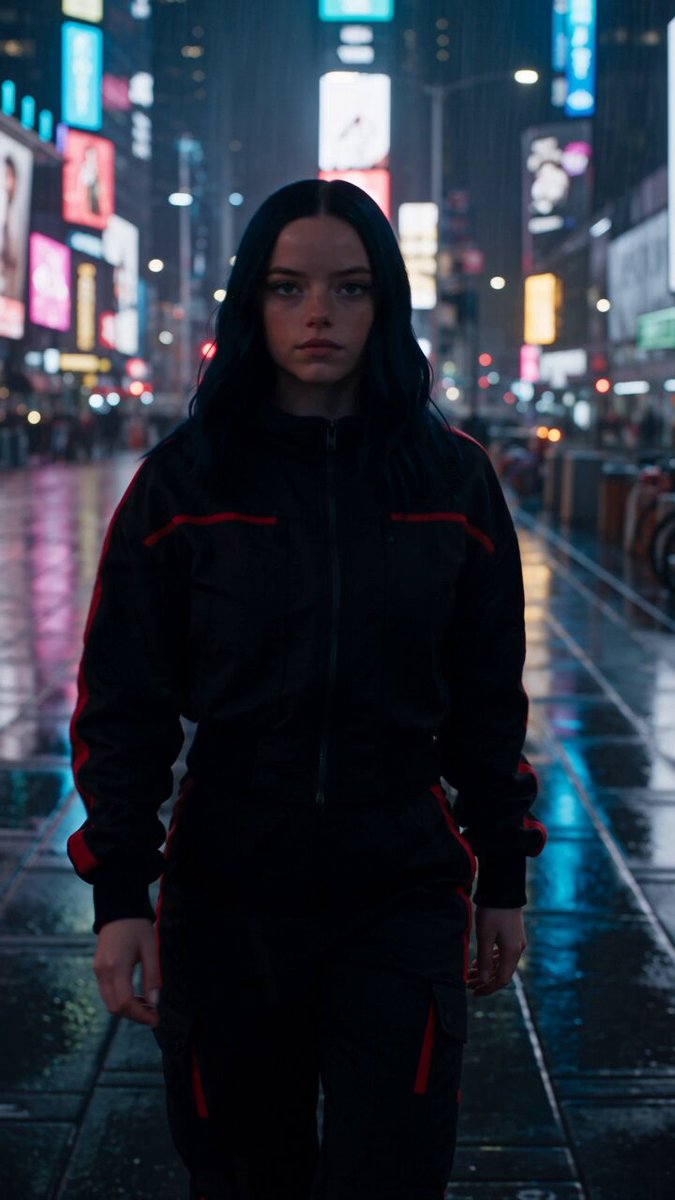
Upload a photo you have permission to edit that contains text, describe the new wording you want—such as updating a sign, label, or menu—then review the result for readability and placement before using it.
AI Photo Editor Text Changer
Change a sign
Input
Upload a photo of a storefront sign, then ask for the wording changed to a new business name in a similar style.
Expected output
A version of the sign with the new wording; lettering may vary, so review the result. Review the edited result before deciding whether it represents the subject accurately.
Update a menu board
Input
Upload a menu board photo, then request the price changed to a new amount in a similar font and placement.
Expected output
A menu board image with the updated price in a similar style; check the letterforms. Review the edited result before deciding whether it represents the subject accurately.
Correct a label
Input
Upload a product label photo, then ask for the city name corrected to the right spelling in the same position.
Expected output
An image with the corrected city name; review spelling and placement before use. Review the edited result before deciding whether it represents the subject accurately.
Change text in a photo by uploading the source image, describing the new text you want, and reviewing the result for readability and placement before you use it.
Start with your own photo
Use a photo you have permission to edit instead of starting from scratch with a text-only description.
Direct the text change
State the new wording you want, then compare the result with the original photo for readability and placement.
Choose before you use it
Review the updated text for spelling, style, and placement before downloading or posting it.
How It Works
1
Upload the image you want to refine
Start with an image you have the right to edit.
2
Describe the profile-picture changes you want
Keep the requested edits specific so the intended profile look is clear.
3
Generate, compare, and download
Review the output for likeness, accuracy, and the final profile crop before using it.
Making a profile-picture edit that stays clear
A clear source image and a focused edit request make it easier to judge the result.
Input Constraints
Only upload images you have permission to edit and use.
Keep the requested changes focused on the profile-picture outcome you need.
Review the final image for likeness and context before sharing it.
Practical Tips
Use a photo where the text is clear and readable.
Ask for the new wording to match the original style and placement for a natural look.
Compare the result with the original photo and check spelling, font, and placement before using it.
Privacy
Do not upload personal or sensitive material unless you have permission to use it.
Usage Rights
Confirm that you have the rights needed for the inputs and intended use of the result.
Prompt recipes
Copy a structure, then adjust the subject, lighting, camera, and output details for your own result.
Update a storefront sign
Upload a photo of a storefront sign, then ask for the business name changed to the new name in the same font, color, and placement.
Specifies the exact text change and preserves the original style so the result looks intentional.
Correct a product label
Upload a product label, then request the misspelled word corrected to the right spelling in the same position and font.
Targets a specific text error and keeps the rest of the label intact for a professional result.
Update pricing on a menu
Upload a menu board, then ask for one price updated to the new amount in the same font, size, and placement.
Changes only the necessary text while preserving the menu's overall design and layout.
Localize text for a new market
Upload a marketing image with English text, then request the headline translated to Spanish in the same font and position.
Adapts the text for a new audience while keeping the visual design consistent.
Personalize a greeting card
Upload a greeting card template, then ask for the recipient name changed to a new name in the same handwriting style.
Customizes the card while maintaining the original aesthetic and personal feel.
Best use cases
Match the workflow to the input you have and the result you need before opening the generator.
Use case
Best input
Expected result
Tool
Update business signage photos
A photo of a sign with clear, readable text
A version with the new business name or wording in a matching style
Image to Image with a text-change prompt
Correct labels or packaging
A product photo with a label that needs a correction
A corrected version with the right spelling or wording in the same position
Image to Image with a text-correction prompt
Localize marketing images
A marketing image with text in one language
A localized version with text translated to another language
Image to Image with a translation prompt
Update pricing or details in photos
A menu, flyer, or ad photo with outdated text
An updated version with the new price or detail in the same style
Image to Image with a text-update prompt
Update business signage photos
Input: A photo of a sign with clear, readable text
Result: A version with the new business name or wording in a matching style
Tool: Image to Image with a text-change prompt
Correct labels or packaging
Input: A product photo with a label that needs a correction
Result: A corrected version with the right spelling or wording in the same position
Tool: Image to Image with a text-correction prompt
Localize marketing images
Input: A marketing image with text in one language
Result: A localized version with text translated to another language
Tool: Image to Image with a translation prompt
Update pricing or details in photos
Input: A menu, flyer, or ad photo with outdated text
Result: An updated version with the new price or detail in the same style
Tool: Image to Image with a text-update prompt
Limitations to know before generating
The result depends on the quality of your source photo and the clarity of the original text. Blurry or low-resolution text may not change cleanly.
Text changes are interpretations of your prompt and may not perfectly match the original font, size, or style. Always review for readability.
Complex fonts, handwriting, or decorative lettering may not replicate accurately.
Spelling, grammar, and placement should always be reviewed. The tool interprets your request but does not guarantee perfect accuracy.
Rights and permissions for the original photo and the edited result are your responsibility to confirm.
Creative Suite: AI Video Generator & AI Image Generator Tools
Power up your creative workflow with our AI-driven tools. Generate stunning videos, create images, and apply custom adjustments - our AI Video Generator and AI Image Generator offer a complete solution for all your creative needs.