

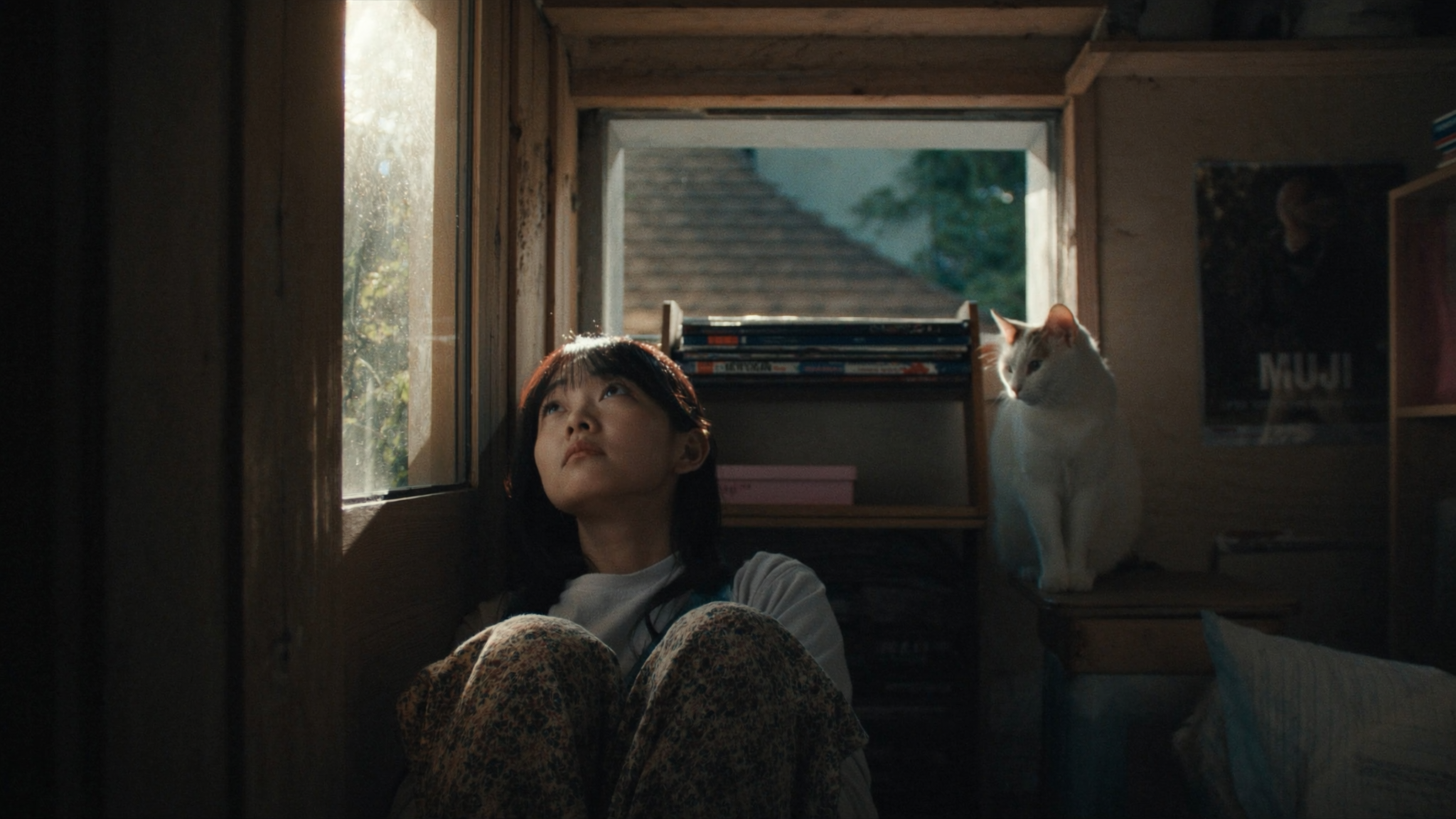
Gentle portrait glow
Input
Upload a portrait and ask for gentle glowing highlights around the face with a dreamy feel.
Expected output
A portrait with soft, luminous highlights. Review the intensity and check that the face stays clear.
Use bloom ai photo editor to upload a source image, describe the glow or bloom effect you want, and review the result before downloading.
Loading...
A bloom AI photo editor adds a soft, glowing effect to highlights in your photo. You upload a source image, describe the bloom intensity or areas to emphasize, and review the result before deciding to use it.
Input
Upload a portrait and ask for gentle glowing highlights around the face with a dreamy feel.
Expected output
A portrait with soft, luminous highlights. Review the intensity and check that the face stays clear.
Input
Upload a landscape and ask for the bright sky to carry a warm, softly glowing bloom.
Expected output
A landscape with glowing sky and warmer overall tone. Check the balance and detail retention.
Input
Upload a product photo and ask for highlights to shine with a soft bloom while detail stays visible.
Expected output
A product image with glowing highlights and maintained sharpness. Review the detail and context.
Use a photo you have permission to edit instead of generating a new scene from text alone.
Describe the framing, background, and style you want, then compare the result with the original.
Review the edited image for accuracy, likeness, and context before downloading or sharing.
Start with an image you have the right to edit.
Keep the requested edits specific so the intended profile look is clear.
Review the output for likeness, accuracy, and the final profile crop before using it.
A clear source image and a focused edit request make it easier to judge the result.
Copy a structure, then adjust the subject, lighting, camera, and output details for your own result.
Add a subtle glow around the face and shoulders. Keep the glow warm and gentle, not harsh.
A soft face glow creates a flattering, ethereal look ideal for portraits and profile pictures.
Enhance the glow along the horizon where the sun sets. Add warmth and increase bloom on the sky.
A glowing horizon emphasizes the beauty of golden hour and adds drama to landscape shots.
Add a soft bloom to the brightest areas of the product. Keep the rest of the image sharp.
Highlight bloom draws attention to key features without overwhelming the product or losing detail.
Increase bloom on streetlights and building lights. Keep the overall scene dark and moody.
Light bloom on a dark background creates a cinematic, atmospheric night scene.
Add a gentle bloom to the brightest petals. Keep the center of the flower sharp.
Petal bloom adds a soft, romantic quality to floral photography while preserving detail.
Match the workflow to the input you have and the result you need before opening the generator.
Input: A portrait with natural light and visible highlights
Result: A version with soft glowing highlights around the face
Tool: Image to Image
Input: A landscape photo taken during sunrise or sunset
Result: A warmer version with glowing sky and enhanced light
Tool: Image to Image
Input: A product photo with clear highlights on reflective surfaces
Result: A version with glowing highlights that draw the eye
Tool: Image to Image
Power up your creative workflow with our AI-driven tools. Generate stunning videos, create images, and apply custom adjustments - our AI Video Generator and AI Image Generator offer a complete solution for all your creative needs.
Choose the credit package that works best for you.
No hidden fees • Cancel anytime • Unused credits roll over
Perfect for trying out AI creation.
Credits
2,400 credits per year
$59.99/year billed yearly
You save $60 · the equivalent of 6 months free
What's included
Perfect for light creators.
Credits
6,000 credits per year
$119.99/year billed yearly
You save $120 · the equivalent of 6 months free
What's included
Best value for creators.
Credits
14,400 credits per year
$399.99/year billed yearly.
Save $80 compared to monthly
What's included
For video creators and power users.
Credits
60,000 credits per year
$999.99/year billed yearly.
Save $200 compared to monthly
What's included
Questions? Contact us at support@domer.io
Open Image to Image, upload an image you can edit, and review the result before you decide to use it.





