Limited Time Offer: Get 50% OFF Starter & Basic Yearly Plans 🎉
edit ai photo editor for quick photo changes
Use edit ai photo editor to upload a source image, describe the edit you need in plain text, review the result, and download the version that fits your project.
An edit ai photo editor applies targeted changes to your image based on simple text instructions, such as background replacement, color correction, or style adjustments. You upload an image you own, describe the edit, then review and download the result.
edit ai photo editor for quick photo changes
Replace a background
Input
Upload a portrait and request that the cluttered background be replaced with a soft pastel studio wall, keeping the person and lighting natural.
Expected output
The same person in front of a clean, soft pastel background with natural edges and consistent lighting.
Adjust colors in a landscape
Input
Upload a landscape photo and ask for deeper greens in the foliage and a clearer, more vivid blue sky without changing the composition.
Expected output
The same landscape with richer, more saturated colors and a clearer sky.
Restyle a product shot
Input
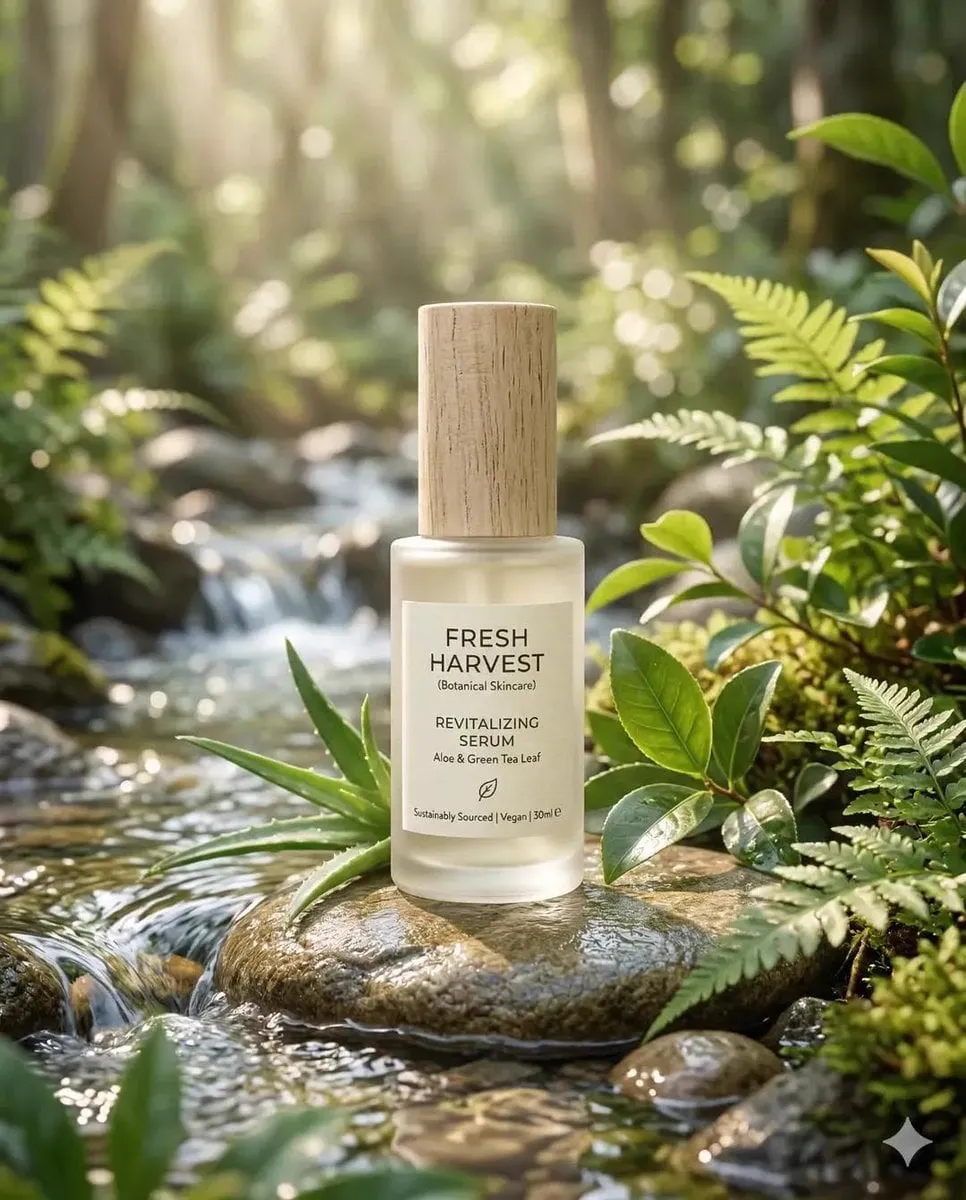
Upload a product photo and request a dark marble surface with subtle reflections and professional studio lighting.
Expected output
The product shown on a sleek dark marble surface with balanced lighting and realistic reflections.
Apply quick, targeted photo edits such as background changes, color adjustments, or style tweaks using text-based instructions.
Start with your own image
Use an existing photo you have permission to edit instead of creating a new image from scratch.
Describe edits in plain text
No need for manual tools or complex software; just describe the change you want and review the result.
Review before committing
Check the edited image for accuracy and suitability before downloading or using it in your project.
How It Works
1
Upload the image you want to refine
Start with an image you have the right to edit.
2
Describe the profile-picture changes you want
Keep the requested edits specific so the intended profile look is clear.
3
Generate, compare, and download
Review the output for likeness, accuracy, and the final profile crop before using it.
Getting a clean, accurate edit
A clear source image and a focused edit request make it easier to get a result that matches your intent.
Input Constraints
Only upload images you have permission to edit and use.
Keep the requested changes focused on the profile-picture outcome you need.
Review the final image for likeness and context before sharing it.
Practical Tips
Use a source image with a visible face and enough detail around the subject.
Ask for one or two concrete changes, such as a neutral background or a square crop.
Compare the result with the original image before choosing a version to use.
Privacy
Do not upload personal or sensitive material unless you have permission to use it.
Usage Rights
Confirm that you have the rights needed for the inputs and intended use of the result.
Prompt recipes
Copy a structure, then adjust the subject, lighting, camera, and output details for your own result.
Clean product background for e-commerce
Replace the current background with a pure white backdrop suitable for e-commerce listings, keeping the product in focus with accurate colors and no shadows.
Specifies the output context and background requirement clearly, making it easy to judge whether the result meets e-commerce standards.
Enhance colors in a sunset photo
Boost the warm tones in this sunset photo to make the oranges and pinks more vibrant, deepen the shadows, and increase overall saturation without making it look unnatural.
Focuses on color enhancement with specific tones and a natural-looking constraint, ensuring the edit improves the image without overdoing it.
Remove distractions from a portrait
Keep the person exactly as they are, but remove the clutter and distracting objects in the background, replacing them with a soft, even gradient in neutral tones.
Targets background cleanup while preserving the subject, making it clear what should stay and what should go.
Add a professional studio look to a headshot
Transform this casual headshot into a professional studio portrait with even lighting, a soft gray background, and slightly warmer skin tones.
Combines background, lighting, and color adjustments in one clear instruction, making the professional goal obvious.
Adjust lighting in an underexposed indoor photo
Brighten this underexposed indoor photo to reveal more detail in the faces and foreground, balance the exposure, and keep colors natural without washing them out.
Defines the lighting problem and the desired fix with a natural-color constraint, making it easy to evaluate success.
Best use cases
Match the workflow to the input you have and the result you need before opening the generator.
Use case
Best input
Expected result
Tool
You need a clean white background for a product photo
A product photo with the item clearly visible against any background
The same product on a pure white background suitable for e-commerce
Image to Image with a white background replacement prompt
You want to enhance colors in a landscape or sunset photo
A landscape or sunset photo with visible sky and foreground
A more vibrant version with deeper colors and better saturation
Image to Image with a color enhancement prompt
You need to remove background clutter from a portrait
A portrait with a clearly visible subject and a distracting background
The same portrait with a clean, neutral background
Image to Image with a background cleanup prompt
You want to improve lighting in an underexposed photo
An underexposed photo where subjects are visible but too dark
A brighter version with balanced exposure and natural colors
Image to Image with a lighting correction prompt
You need a clean white background for a product photo
Input: A product photo with the item clearly visible against any background
Result: The same product on a pure white background suitable for e-commerce
Tool: Image to Image with a white background replacement prompt
You want to enhance colors in a landscape or sunset photo
Input: A landscape or sunset photo with visible sky and foreground
Result: A more vibrant version with deeper colors and better saturation
Tool: Image to Image with a color enhancement prompt
You need to remove background clutter from a portrait
Input: A portrait with a clearly visible subject and a distracting background
Result: The same portrait with a clean, neutral background
Tool: Image to Image with a background cleanup prompt
You want to improve lighting in an underexposed photo
Input: An underexposed photo where subjects are visible but too dark
Result: A brighter version with balanced exposure and natural colors
Tool: Image to Image with a lighting correction prompt
Limitations to know before generating
The result depends on the clarity and composition of your source image; low-resolution or heavily compressed photos may not edit cleanly.
Text-based edits are interpretations; the output may not match your exact vision on the first try, especially for complex changes.
Background replacement and color adjustments may introduce subtle artifacts or unnatural edges that require review.
The tool cannot add detail that does not exist in the source image, such as sharper focus or higher resolution.
You are responsible for confirming that the edited image is appropriate for your intended use and accurately represents the original scene or subject.
Creative Suite: AI Video Generator & AI Image Generator Tools
Power up your creative workflow with our AI-driven tools. Generate stunning videos, create images, and apply custom adjustments - our AI Video Generator and AI Image Generator offer a complete solution for all your creative needs.