
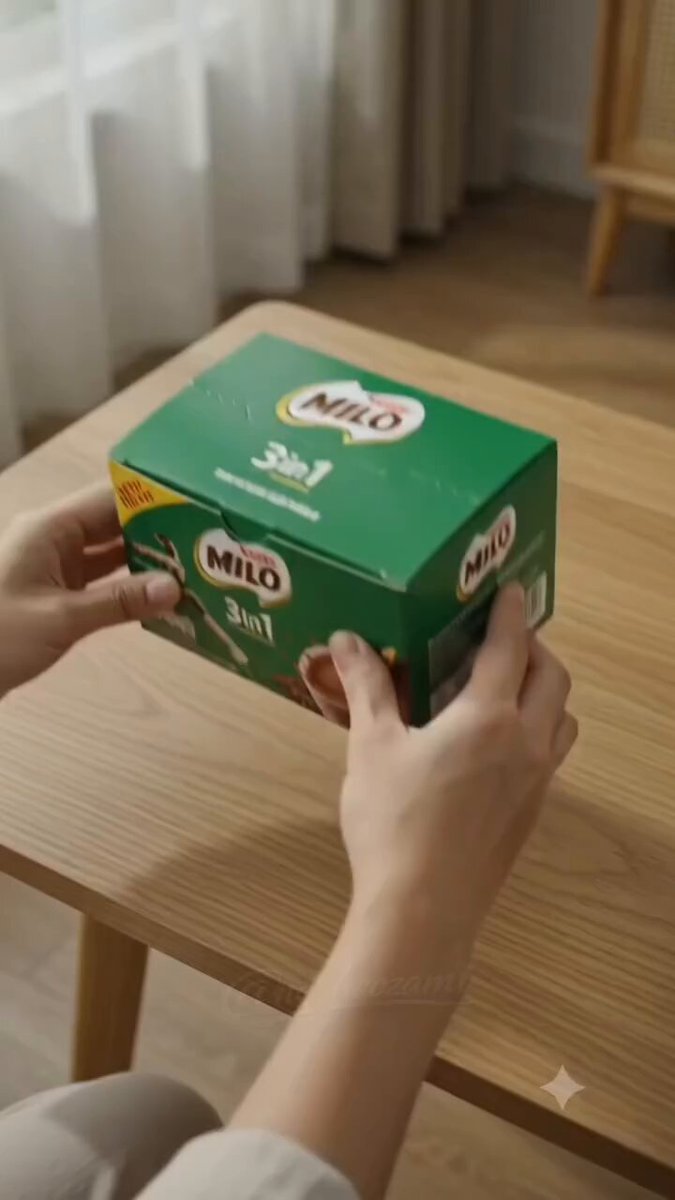
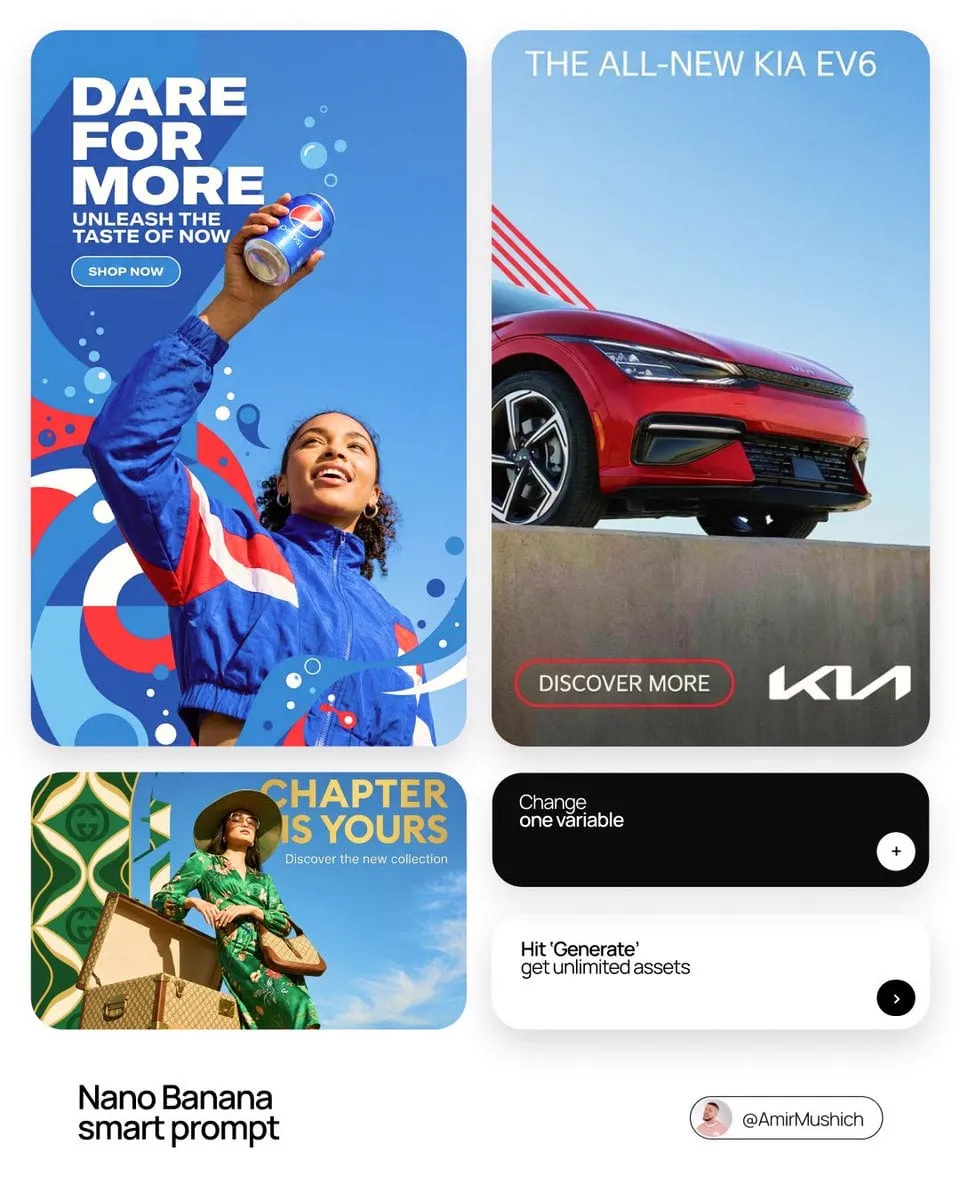
Product visual for a launch post
Input
A minimalist wireless keyboard on a clean desk, soft morning light, product photography style
Expected output
A product-style image of the keyboard scene with soft natural lighting.
Generate images from text on Windows 11 using a browser. Describe the visual, pick settings, and download the result—no app install required.
Loading...
Open a modern browser on your Windows 11 machine, navigate to the AI image generator, type a description of the image you want, choose the available settings, and download the result. No installation or dedicated graphics hardware is needed.
Input
A minimalist wireless keyboard on a clean desk, soft morning light, product photography style
Expected output
A product-style image of the keyboard scene with soft natural lighting.
Input
A futuristic city street at night with neon signs, rain reflections, cinematic composition
Expected output
A moody concept image of a neon-lit street with reflections on wet pavement.
Input
A wide banner with abstract flowing shapes in blue and purple gradients, modern and minimal
Expected output
A wide banner-style image with smooth gradient shapes and a clean modern feel.
Run the whole prompt-to-image flow on a Windows 11 machine without installing extra software.
Describe the image you need in plain text and get a visual starting point to refine.
Check each result against your prompt and regenerate until the image fits the task.
Describe the desired image.
Choose the available generation settings.
Generate, review, and download a suitable result.
A few habits that make prompt-to-image results more useful.
Copy a structure, then adjust the subject, lighting, camera, and output details for your own result.
Product on surface with lighting like soft morning light, background colour, product photography style
Product visuals benefit from specific lighting and background descriptions; naming the style ensures the output looks professional.
Scene or location at time of day, weather or atmosphere like rain or fog, cinematic composition, colour tone
Cinematic prompts need atmosphere and lighting to create mood; describing time, weather, and colour tone guides the visual direction.
Wide banner with element or pattern, colour palette, style modern or bold, aspect ratio widescreen
Banners for social media need to fit platform dimensions; naming the aspect ratio and style produces ready-to-use graphics.
Subject or character in setting, art style like flat vector or watercolour, colour palette, mood
Personal project illustrations benefit from clear art style and mood descriptions; this helps the output match your creative vision.
Abstract or nature scene in colour palette, orientation landscape, texture or detail like soft gradients or patterns
Wallpaper prompts should specify orientation and colour to match your desktop; subtle texture adds visual interest without distraction.
Match the workflow to the input you have and the result you need before opening the generator.
Input: Product description with surface, lighting, and product-photography-style keywords
Result: Professional product image suitable for posting or pitch decks
Tool: AI Image Generator with product-photo and lighting keywords
Input: Scene or character description with art style, mood, and colour palette
Result: Concept visual that matches your creative direction
Tool: AI Image Generator with illustration or cinematic keywords
Input: Wide banner description with colour palette, style, and aspect ratio
Result: Banner image sized for social media platforms
Tool: AI Image Generator with widescreen and modern-style keywords
Input: Abstract or nature scene with landscape orientation and colour palette
Result: High-resolution wallpaper image for Windows 11 desktop
Tool: AI Image Generator with landscape and wallpaper keywords
Power up your creative workflow with our AI-driven tools. Generate stunning videos, create images, and apply custom adjustments - our AI Video Generator and AI Image Generator offer a complete solution for all your creative needs.
Choose the credit package that works best for you.
No hidden fees • Cancel anytime • Unused credits roll over
Perfect for trying out AI creation.
Credits
2,400 credits per year
$59.99/year billed yearly
You save $60 · the equivalent of 6 months free
What's included
Perfect for light creators.
Credits
6,000 credits per year
$119.99/year billed yearly
You save $120 · the equivalent of 6 months free
What's included
Best value for creators.
Credits
14,400 credits per year
$399.99/year billed yearly.
Save $80 compared to monthly
What's included
For video creators and power users.
Credits
60,000 credits per year
$999.99/year billed yearly.
Save $200 compared to monthly
What's included
Questions? Contact us at support@domer.io
Open the text-to-image tool, describe the visual you need, and review the result before you download it.





