How does an AI image generator from multiple images work?
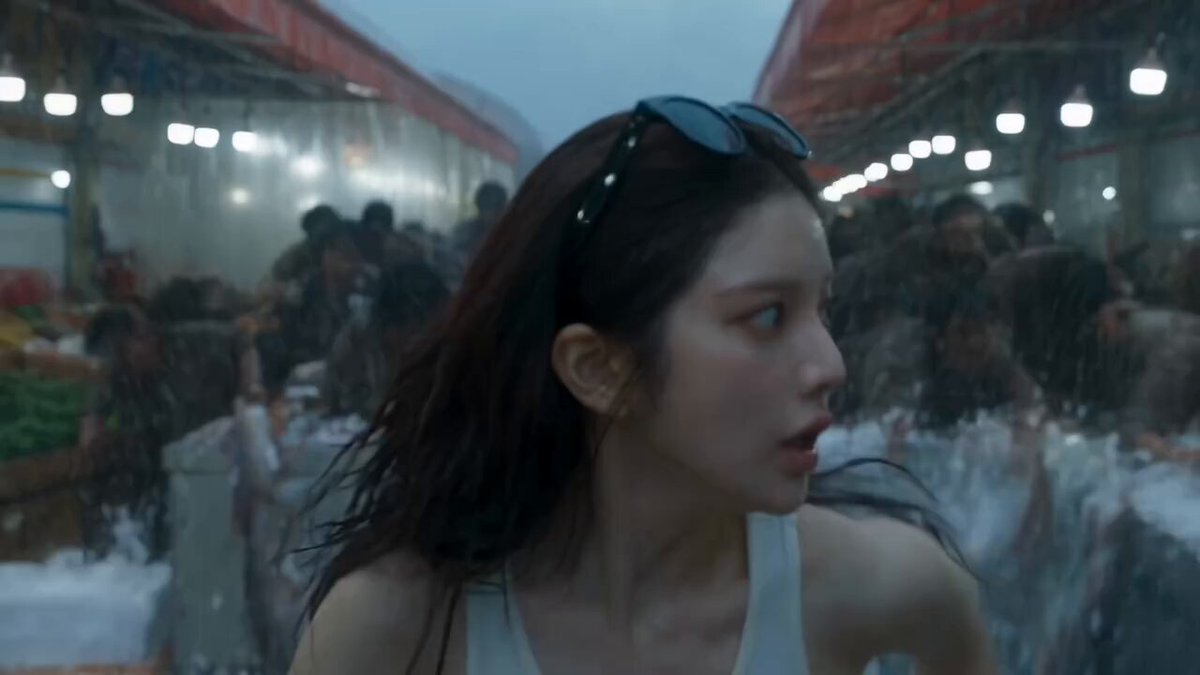
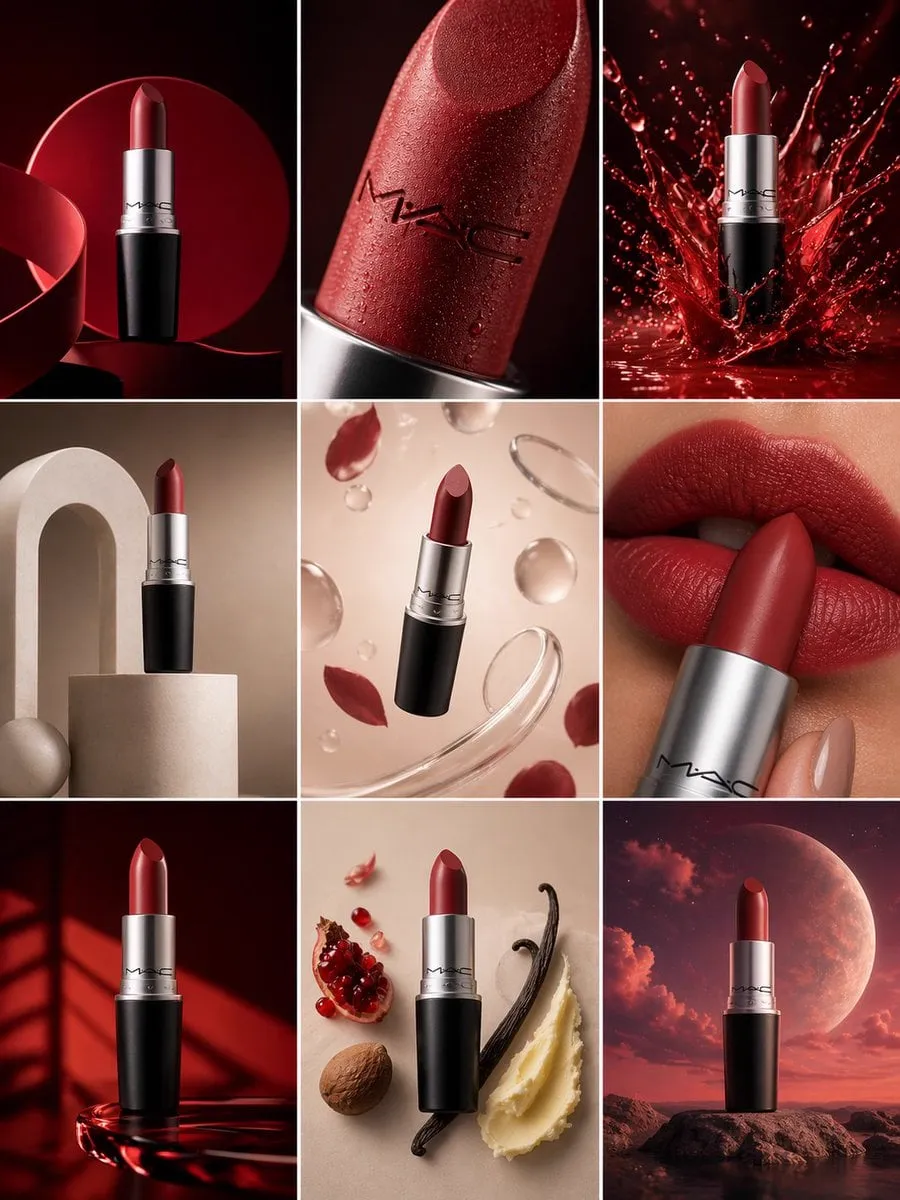
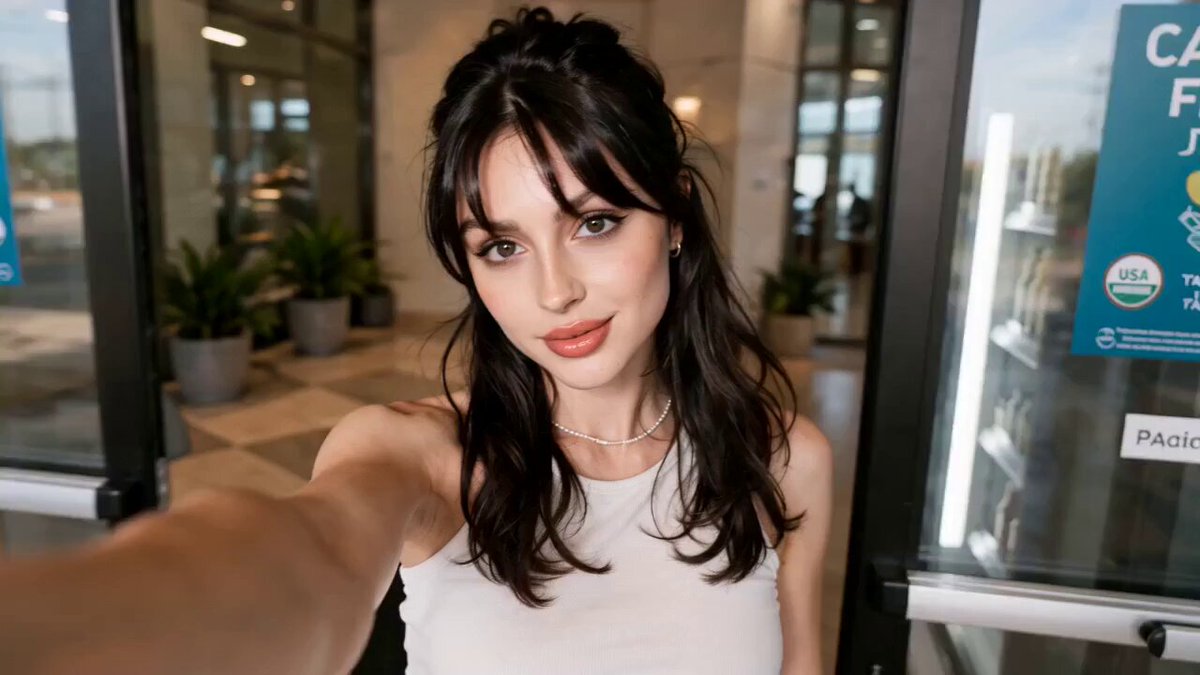
It creates a new image by combining elements you describe from several reference images. You provide reference images you own, write a text prompt explaining which visual elements to take from each source and how to combine them, then generate and review the result.
AI Image Generator from Multiple Images
Blend two scenes
Input
Image A of a mountain landscape and Image B of a lake at sunset, with text: 'combine the mountains from A with the sunset colors and water from B'
Expected output
A generated image that blends the mountain shape from A with the sunset lake scene from B
Transfer a style
Input
Image A of a person posing and Image B of an oil painting, with text: 'apply the oil painting texture and brushstroke style from B to the person in A'
Expected output
A generated image showing the person from A rendered in the oil painting style from B
Merge subjects
Input
Image A of a cat and Image B of a cozy armchair, with text: 'place the cat from A sitting on the armchair from B in a warm living room setting'
Expected output
A generated image combining the cat and armchair in the described setting
Describe how multiple image references should combine into a single new visual
Multi-reference generation
Use multiple images as visual references and describe how they should be combined.
Style and subject mixing
Transfer style from one image and subject from another through text instructions.
Creative compositing
Generate new compositions that draw from several visual sources.
How It Works
1
Describe the desired image.
Describe the desired image.
2
Choose the available generation settings.
Choose the available generation settings.
3
Generate, review, and download a suitable result.
Generate, review, and download a suitable result.
Tips for multi-image prompts
Be explicit about which elements come from which image.
Input Constraints
Only use images you have created or have permission to use
Label or describe each image's role in your text instruction clearly
Avoid combining images with conflicting content or styles in a focused prompt
Practical Tips
Identify each reference image by its content ('the mountain photo', 'the painting')
Describe what to keep from each image and what to change
Start with two images and a simple combination, then increase complexity
Privacy
Do not upload personal or sensitive material unless you have permission to use it.
Usage Rights
Confirm that you have the rights needed for the inputs and intended use of the result.
Prompt recipes
Copy a structure, then adjust the subject, lighting, camera, and output details for your own result.
Scene composition from two locations
Take the foreground subject from Image A and place it in the background environment from Image B, match the lighting from B, blend naturally at the edges
Clearly separates foreground and background sources and includes blending instructions for a cohesive result.
Style transfer between images
Apply the artistic style, color palette, and texture from Image A to the subject matter shown in Image B, preserve the composition of B
Specifies that style comes from one source and composition from another, preventing confusion about what to preserve.
Character in new setting
Extract the person from Image A and place them in the scene shown in Image B, adjust lighting on the person to match B's atmosphere
Identifies the extraction and placement task plus a lighting adjustment to maintain realism.
Product with different context
Take the product from Image A and photograph it in the setting shown in Image B, keep product details sharp, adopt B's background blur and color temperature
Maintains product fidelity while borrowing environmental and photographic qualities from the second image.
Architectural element integration
Insert the building facade from Image A into the streetscape from Image B, match perspective and time of day, blend architectural style naturally
Addresses perspective consistency and temporal matching, both critical for believable architectural composites.
Best use cases
Match the workflow to the input you have and the result you need before opening the generator.
Use case
Best input
Expected result
Tool
Composite scene creation
Two images with compatible perspectives and one clear subject/background split
Blended scene combining elements from both sources
Text to Image with clear source labeling and blending instructions
Artistic style transfer
One content image and one style reference image
Original content rendered in the reference style
Text to Image with style and content separation in prompt
Product in different environment
Product photo and desired background/setting image
Product composited into new environment with matched lighting
Text to Image with product preservation and environment adoption instructions
Creative concept mashup
Two or more images with distinct elements to combine
Novel composition drawing recognizable parts from each source
Text to Image with explicit element selection and combination instructions
Composite scene creation
Input: Two images with compatible perspectives and one clear subject/background split
Result: Blended scene combining elements from both sources
Tool: Text to Image with clear source labeling and blending instructions
Artistic style transfer
Input: One content image and one style reference image
Result: Original content rendered in the reference style
Tool: Text to Image with style and content separation in prompt
Product in different environment
Input: Product photo and desired background/setting image
Result: Product composited into new environment with matched lighting
Tool: Text to Image with product preservation and environment adoption instructions
Creative concept mashup
Input: Two or more images with distinct elements to combine
Result: Novel composition drawing recognizable parts from each source
Tool: Text to Image with explicit element selection and combination instructions
Limitations to know before generating
Text-to-image tools work from descriptions; they do not directly upload or reference multiple image files in one prompt
You must describe the desired combination in words rather than pointing to specific image files during generation
Complex multi-image blends may require iteration to achieve natural-looking integration
Conflicting lighting, perspective, or style between source images can produce inconsistent results
You are responsible for having rights to all reference images and the generated derivative work
Creative Suite: AI Video Generator & AI Image Generator Tools
Power up your creative workflow with our AI-driven tools. Generate stunning videos, create images, and apply custom adjustments - our AI Video Generator and AI Image Generator offer a complete solution for all your creative needs.