


Custom visual from text
Input
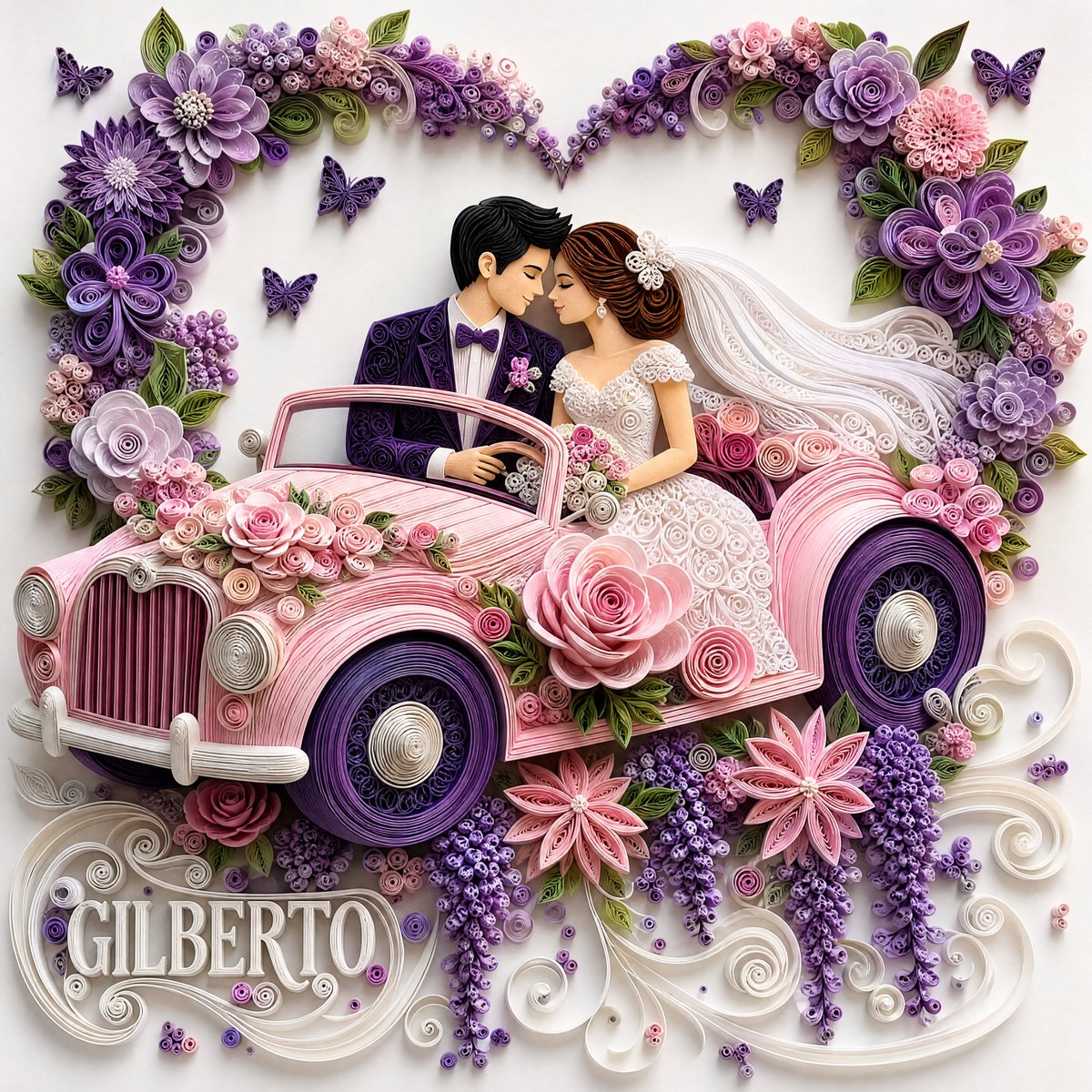
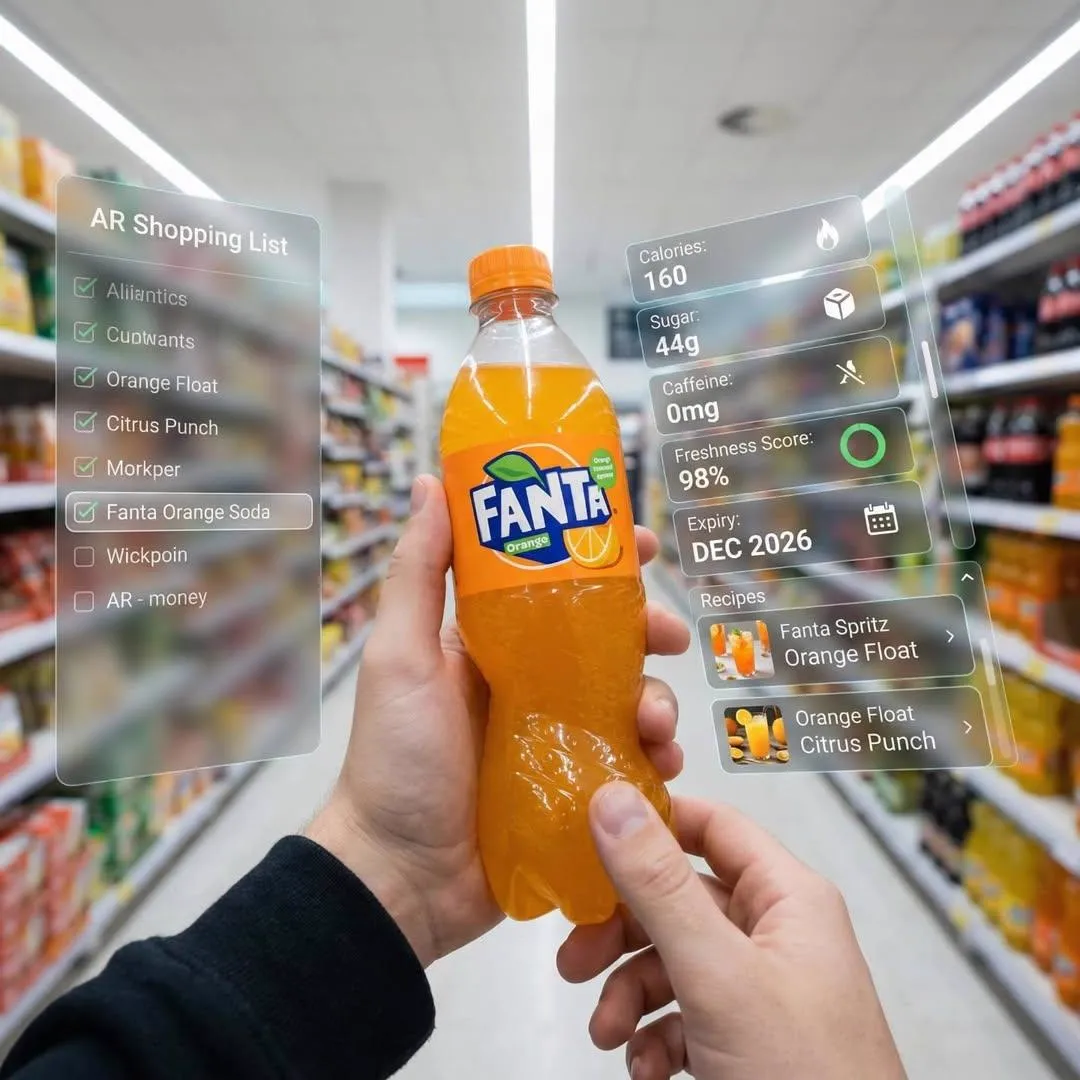
A detailed prompt describing an image ppt scene with specific elements and mood.
Expected output
A generated image matching the prompt's description.
Generate custom images from text for presentations. Describe any scene, style, or concept and produce a suitable visual in seconds.
Loading...
To generate images for PowerPoint or other presentations with AI, describe the visual concept in plain text, including subject, style, composition, and color palette. The text-to-image tool processes your prompt and produces a rendered image suitable for download. You can specify presentation-friendly styles like 'clean corporate design', 'flat illustration', or 'minimalist composition' to match your slide aesthetic. After generation, review the result and download the image file, then insert it into your presentation software like any other image asset.
Input
A detailed prompt describing an image ppt scene with specific elements and mood.
Expected output
A generated image matching the prompt's description.
Input
A prompt with style references such as lighting, color palette, and composition preferences.
Expected output
A stylized image that reflects the described aesthetic direction.
Input
A short prompt capturing the core idea without detail.
Expected output
A generated image that interprets the core concept visually.
Describe what you see in your mind and let the ai image generator ppt turn it into an image you can review and refine.
You do not need drawing or design experience. A clear text prompt is all the ai image generator ppt needs to work.
Adjust your prompt or settings and generate again. The ai image generator ppt supports fast experimentation.
Describe the desired image.
Choose the available generation settings.
Generate, review, and download a suitable result.
A clear prompt and the right settings make a difference.
Copy a structure, then adjust the subject, lighting, camera, and output details for your own result.
A modern dashboard mockup with bar charts and pie graphs, clean corporate design, white background, minimalist business style
Focuses on presentation-friendly visuals with corporate style keywords, producing a polished graphic suitable for slides.
Abstract geometric shapes in soft blue and gray gradients, minimal composition, professional presentation background
Creates a subtle background that supports text overlays without distracting from slide content.
A flat illustration of a team collaborating around a table, simple line work, friendly corporate style, pastel color palette
Delivers a clean, approachable illustration that communicates teamwork concepts clearly.
A lightbulb icon with glowing filament on a dark background, modern flat design, single focal point
Produces a simple, high-impact visual to emphasize a key idea or innovation theme.
A person standing at a crossroads looking at multiple paths, soft natural lighting, motivational business concept
Generates a metaphorical visual that supports decision-making or strategy themes in presentations.
Match the workflow to the input you have and the result you need before opening the generator.
Input: Abstract shapes, color palette, and minimal composition keywords
Result: A subtle background that supports text and slide content
Tool: Text to Image with abstract and minimal style
Input: Conceptual scene with clear subject and motivational tone
Result: A visual that reinforces the slide's message
Tool: Text to Image with conceptual and business keywords
Input: Chart types, corporate style, and clean composition
Result: A polished data graphic suitable for business presentations
Tool: Text to Image with dashboard and corporate keywords
Input: Icon subject, flat design style, and single focal point
Result: A clean icon or graphic to emphasize key points
Tool: Text to Image with icon and flat design keywords
Power up your creative workflow with our AI-driven tools. Generate stunning videos, create images, and apply custom adjustments - our AI Video Generator and AI Image Generator offer a complete solution for all your creative needs.
Choose the credit package that works best for you.
No hidden fees • Cancel anytime • Unused credits roll over
Perfect for trying out AI creation.
Credits
2,400 credits per year
$59.99/year billed yearly
You save $60 · the equivalent of 6 months free
What's included
Perfect for light creators.
Credits
6,000 credits per year
$119.99/year billed yearly
You save $120 · the equivalent of 6 months free
What's included
Best value for creators.
Credits
14,400 credits per year
$399.99/year billed yearly.
Save $80 compared to monthly
What's included
For video creators and power users.
Credits
60,000 credits per year
$999.99/year billed yearly.
Save $200 compared to monthly
What's included
Questions? Contact us at support@domer.io
Open the ai image generator ppt tool and describe what you want to see.





