Limited Time Offer: Get 50% OFF Starter & Basic Yearly Plans 🎉
AI Logo Generator from Photo Guide
Use ai logo generator from photo to upload a source image, describe profile-picture edits, and review the result. Works from an image you have permission to.
What does an AI logo generator from photo workflow do?
An AI logo generator from photo workflow turns a source image into a profile-ready picture by applying edits you describe in text. You upload an image you have permission to edit, describe the framing, background, and style changes you want, then generate and review the result before deciding to use it. This workflow gives you control over the final crop and likeness.
AI Logo Generator from Photo Guide
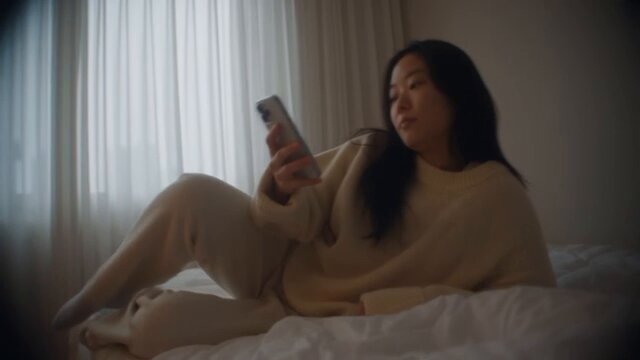
Storefront-inspired mark
Input
Upload a source image you have permission to edit, then describe the framing, style, background, and finish you want for the profile picture.
Expected output
A flat logo with an awning stripe and round window in cream and terracotta. Review the edited result before deciding whether it represents the person or subject accurately.
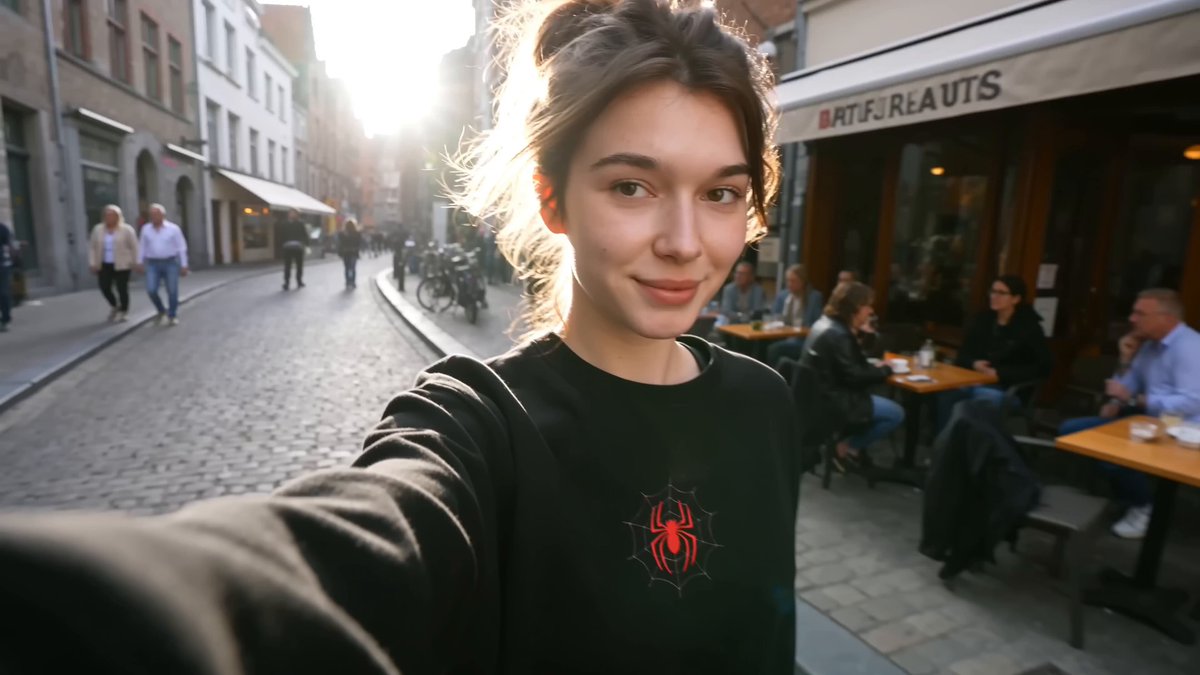
Landscape-derived badge
Input
Upload a source image you have permission to edit, then describe the framing, style, background, and finish you want for the profile picture.
Expected output
A layered mountain badge with blue tones and a clean horizon line. Review the edited result before deciding whether it represents the person or subject accurately.
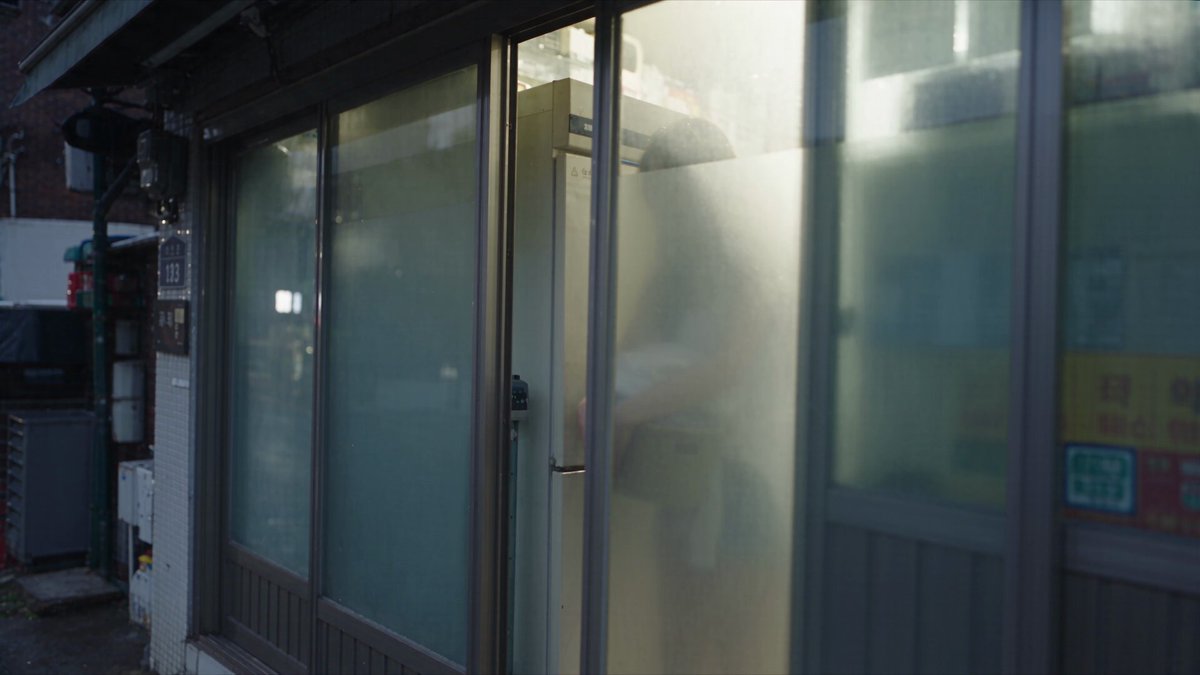
Texture-style emblem
Input
Upload a source image you have permission to edit, then describe the framing, style, background, and finish you want for the profile picture.
Expected output
An organic leaf emblem with a grainy texture in gray and sage. Review the edited result before deciding whether it represents the person or subject accurately.
Turn a source image into a profile-ready picture while keeping the review and final choice in your hands
Start with your own image
Use an image you have permission to edit instead of recreating the subject from a text-only description.
Direct the changes
State the framing, background, and style you want, then compare the result with the original image.
Choose before you use it
Review the edited image for likeness, context, and crop before downloading or posting it.
How It Works
1
Upload the image you want to refine
Start with an image you have the right to edit.
2
Describe the profile-picture changes you want
Keep the requested edits specific so the intended profile look is clear.
3
Generate, compare, and download
Review the output for likeness, accuracy, and the final profile crop before using it.
Making a profile-picture edit that stays clear
A clear source image and a focused edit request make it easier to judge the result.
Input Constraints
Only upload images you have permission to edit and use.
Keep the requested changes focused on the profile-picture outcome you need.
Review the final image for likeness and context before sharing it.
Practical Tips
Use a source image with a visible face and enough detail around the subject.
Ask for one or two concrete changes, such as a neutral background or a square crop.
Compare the result with the original image before choosing a version to use.
Privacy
Do not upload personal or sensitive material unless you have permission to use it.
Usage Rights
Confirm that you have the rights needed for the inputs and intended use of the result.
Prompt recipes
Copy a structure, then adjust the subject, lighting, camera, and output details for your own result.
Neutral background profile
Upload a photo and request: remove the busy background, replace with a soft gray gradient, keep the subject centered, square crop
A neutral background removes distractions and makes the profile picture work across platforms.
Professional headshot style
Upload a casual photo and request: tighten the crop to head and shoulders, soften the lighting, add a subtle vignette, light gray background
A tighter crop and softer lighting create a professional headshot feel from a casual source.
Circular avatar crop
Upload a full-body photo and request: crop to a circular frame around the face, blur the background slightly, increase contrast
A circular crop and background blur focus attention on the face for social media avatars.
High-contrast monochrome
Upload a color photo and request: convert to black and white, increase contrast, center the subject, square crop
High-contrast monochrome gives a bold, timeless look for portfolio or editorial profiles.
Soft warm tone adjustment
Upload a photo and request: warm the color temperature slightly, soften harsh shadows, crop to profile frame, cream background
Warm tones and soft shadows create a friendly, approachable profile picture.
Best use cases
Match the workflow to the input you have and the result you need before opening the generator.
Use case
Best input
Expected result
Tool
LinkedIn or professional profiles
A clear headshot with a request for neutral background and professional framing
A polished profile picture suitable for business contexts
Image to Image with neutral background and head-and-shoulders crop
Social media avatars
A casual photo with a request for circular crop and background blur
A focused avatar that works at small sizes
Image to Image with circular crop and contrast adjustment
Portfolio or creative profiles
A photo with a request for monochrome or artistic treatment
A distinctive profile picture that reflects creative style
Image to Image with black-and-white or high-contrast style
Team or company bios
A photo with a request for consistent framing and background across team members
A uniform profile picture that matches company branding
Image to Image with neutral background and consistent crop
LinkedIn or professional profiles
Input: A clear headshot with a request for neutral background and professional framing
Result: A polished profile picture suitable for business contexts
Tool: Image to Image with neutral background and head-and-shoulders crop
Social media avatars
Input: A casual photo with a request for circular crop and background blur
Result: A focused avatar that works at small sizes
Tool: Image to Image with circular crop and contrast adjustment
Portfolio or creative profiles
Input: A photo with a request for monochrome or artistic treatment
Result: A distinctive profile picture that reflects creative style
Tool: Image to Image with black-and-white or high-contrast style
Team or company bios
Input: A photo with a request for consistent framing and background across team members
Result: A uniform profile picture that matches company branding
Tool: Image to Image with neutral background and consistent crop
Limitations to know before generating
This workflow requires uploading an image you have permission to edit; do not use photos you do not own or have rights to.
The edited result may drift from the original subject; review the likeness carefully before using it as a profile picture.
Complex edit requests with many changes may produce unclear results; keep the request focused on one or two changes.
Text rendering or logo overlays are not reliable in this workflow; add those separately in an editor if needed.
Creative Suite: AI Video Generator & AI Image Generator Tools
Power up your creative workflow with our AI-driven tools. Generate stunning videos, create images, and apply custom adjustments - our AI Video Generator and AI Image Generator offer a complete solution for all your creative needs.