Write your script with visual scene descriptions—location, lighting, camera motion, and action. Break it into separate scenes or segments. For each segment, describe what should appear on screen in plain text, then generate a video clip. Review each clip for accuracy and coherence, then assemble or iterate as needed. The tool does not produce narration or dialogue audio; add voiceover separately if needed.
AI Video Generator by Script Tool
Product Launch Script
Input
Open on a sleek smartphone on a dark surface. Camera slowly zooms in as light reflects off the glass. Voiceover: "Meet the Edge X1 — designed to push past every limit." Cut to a close-up of the camera lens rotating.
Expected output
A 15-second product teaser with slow zoom, reflective lighting, and a seamless transition to the camera lens close-up.
Training Narration
Input
Wide shot of an office with three employees at their desks. Text overlay: "Step 1 — Log into the dashboard." The camera pans to a computer screen showing the login page. Voiceover explains the fields.
Expected output
An explainer clip with a workplace scene, text overlay animation, and a pan to a screen mock-up.
Storytelling Scene
Input
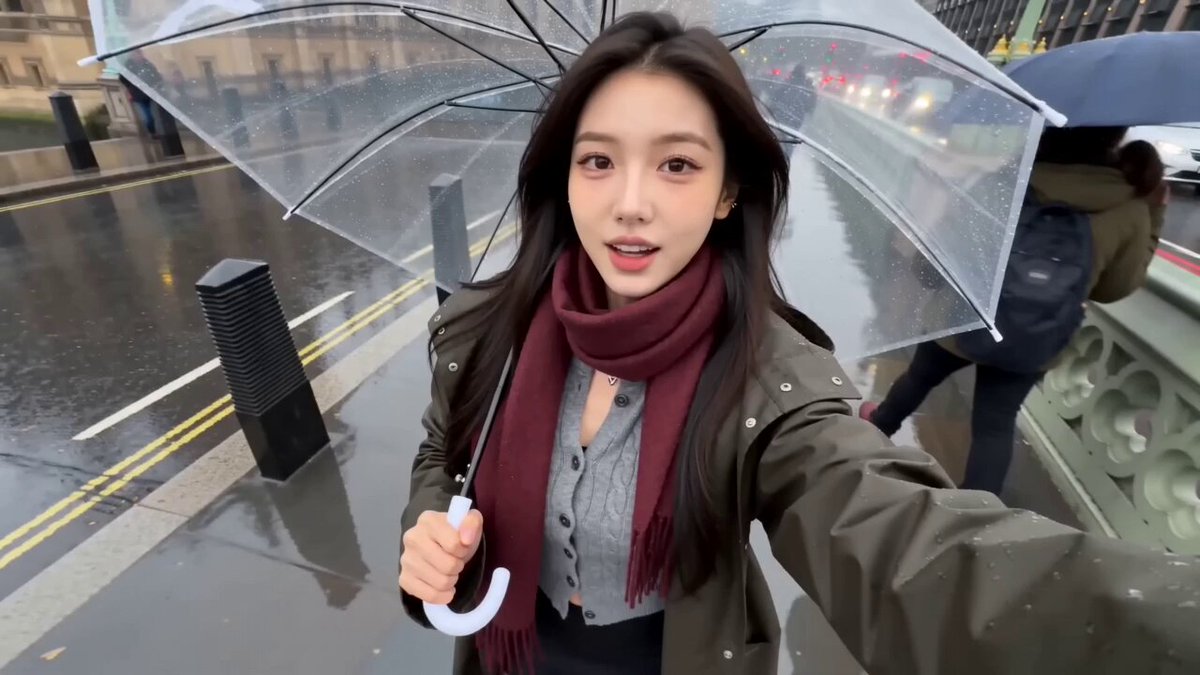
Night-time street, rain on the pavement, a single streetlamp flickers. A figure in a long coat walks into the frame from the right. The camera holds on the silhouette as thunder sounds.
Expected output
A moody narrative sequence with rain effects, flickering light, and a character entrance timed to the sound cue.
Turn a written script into a video by describing scenes, pacing, and visual cues in text.
Script-First Workflow
Compose your message in text and generate a video that follows your narrative structure, scene by scene.
No Production Setup
Skip cameras, sets, actors, and editing software — the script is the only production asset you need to prepare.
Fast Iteration on Pacing
Adjust the length, tone, or order of your script and regenerate to see how the timing and visuals change.
How It Works
1
Describe the desired scene and motion.
Describe the desired scene and motion.
2
Choose the available generation settings.
Choose the available generation settings.
3
Generate, review, and download a suitable result.
Generate, review, and download a suitable result.
Writing a Script for Video Generation
Clear, visual descriptions produce the most usable results.
Input Constraints
Keep scenes visually descriptive rather than abstract.
Break long scripts into separate generation passes.
Avoid trademarked or branded content unless you own the rights.
Review the output for accuracy and safety before sharing.
Practical Tips
Start each scene with a location and lighting cue.
Indicate camera motion — zoom, pan, or static — in the description.
Mention the mood or tone so the generation matches the atmosphere.
Separate scenes with line breaks to keep each segment focused.
Use short sentences for action and longer ones for atmosphere.
Privacy
Do not upload personal or sensitive material unless you have permission to use it.
Usage Rights
Confirm that you have the rights needed for the inputs and intended use of the result.
Prompt recipes
Copy a structure, then adjust the subject, lighting, camera, and output details for your own result.
Product launch intro with voiceover cue
Open on a modern smartphone on a matte black surface, soft spotlight from above, camera slowly zooms in, light reflecting off the glass edge. Voiceover says: "Introducing the Edge X1 — built for tomorrow."
Describes camera motion, lighting, and voiceover placement for a polished product reveal.
Training explainer with step markers
Wide shot of an office with employees at desks. Text overlay appears: "Step 1 — Log into the dashboard." Camera pans right to a computer screen showing the login page.
Combines workplace setting, text overlay, and camera motion to create a clear instructional sequence.
Narrative scene with character entrance
Night-time city street, rain falling, single streetlamp flickering. A figure in a long coat walks into the frame from the right. Camera holds steady on the silhouette as distant thunder rumbles.
Sets mood with weather and lighting, describes character action, and holds camera for dramatic effect.
Testimonial setup with interview framing
Medium close-up of a person sitting in a bright modern office, soft natural light from a window on the left, shallow depth of field, background slightly blurred. Person begins speaking to the camera.
Describes interview-style framing, lighting, and depth of field for a professional testimonial look.
Commercial outro with logo reveal
Fade from product close-up to a clean white background. Brand logo fades in at center, camera holds for three seconds, soft uplifting music cue.
Describes transition, logo placement, and timing for a commercial ending.
Best use cases
Match the workflow to the input you have and the result you need before opening the generator.
Use case
Best input
Expected result
Tool
Product launch or promo video
Product name, surface, camera motion (zoom, orbit), lighting, voiceover cue or text overlay
A polished product clip with professional motion and lighting
Text to Video with scene, camera, and voiceover described together
Training or explainer video
Workplace or screen setting, text overlay cues, camera pan or static shot, step markers
An instructional clip with clear visual steps and overlay text
Text to Video with step-by-step scene and text placement
Narrative or storytelling scene
Location, weather or lighting mood, character action, camera framing (wide, close-up), sound cue
A cinematic scene with character motion and atmospheric detail
Text to Video with mood, action, and camera described together
Creative Suite: AI Video Generator & AI Image Generator Tools
Power up your creative workflow with our AI-driven tools. Generate stunning videos, create images, and apply custom adjustments - our AI Video Generator and AI Image Generator offer a complete solution for all your creative needs.