Limited Time Offer: Get 50% OFF Starter & Basic Yearly Plans 🎉
AI Video Generator Capabilities 2026
Learn what an AI video generator can do. Describe a scene, choose settings, and generate a test clip to review the workflow and output quality firsthand.
Current AI video generators turn text descriptions into short video clips. The core workflow involves describing a scene and motion in plain text, choosing from available generation settings, and generating a clip you review before downloading. Capabilities include controlling scene composition, lighting, camera motion, and visual style through text. Results vary by prompt clarity and generation settings; review each output for motion coherence and visual quality before use.
AI Video Generator Capabilities 2026
Scene description capability
Input
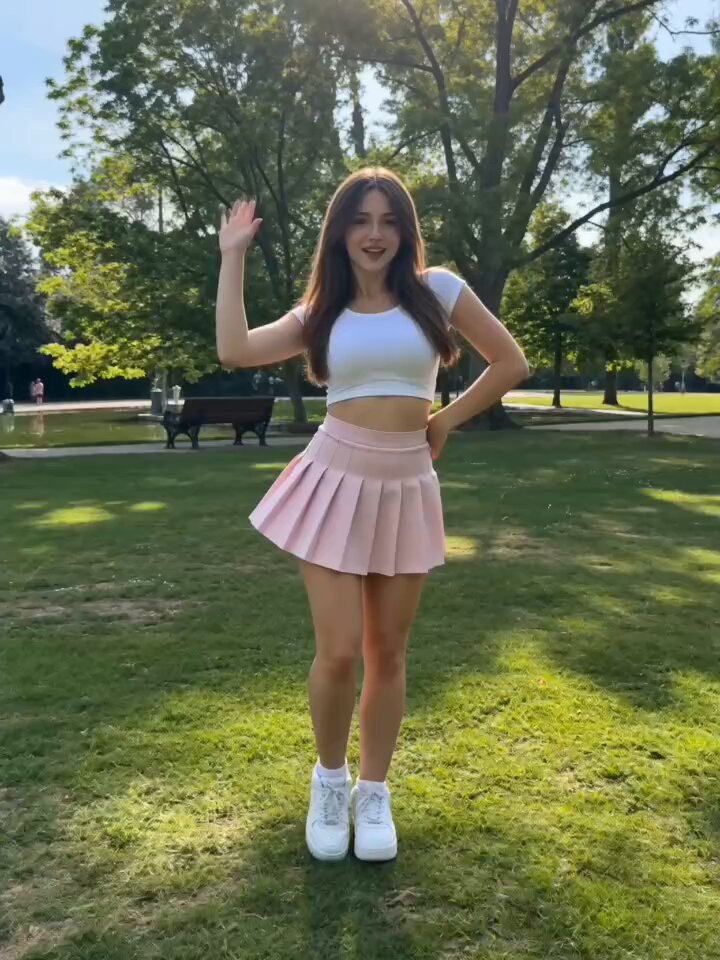
A red kite gliding over a grassy hill, wind moving the grass, camera following the kite in a wide shot.
Expected output
A wide clip of the kite gliding while the grass moves in the wind; the camera holds a steady distance.
Settings review capability
Input
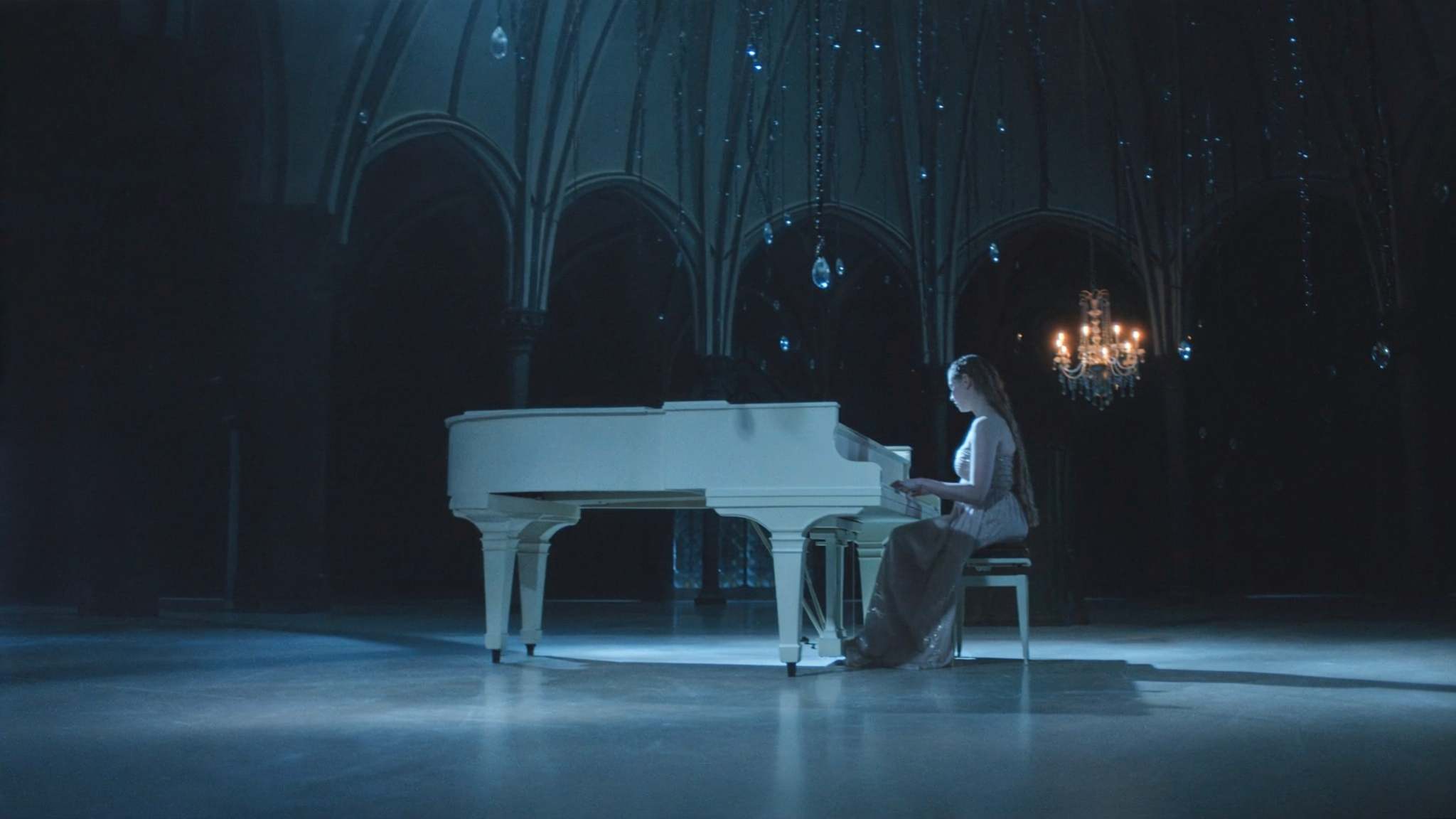
An empty train platform at night, rain falling, one lamp flickering, slow zoom toward the platform edge.
Expected output
A night platform clip with rain and a flickering lamp; the slow zoom keeps the composition stable.
Output review capability
Input
A ceramic bowl on a wooden table, steam rising, camera circling slowly at table height.
Expected output
A tabletop clip with rising steam and a slow orbit around the bowl; the tone stays warm and even.
Understand the practical capabilities and workflow of an AI video generator through real testing and review.
Know the core workflow
The route takes a text prompt and returns a generated video, so the main capability is turning a clear scene description into a clip.
Settings you can use
You choose from the available generation settings before generating, which gives you control without extra steps.
Review before use
Every result should be reviewed for motion and suitability before you download or share it.
How It Works
1
Describe the scene
Describe the desired scene and motion.
2
Set the options
Choose the available generation settings.
3
Generate and download
Generate, review, and download a suitable result.
Checking what the generator can do
Focus on the documented text-to-video workflow instead of industry claims.
Input Constraints
Describe the scene and motion in plain words.
Use only the settings available on the page.
Review the clip before any use.
Practical Tips
Test one scene, review it, then adjust the wording.
Compare two versions to see how the settings change the result.
Creative Suite: AI Video Generator & AI Image Generator Tools
Power up your creative workflow with our AI-driven tools. Generate stunning videos, create images, and apply custom adjustments - our AI Video Generator and AI Image Generator offer a complete solution for all your creative needs.