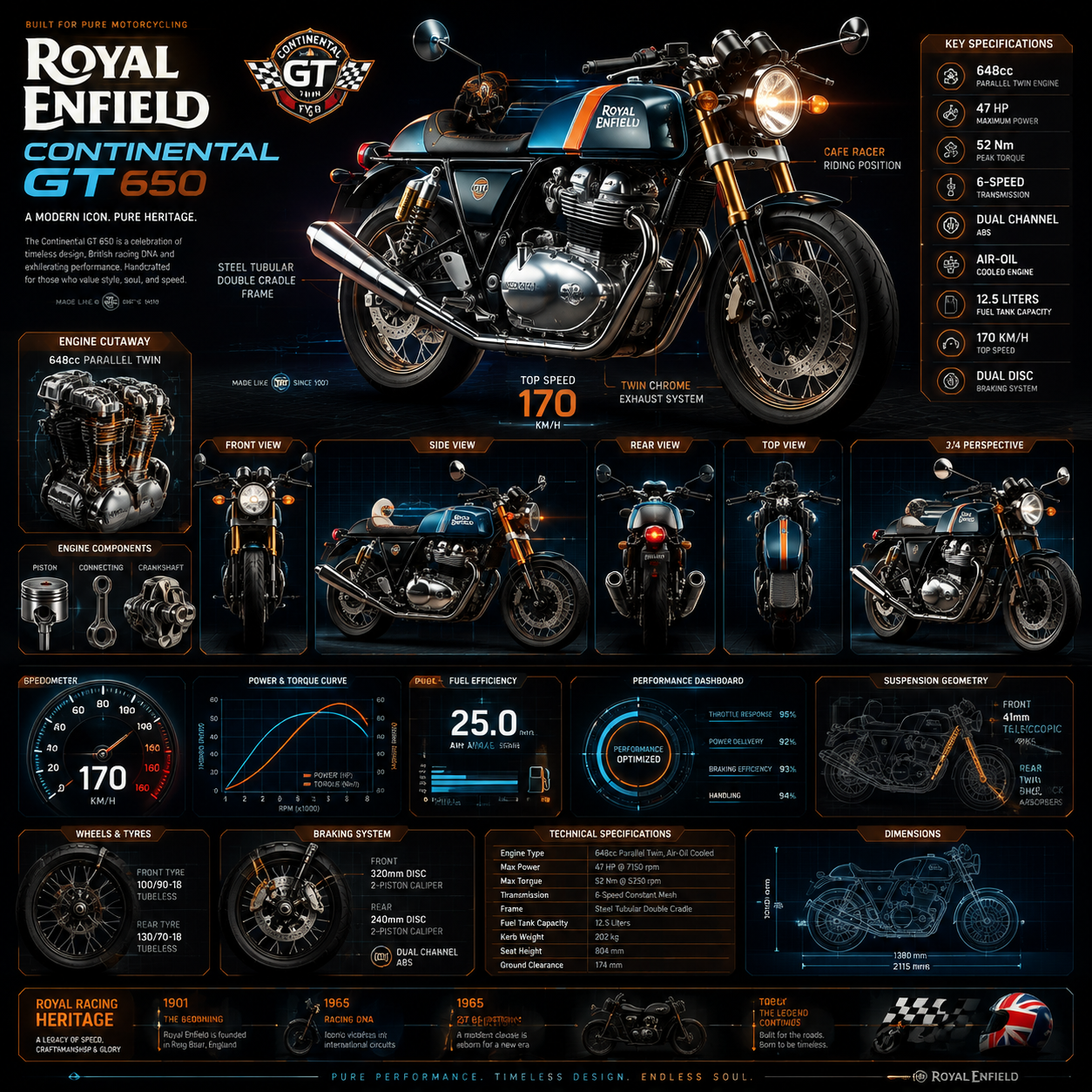
How do I make a video thumbnail with a text prompt?
Describe the thumbnail image you need based on your video's topic: the main subject, lighting, composition, and mood. The tool generates an image you can review and download, then add title text in your own editor. This workflow lets you design bold, on-brand thumbnails without editing video frames or using complex design software.
Thumbnail Maker Video: Describe and Generate
Cooking show opener
Input
A steaming bowl of ramen on a dark wooden table, chopsticks lifting noodles, warm overhead light, appetizing food photography style for a cooking video thumbnail
Expected output
A close-up food scene with visible steam and strong contrast, framed like a thumbnail image.
Gaming stream frame
Input
A confident character holding a controller, neon arcade background, motion blur behind, bold colors, esports poster energy
Expected output
An action-focused gaming image with a vivid backdrop and clear central character.
Tutorial cover
Input
A clean desk with a laptop showing a code editor, soft daylight, shallow depth of field, simple layout for an explainer video thumbnail
Expected output
A tidy, readable tutorial scene with the laptop as the clear focal point.
Create thumbnail images for videos from written descriptions
Turn words into a visual
Describe the thumbnail frame you need instead of adjusting layers, text, and clip art by hand.
Try directions quickly
Change a few words in your prompt to compare different compositions and color moods.
Keep one workflow
Use the same describe-generate-review pattern for videos on any topic or channel.
How It Works
1
Describe the image
Describe the desired image.
2
Choose settings
Choose the available generation settings.
3
Generate and review
Generate, review, and download a suitable result.
Prompt guidance
Describe one clear subject so the result is easier to review.
Input Constraints
Describe a single clear subject so the thumbnail stays readable at small sizes.
Keep the scene focused; too many elements can crowd the frame.
Mention the mood or lighting you want, such as bright, moody, or high contrast.
Review the result for text, faces, and layout details before use.
Practical Tips
Name the main subject first, then add setting and style.
Use concrete words like 'close-up', 'overhead', or 'action pose' to guide composition.
If the first result misses, adjust one detail at a time and generate again.
Privacy
Do not upload personal or sensitive material unless you have permission to use it.
Usage Rights
Confirm that you have the rights needed for the inputs and intended use of the result.
Prompt recipes
Copy a structure, then adjust the subject, lighting, camera, and output details for your own result.
Vlog adventure thumbnail
A person standing at the edge of a canyon overlook at golden hour, arms spread wide, dramatic landscape in the background, warm orange and purple sky, wide cinematic shot with figure on the right third
Uses cinematic framing, golden-hour light, and rule of thirds to create an inspiring travel vlog thumbnail.
Product unboxing thumbnail
Hands opening a sleek black box with a new gadget visible inside, dramatic lighting from above, clean white surface, product reveal moment, excitement and anticipation mood
Captures the reveal moment with hands-on action and dramatic lighting to create an engaging unboxing thumbnail.
How-to video thumbnail
Overhead view of hands demonstrating a step-by-step process on a clean workspace, bright even lighting, organized tools and materials, instructional and approachable feel, space at bottom for step number
Uses overhead perspective and clean composition to create a clear, instructional thumbnail for tutorial content.
Podcast episode thumbnail
Two people sitting across from each other with microphones, warm studio lighting, cozy and conversational atmosphere, blurred background with soft bokeh, intimate interview setup
Creates a warm, conversational mood with interview setup and soft lighting for podcast or interview content.
Fitness challenge thumbnail
Athlete in mid-burpee with sweat visible, intense expression, dramatic gym lighting from the side, motion blur on the background, high-energy and motivational mood, bold composition
Captures action, intensity, and sweat with dynamic framing to create a motivational fitness thumbnail.
Story time thumbnail
A person sitting in a cozy armchair with a book, warm lamp light, soft shadows, intimate and mysterious atmosphere, close-up framing focused on thoughtful expression
Uses intimate framing and warm lighting to create a personal, story-driven thumbnail for narrative content.
Best use cases
Match the workflow to the input you have and the result you need before opening the generator.
Use case
Best input
Expected result
Tool
Video thumbnail for YouTube or social platforms
Scene description with clear subject, lighting, composition, and mood matching video content
Clickable thumbnail image ready to crop and upload
Text to Image with video topic and composition keywords
Podcast episode cover
Studio or interview scene with warm lighting and space for episode title
Professional episode artwork for audio platforms
Text to Image with podcast and studio keywords
Online course or webinar preview
Educational scene with workspace, tools, or presenter in instructional setting
Professional course thumbnail communicating topic and tone
Text to Image with educational and workspace keywords
Social media video cover
Bold scene with strong color and simple focal subject for small-screen display
Eye-catching cover for Instagram, TikTok, or LinkedIn video
Text to Image with bold color and mobile-friendly keywords
Video thumbnail for YouTube or social platforms
Input: Scene description with clear subject, lighting, composition, and mood matching video content
Result: Clickable thumbnail image ready to crop and upload
Tool: Text to Image with video topic and composition keywords
Podcast episode cover
Input: Studio or interview scene with warm lighting and space for episode title
Result: Professional episode artwork for audio platforms
Tool: Text to Image with podcast and studio keywords
Online course or webinar preview
Input: Educational scene with workspace, tools, or presenter in instructional setting
Result: Professional course thumbnail communicating topic and tone
Tool: Text to Image with educational and workspace keywords
Social media video cover
Input: Bold scene with strong color and simple focal subject for small-screen display
Result: Eye-catching cover for Instagram, TikTok, or LinkedIn video
Tool: Text to Image with bold color and mobile-friendly keywords
Limitations to know before generating
The tool generates images from text prompts, not from uploaded video files
Text overlays, titles, and logos should be added in a separate editor after generation for best quality
Faces, hands, and human figures should be reviewed for anatomical accuracy before publishing
Thumbnail effectiveness depends on how well the prompt matches your video's actual content and target audience
Generated images are starting artwork; final thumbnails may need cropping, contrast adjustment, or text overlays
Keep thumbnails honest and representative of video content to maintain viewer trust
Creative Suite: AI Video Generator & AI Image Generator Tools
Power up your creative workflow with our AI-driven tools. Generate stunning videos, create images, and apply custom adjustments - our AI Video Generator and AI Image Generator offer a complete solution for all your creative needs.