
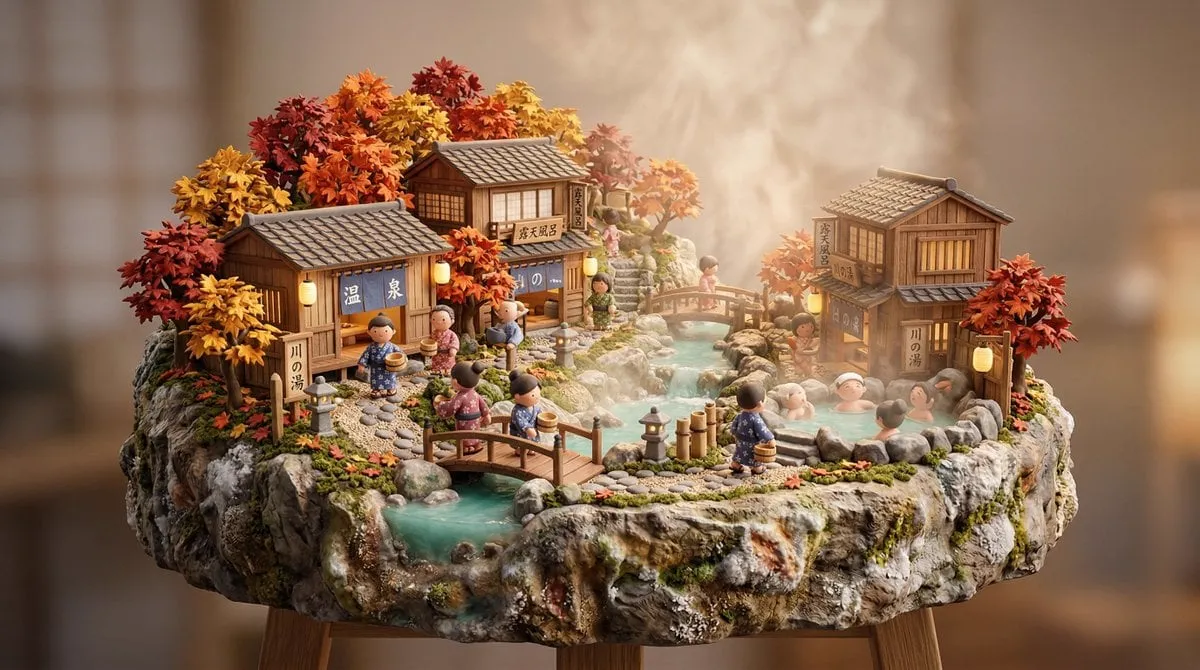
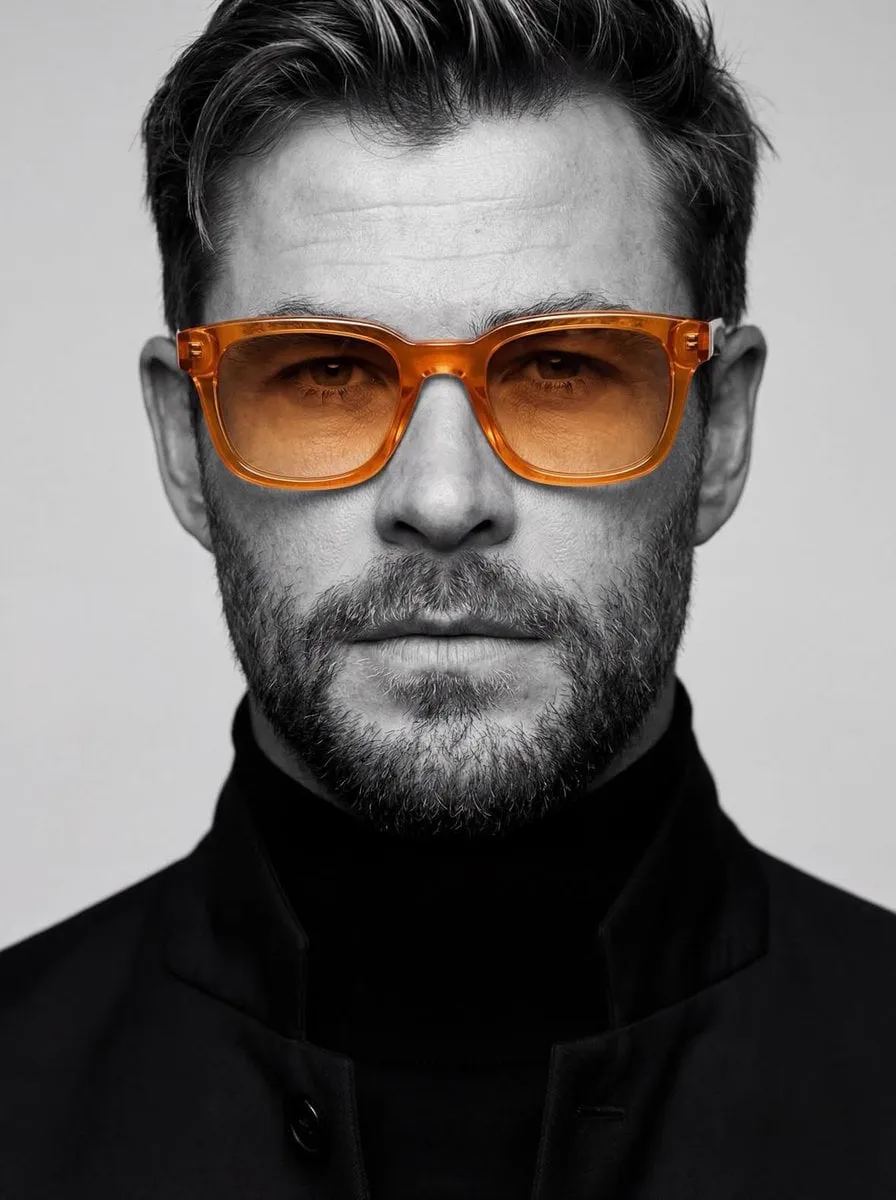
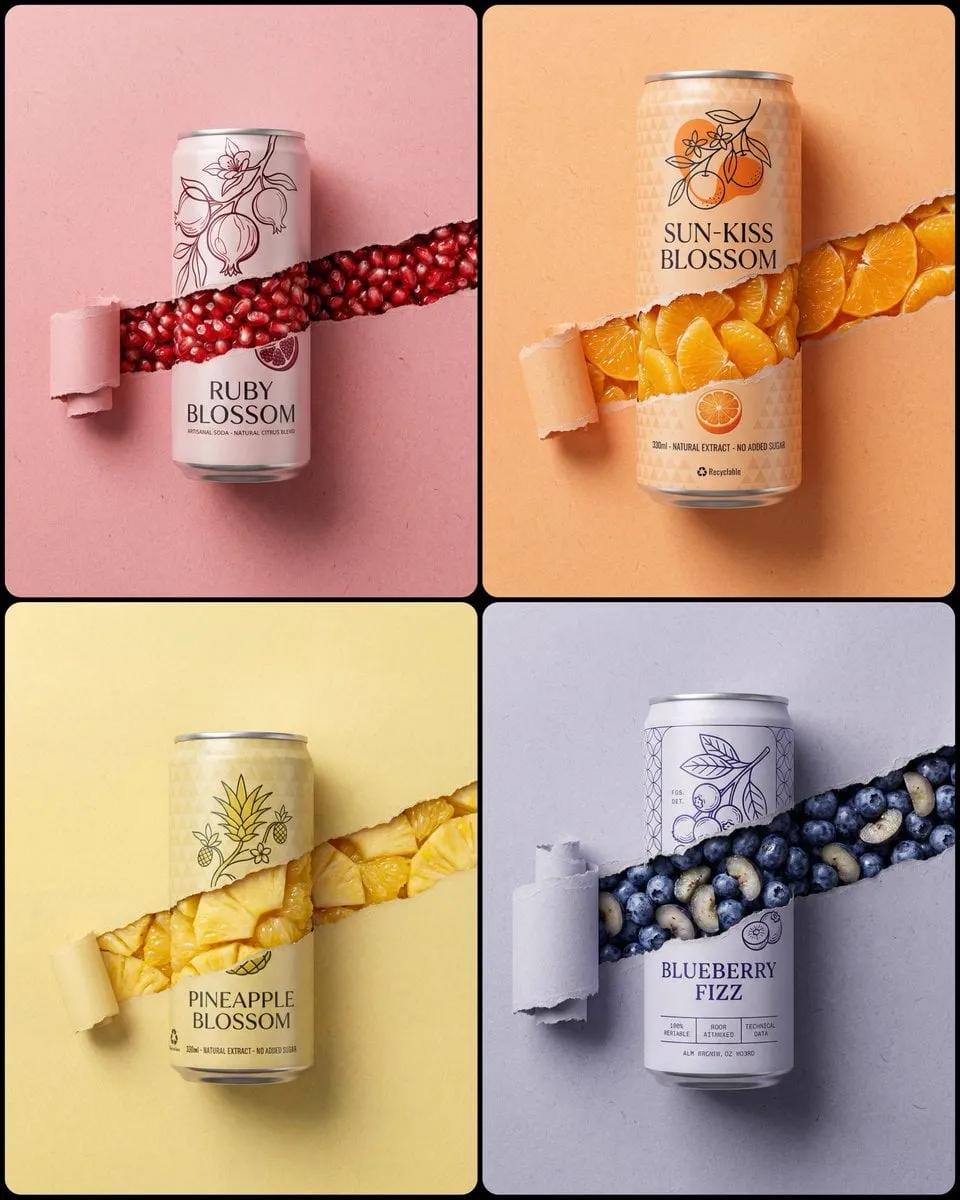
Photorealistic AI images stopped being a futuristic demo and became a daily working tool. Among the model families driving that shift, Flux stands out because it combines photographic detail with unusually strong instruction following: give it a specific scene, and it will render glass reflections, fabric texture, and facial expression in a way that looks like a real photograph rather than a painting.
This guide is a practical tour of Flux image generation: the model family, the prompts that produce photoreal results, the workflow for keeping style consistent across many images, and where Flux fits alongside the broader ecosystem of image and video generation tools.
Why Flux Changed the Image Generation Game
Most diffusion models generate an image and hope you like it. Flux was designed around control: the architecture is tuned to follow detailed prompts, handle complex compositions, and reproduce physical details like refraction, subsurface scattering, and material roughness. The practical effect is that you can describe a specific photograph and get something close to it on the first try.
That control matters for real work. A marketing team can brief a product shot in natural language, an indie filmmaker can generate a consistent establishing frame, and a designer can iterate on a concept without waiting for a render farm. The barrier to entry is not hardware or software anymore; it is knowing how to talk to the model.
The Flux Model Family: Choosing the Right Tool
Flux is not a single model. The family is split by speed, cost, and control, and picking the right variant for the job is half the skill.
Flux Pro: The Photorealism Workhorse
Flux Pro is the highest-fidelity variant, built for projects where detail matters most: product photography, portrait work, architectural visualization, and any image that will be viewed large. It excels at complex physical elements, realistic lighting, and nuanced facial expressions. Use it for hero images and final renders, not for rapid iteration.
Flux Dev: The Controlled Middle Ground
Flux Dev sits between raw quality and workflow flexibility. It is designed for developers and creators who want to integrate generation into a pipeline, with predictable behavior and strong prompt adherence. If you are building a tool, a template, or a batch process, Dev is usually the right starting point.
Flux Schnell: Speed When You Need It
Schnell is optimized for fast generation. Quality is still strong, but it trades some fidelity for speed, which makes it ideal for brainstorming, thumbnails, mood boards, and any situation where you need twenty ideas in the time it takes Pro to make one. The results can often be refined later with a higher-fidelity pass.
Flux Redux: Style and Recomposition Control
Redux is the variant oriented toward control of style and structure: it can take an existing image and re-render it in a different style, different aspect ratio, or different composition while preserving the core content. This is the tool for the classic workflow of "generate once, restyle many."
The practical pattern is to move through the family: Schnell for exploration, Dev for batch production, Pro for finals, Redux for adaptation.
Writing Prompts That Produce Photorealism
Prompt quality is the biggest single factor in output quality. The difference between a generic image and a believable photograph is often in the specificity of the description.
The Photorealism Prompt Recipe
A strong photoreal prompt covers five dimensions: subject, action, environment, lighting, and camera. An example:
"Close-up portrait of a woman in her thirties standing in a rain-soaked Tokyo alley at night, wet hair catching neon reflections, wearing a worn denim jacket, shallow depth of field, 85mm lens, soft bokeh, cinematic teal and orange grade, photorealistic"
The key is specificity: "rain-soaked alley at night" generates a different image than "street." "85mm lens" changes the compression and background blur. "Photorealistic" at the end tells the model which aesthetic register to aim for.
Negative Guidance and Constraints
Photorealism fails most often when the model drifts into illustration. Name the artifacts you do not want: "no illustration, no painting, no cartoon, no oversaturation, no text, no watermark." If faces look plastic, say "natural skin texture, visible pores, realistic lighting." The model listens to constraints best when they are concrete.
Controlling Composition and Style
Getting one good image is easy; getting thirty images that look like one coherent set is the real skill. Three techniques do most of the work:
Style anchors. Save the exact prompt and settings that produced your favorite image. For every subsequent image in the set, keep the style portion of the prompt identical and change only the subject and scene. Small wording changes in style phrases produce visible drift, so treat the style block as frozen text.
Reference images. Most Flux-based workflows let you pass a reference image that defines the look, the character, or the palette. A reference image is worth a hundred adjectives: it pins down lighting, color, and mood in a way language cannot.
Fixed parameters. Aspect ratio, seed behavior, and output resolution should be locked for the whole set. If every image in a campaign has a different aspect ratio, the set will feel inconsistent no matter how good each frame is.
Keeping Characters and Scenes Consistent Across a Series
The classic failure of AI imagery is that the same character looks different in every frame. The fix is to build a character sheet before you generate the series: a set of reference images showing the character's face, body, clothing, and key props, plus a frozen text description. Every generation in the series references the same sheet and the same description.
For scene consistency, do the same for the environment: one reference image of the room, the street, or the landscape that appears in multiple shots. When characters and environments each have their own locked reference, multi-shot sets start to look like frames from a single production.
Flux in a Video Workflow
Flux images are a natural starting point for image-to-video generation. The standard pipeline is: generate keyframes with Flux, then feed those keyframes into a video model to animate them. Because Flux produces clean, detailed stills, the video model has strong material to work with, which reduces the warping and flicker that plague video generation from weak inputs.
This is also where the model family earns its keep: generate the hero keyframe with Pro, restyle alternate takes with Redux, and use Schnell to prototype camera moves before committing to a full render.
Practical Use Cases
Marketing and product photography. Generate studio-quality product shots without a studio. Brief the model with lighting and material details, and iterate until the angle matches the campaign art direction.
Editorial and publishing. Create cover concepts and interior illustrations in a consistent visual language across an entire issue.
Concept art and previsualization. Directors and game studios use Flux stills to communicate mood, lighting, and composition to teams before any expensive production begins.
Real estate and interior design. Generate photoreal room renders from a floor plan or a written brief, and produce consistent walkthrough material for listings.
Personal projects. Portraits, fantasy scenes, and world-building for tabletop games or novels become cheap and fast.
Comparison: Flux and the Wider Ecosystem
Flux competes most directly with other image generators, but its real role in a modern pipeline is complementary to the video generation tools that surround it. Runway and OpenAI's video models are strong at animating scenes from image inputs, Kling AI and MiniMax's video models bring different motion styles, and tools like Luma, Pika, and PixVerse each have their own strengths for short-form generation. The pragmatic approach is not to declare a single winner but to build a pipeline: Flux for the stills, a video model for the motion, and a consistent reference system to keep the whole thing coherent.
A Step-by-Step Workflow for a Coherent Photo Set
Production work is about sets, not singles. Whether you are generating a product campaign, a comic page, or a storyboard, the workflow below keeps every image in the set feeling like one production.
- Define the brief. Write one sentence describing the set: subject, mood, palette, lighting. This sentence becomes the anchor for every decision that follows.
- Build the style anchor. Generate one hero image with the full style block. This is your reference for the rest of the set; if it does not feel right, fix it now, because every later image will inherit its weaknesses.
- Lock the parameters. Fix aspect ratio, resolution, and the style portion of the prompt. Copy the style block verbatim into every prompt in the set.
- Create reference assets. For recurring characters or environments, generate the character sheet and environment stills. These references travel with every prompt.
- Generate in batches. Produce variations per scene, not per idea. Three takes of one scene is more useful than one take of three scenes, because it lets you compare and select.
- Review as a set. Lay the selected images side by side before committing. Inconsistencies that are invisible in a single image become obvious in a grid.
- Restyle and adapt. Use Redux-style controls to adapt approved images to new formats: different aspect ratios for social platforms, alternate color grades for different campaigns, and composition variants for layouts.
The discipline of reviewing as a set is what separates professional-looking work from a pile of impressive single images. It is also what makes the pipeline repeatable: next month's campaign starts from the same style anchor, so the whole portfolio grows in one direction.
Batch Variation for Fast Decisions
One habit speeds up the whole pipeline: generate deliberate variation sets. Instead of one image per prompt, produce three to four variants per prompt, then choose. The variants should differ in one meaningful dimension each: a tighter crop, a different light direction, a warmer grade, a different lens. Comparing variants side by side trains your eye faster than polishing a single image, and the rejected variants are not wasted, because they show you which direction not to take. For style exploration, this batch method is the fastest way to map the space of what the model can do with your brief.
Troubleshooting Common Problems
Images look too smooth or plastic. Reduce the "studio" language, add "natural skin texture" and "available light," and avoid oversaturated color words.
The model ignores part of the prompt. Long prompts dilute attention. Move the most important element to the beginning and cut adjectives that do not matter.
Style drifts between images. Freeze the style block of the prompt, use the same reference images, and lock aspect ratio and resolution.
Hands and details break. Crop tighter, or generate the detail as its own image and composite. Small details are easier to get right in close-up.
FAQ
Is Flux free to use?
Flux is available through a variety of services and APIs with different pricing models; some platforms offer free tiers with limits. Check the specific provider's terms.
Do I need a powerful computer to run Flux?
For online services, no; generation happens on the provider's servers. Local setups require a capable GPU, which is why most creators use online generation.
What is the best Flux model for beginners?
Start with Schnell or Dev to learn prompting quickly, then move to Pro for final images. Redux is worth learning once you need style adaptation.
How do I make my images look less "AI-generated"?
Specificity in lighting and camera language, natural texture vocabulary, and consistent style anchors do more than any single magic word.
Can Flux generate video?
Flux itself generates still images, but its output is an excellent input for image-to-video models. The combination of a great still and a video model is how most AI filmmakers work today.
How do I get higher resolution output?
Generate at the highest resolution your provider offers, then use an upscaler for final delivery. For print work, plan the image composition so that critical details live in the center, where upscaling artifacts are least visible.
Can I use Flux images commercially?
Check the terms of the service and model variant you use. Policies differ by provider and by model, and some variants have separate licensing for commercial use. When in doubt, choose a variant whose license explicitly covers your use case.
Why do my images drift in style even with the same prompt?
Small differences in random seed, parameter values, or even punctuation in the prompt cause drift. Freeze the entire style block, use the same reference images, and lock aspect ratio and resolution. For exact repeats, reuse the same seed where the tool allows it.
