

For years, Adobe After Effects has been the standard tool for motion graphics, visual effects, and complex animation. It still is, in many studios. But it also comes with a steep learning curve and a subscription that keeps getting more expensive, and that combination has pushed a large group of creators to look elsewhere. The good news is that the alternative landscape has changed completely. Modern AI video tools can now handle a surprising share of the work people used to open After Effects for, and many of them are free or have generous free tiers.
This guide is practical. It walks through the free AI alternatives to After Effects, what each one genuinely replaces, how to stack them into a real workflow, and where the limits still are. You will not need to download a cracked plugin or spend weeks on YouTube tutorials. You will need a clear idea of what you want to produce and a willingness to prompt instead of keyframe.
Why After Effects Feels Out of Reach
After Effects is powerful because it is a general-purpose tool. You can animate text, composite footage, track objects, build particle systems, simulate 3D layers, and color correct everything. That flexibility is exactly why it is hard. Mastering it means learning layers, keyframes, expressions, masks, track mattes, and a dozen panels most people never open.
The cost side matters too. A subscription is a recurring expense that is hard to justify for someone who needs a few short social videos a month, and the hardware requirements are real. Rendering complex compositions on an older laptop is painful. For freelancers, small business owners, educators, and hobby creators, the question is not whether After Effects is good; it is whether the investment in time and money makes sense for the output they need.
AI video tools attack the same problem from a different angle. Instead of giving you manual control over every frame, they generate motion from a description. Instead of a timeline full of layers, you get a prompt box and a set of settings. This is not a compromise; for many projects it is simply faster, and for a growing list of effects the output quality is comparable to what a mid-level motion designer would produce.
What AI Tools Actually Replace in an After Effects Workflow
To choose tools wisely, separate the jobs After Effects does into categories:
- Motion graphics and animated text: lower thirds, titles, kinetic typography.
- Visual effects: glow, blur, transitions, compositing, green screen cleanup.
- Generated motion: turning a static image into a moving scene.
- Full scenes from nothing: text-to-video generation of footage.
- Sound design: effects, background music, voiceover.
Free AI tools are strongest in the last three categories. Text-to-video models can produce entire shots that would require elaborate compositing. Image-to-video tools animate a single artwork or photo into a moving scene with camera motion, which covers a large share of the "motion graphics from a design" use case. For pure typography and interface animation, classic free tools like DaVinci Resolve's Fusion or Blender still have a role, but you can do a surprising amount with AI motion on top of static titles.
The practical strategy is hybrid: use AI for the expensive parts (generating footage, animating images, adding effects), and use a free editor for assembly, timing, and text overlays. CapCut, DaVinci Resolve, and even iMovie handle the assembly layer well. That combination covers most short-form video production without opening After Effects once.
The Free Toolbox: Text-to-Video
Text-to-video is the core of the new workflow. You describe a scene, and the model generates a short clip. Free tiers vary, but several platforms offer a limited number of daily generations or watermarked exports, which is enough for practice and for testing whether a style works.
What it genuinely replaces: establishing shots, b-roll, background footage, and stylized scenes that would take hours to build in After Effects with generated elements. Instead of searching a stock site for the perfect clip, you prompt for it.
What to watch for: resolution limits, short clip lengths, and artifacts in hands, text, and fast motion. For social media, 1080p output is usually fine, and most artifacts can be hidden with quick cuts or by keeping the generated clip short.
A realistic workflow looks like this: write a detailed prompt that includes subject, camera movement, lighting, and mood; generate several takes; pick the best one; cut it into your edit with music and a voiceover. The iteration loop is fast, so treat generation as sketching rather than final rendering.
Image-to-Video for Designers Who Start with Art
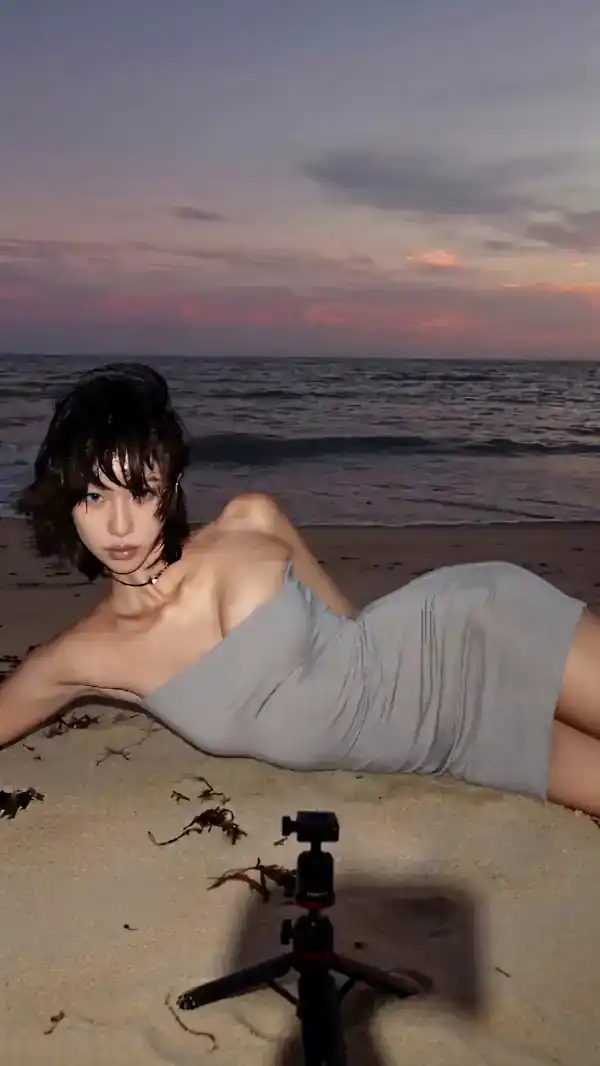
Many projects begin with a strong static visual: a logo, an illustration, a product photo, a character design. Image-to-video tools take that image and add motion, camera pushes, parallax, or subtle animation. This is the closest free equivalent to the "animate a design" workflow in After Effects.
The technique that matters most is the reference image. A good source image gives the model a strong foundation, so motion stays grounded. If you feed it a clean, high-contrast image with a clear subject, you get smooth camera movement. If the image is cluttered or low resolution, the result wobbles.
For character work, use a consistent reference across multiple clips. Generate a character sheet first, then feed the same character image into each scene. That small habit solves the biggest complaint people have with AI video: characters changing appearance between shots.
Sound and Effects Without the Plugin Hunt
A huge share of After Effects work is actually about making videos feel polished: adding whooshes, risers, background music, and voiceover. Free AI sound tools now cover this completely. Text-to-speech services produce natural-sounding narration in many languages and accents, and AI music generators create royalty-free background tracks from a mood description.
This matters more than most creators realize. A video with decent visuals and great audio outperforms one with great visuals and hollow audio. The fastest quality upgrade available today is adding a proper voiceover and a music bed, and it costs nothing.
Stacking Free Tools to Simulate After Effects Techniques
The real skill now is chaining tools to produce results no single tool offers alone. Three combinations are especially useful.
Style consistency with multi-image references
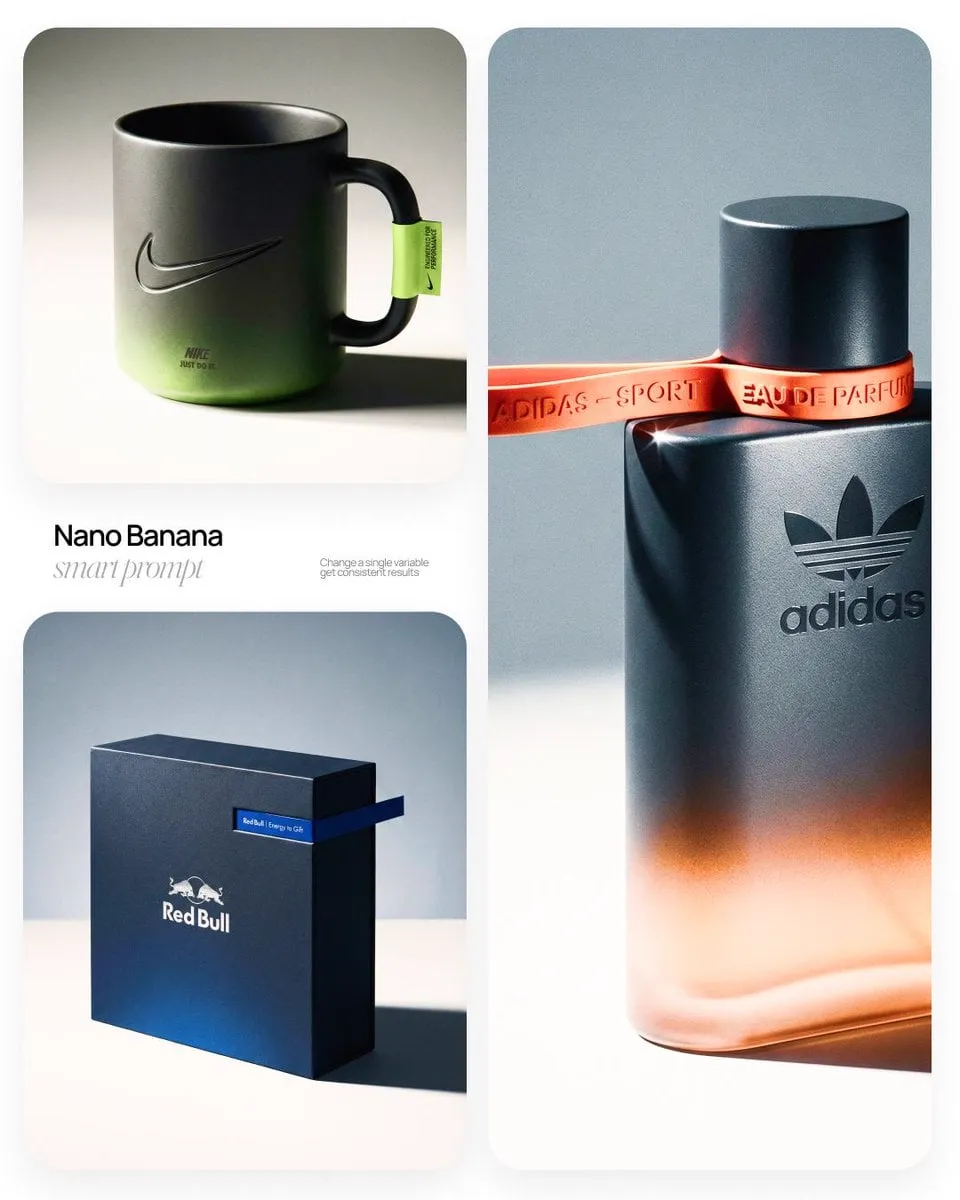
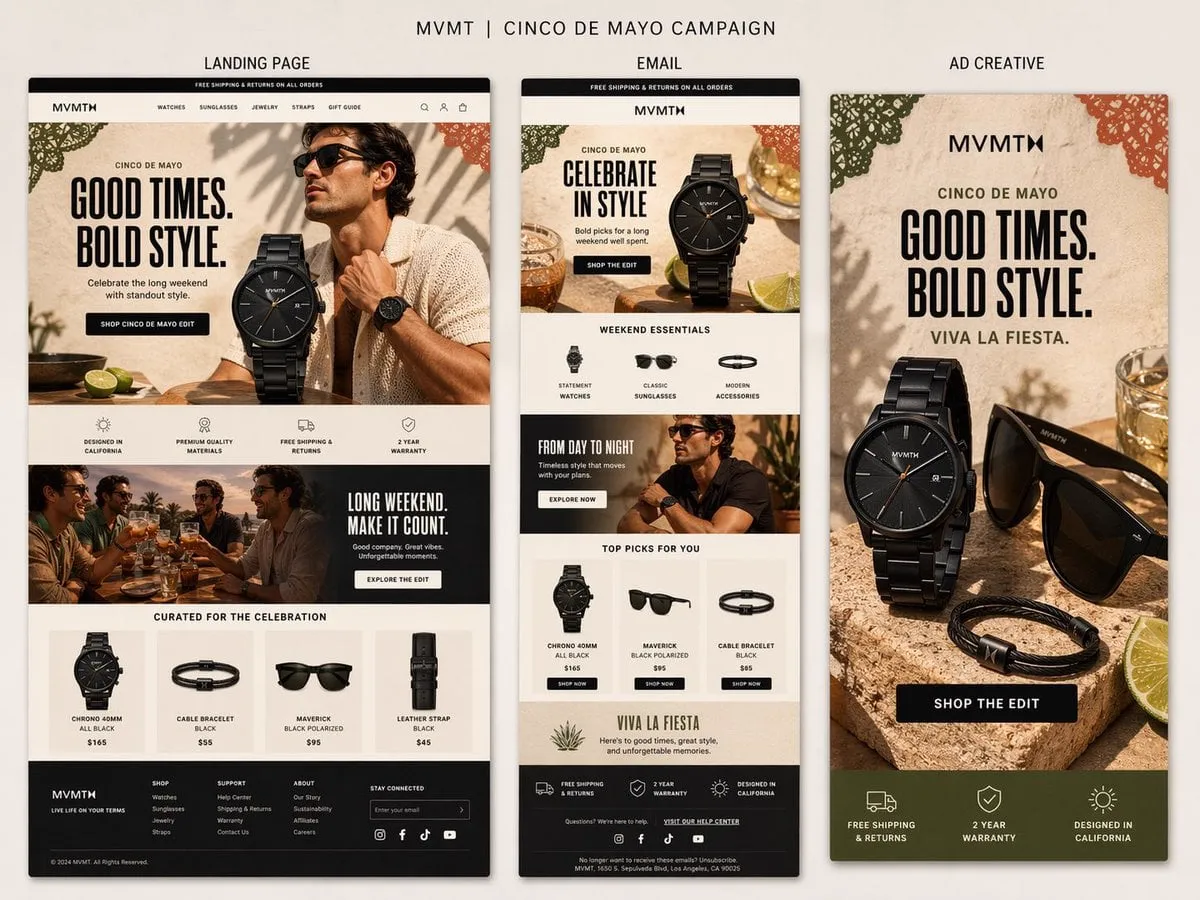
Use one reference image to lock the look across every clip. Generate a key visual first, then run every scene through an image-to-video or a model that accepts reference images. The result is a consistent style across the whole video, which is the same outcome motion designers achieve with color grading and style frames in After Effects.
Video-to-video for targeted effects
Some platforms accept an input video and restyle it. You can shoot or generate a base clip, then run it through a stylization pass to get a specific look: anime, cinematic, painterly. This is a direct replacement for the effect stacks people build in After Effects.
Chaining generation passes
Generate a base scene, upscale it, then animate it again with a different prompt to add motion. Each pass adds quality. The trick is to keep prompts stable between passes and only change the element you want to modify, otherwise the scene drifts.
Building a Free Daily Workflow
Here is a complete free workflow for a short social video, from idea to export, with no After Effects involved:
- Write the script first. A clear script makes every later step faster.
- Generate a voiceover with a free text-to-speech tool and pick a voice that matches the tone.
- Break the script into shots, then generate each shot with text-to-video or image-to-video. Keep a consistent reference for characters and style.
- Generate a background music track that matches the mood.
- Assemble everything in a free editor: timeline, captions, transitions, and a title card.
- Export and review. If a shot is weak, regenerate it, do not try to fix it in editing.
This loop produces a finished video in under an hour once you know the tools, and the quality bar is high enough for social media, ads, and internal training content.
How to Choose Between Free and Paid
Free tiers are enough for testing and for low-volume production, but they come with limits: watermarks, resolution caps, slower queues, and fewer model choices. Upgrade when you hit a real constraint, not before.
Ask three questions before paying: Does the watermark block your use case? Do you need longer clips or higher resolution for clients? Do you need commercial rights to the output? If none of these apply, keep using the free tier and save the money.
One important note on rights: always read the terms of the platform you use. Most major tools allow commercial use of generated output, but some free tiers restrict it. If you produce for clients, verify the license before publishing.
A final consideration is whether free AI output matches the specific style your brand needs. If your channel depends on a consistent look, invest the time in building a reference library: colors, typography, and a few style frames that you feed into every generation. That small investment pays off in every video, because the tools change but the reference system stays yours. Treat it like a brand asset, update it when your visual identity evolves, and share it with anyone who produces content for you.
Common Pitfalls and How to Avoid Them
- Prompting with vague descriptions. A prompt like "a car driving" gives you a mediocre clip. "A dark blue sports car driving through a neon-lit city street at night, low angle, rain on asphalt, cinematic lighting" gives you something usable.
- Ignoring the reference image. Consistency comes from references, not from luck.
- Expecting long clips. Most free models generate a few seconds at a time. Plan cuts around that.
- Overusing AI effects. One stylized shot reads as intentional; ten in a row read as noisy.
- Skipping audio. Silent AI video feels broken. Music and voiceover are not optional polish; they are half the result.
FAQ
Is it really possible to replace After Effects with free tools? For most short-form, social, and marketing work, yes. For complex compositing, advanced expressions, or broadcast-grade motion graphics, no, and you should keep a dedicated tool for those jobs.
Do I need a powerful computer? No. AI generation happens in the cloud, so even a basic laptop works. This is a major advantage over After Effects.
Are free tools safe for commercial projects? Read the license terms of each platform. Most allow commercial use, but free tiers sometimes add restrictions.
How long does it take to learn? The prompt loop takes a few days to feel natural. The assembly tools take a few hours. Compared to After Effects, the learning curve is dramatically shorter.
What about watermarks? Free tiers commonly watermark output. You can often remove it by upgrading or by using a different tool that offers clean free exports.
Can AI video match the quality of a professional motion designer? It matches for specific styles and shots. For generic corporate motion graphics, a well-prompted AI workflow is often indistinguishable to the viewer.
Final Thoughts
After Effects is not obsolete, but it is no longer the only serious option. The free AI stack now covers text-to-video, image animation, effects, voice, and music, and it fits into a workflow that a beginner can learn in days. The winning approach is to stop thinking in layers and keyframes and start thinking in shots and prompts.
Start with one project. Write the script, generate the footage, add a voiceover and music, and assemble the result. The first video will take a while; the tenth will be fast. Once you see what the pipeline can do, you will understand why so many creators are leaving the old timeline behind.
The tools change quickly, and new models appear every few months. The skill that lasts is the workflow: clear scripts, consistent references, fast iteration, and good audio. Build that workflow now, with free tools, and you will be ready no matter which model wins the next release cycle.
