
There is a strange moment when you first turn a still photograph into a moving clip. The subject breathes, the camera glides, and a picture that was frozen becomes a scene. That moment used to require expensive software and hours of manual animation. Now it is a few clicks away, often for free. AI video generators have made photo-to-video accessible to anyone with a phone or a laptop, and the quality has climbed to the point where creators use these tools for real client work. This guide covers how free AI video generators work, which options are actually worth using, and how to get cinematic results from a single photo.
What a Free AI Video Generator Actually Does
Behind the simple interface is a diffusion model, the same family of technology behind modern image generators. The model learned to create images by studying how to remove noise step by step, and video models extend that skill to sequences of frames.
When you upload a photo and a prompt, the tool animates the still: it decides which elements move, how the camera moves, and what the light does. You are not "recording" motion; you are directing the model's imagination about motion. This is why the quality of the result depends so much on the input photo and the prompt. A model can animate almost anything, but it animates strong inputs much better than weak ones.
Free tiers usually share a common shape: a limited number of generations per day, a resolution cap, sometimes a watermark, and slower queue times. For learning the craft and producing short social clips, that is often enough. For professional work, a paid tier removes the limits, but the skills you learn on the free tier carry over completely.
The Best Free and Freemium Options
The photo-to-video landscape is crowded, but a few names dominate the conversation, and each has a different personality.
Luma Dream Machine is famous for smooth, cinematic motion. Its free tier is one of the most generous places to start, and its handling of camera moves makes ordinary photos feel like film frames. Runway's Gen series is a favorite for fidelity: it stays very close to your reference photo, which matters when the subject is a person or a product. Kling delivers strong results with good motion control and a distinctive style. Pika is intuitive and playful, great for quick experiments and social content. PixVerse offers a broad feature set with several cinematic controls, and Hailuo has impressed with natural movement quality.
The honest advice is to try two or three tools with the same photo. The differences are real, and your subject matter will suit some models better than others. A portrait, a landscape, and a product shot may each find their best home in a different tool.
Choosing the Right Photo
The single biggest lever in photo-to-video quality is the photo itself. Some photos animate beautifully; others fight the model the whole way.
High resolution matters. A small, compressed image gives the model less to work with, and the motion will show it. Aim for at least 1024 pixels on the long edge, and avoid heavy compression artifacts. A clean subject helps too: a person or object clearly separated from the background gives the model obvious motion candidates, such as hair, clothing, and limbs. Cluttered scenes confuse the generator into wobbly, noisy motion.
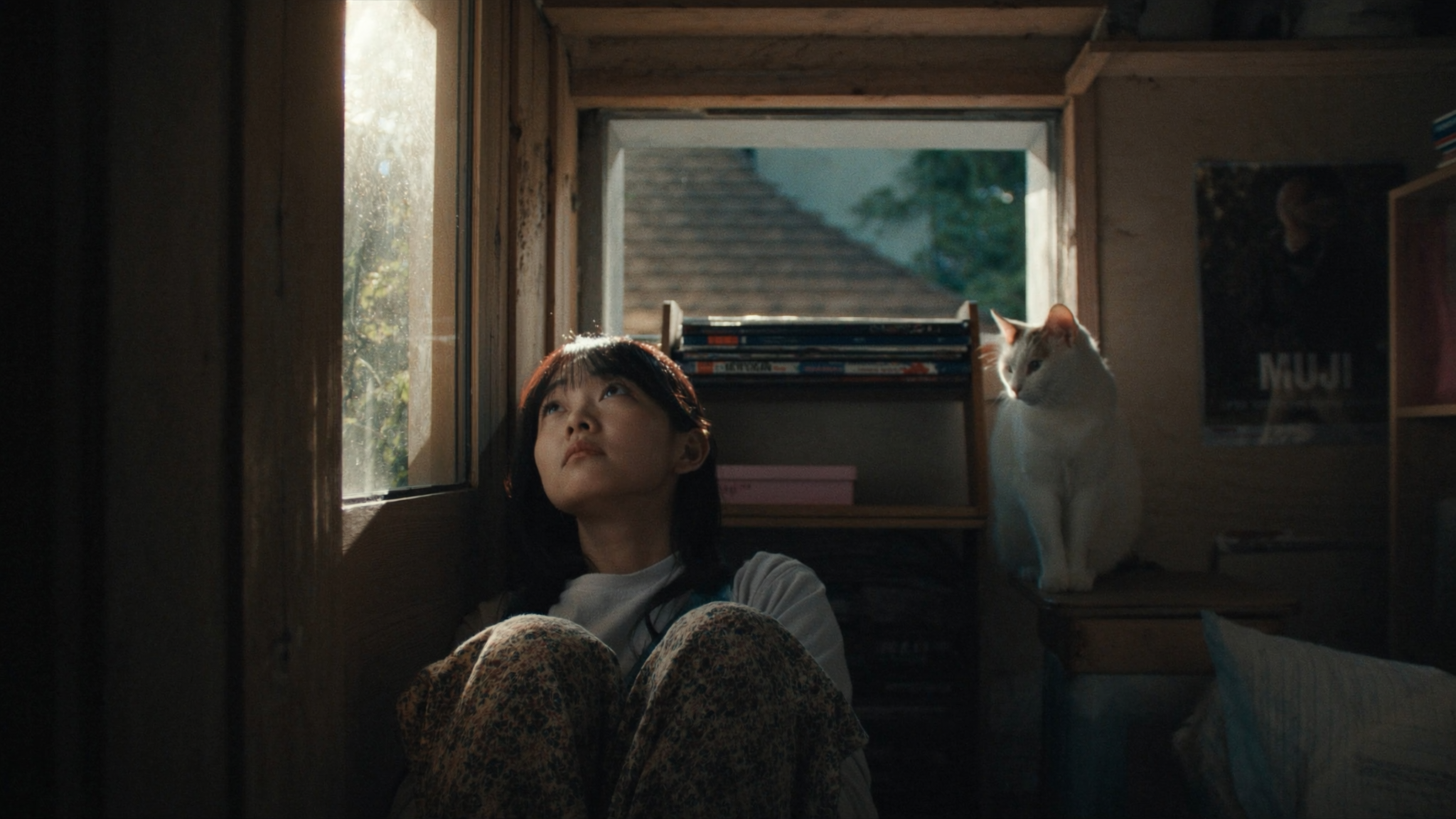
Lighting is the hidden ingredient. Photos with strong, directional light produce dramatic, film-like results because the model can animate light and shadow believably. Flat, washed-out light produces flat motion. Look for photos with a clear focal point and a sense of depth. And think about what could move: a flag, water, hair, dust, leaves. The model will usually find these elements, so choose photos that contain them on purpose.
Writing Prompts That Add Cinematic Motion
The prompt is where you turn "animate this photo" into "direct this shot." A good prompt describes the camera and the atmosphere, not just the action.
Start with the camera move: "slow push-in," "dolly forward," "crane up," "subtle handheld." Then describe the primary motion in the scene: "the subject turns toward the window," "waves roll onto the shore," "curtains sway in the breeze." Then add atmosphere: "golden hour light," "fog rolling in," "neon reflections on wet pavement." Finally, if useful, name a style: "cinematic," "film grain," "documentary."
Here is a full example: "Slow push-in, the woman looks up from her book, rain streaks the window behind her, warm lamplight, cinematic, shallow depth of field." That single sentence gives the model a camera, an action, a mood, and a look. Compare that with "make it move," and you can feel the difference.
Avoid overloading the prompt. One action, one camera move, one mood. If you want more motion, generate a longer clip or a second version, rather than stuffing ten instructions into one prompt.
Step by Step: From Photo to Cinematic Clip
A reliable workflow keeps the process fast and the results consistent. Follow these steps on any tool.
First, prepare the photo: crop to the target aspect ratio, upscale if needed, and remove anything that should not appear in the video. Second, write the prompt using the structure above, and keep a copy in a notes file so you can reuse what works. Third, generate one test clip and watch it fully, twice. Look at the motion quality, the identity of the subject, and the overall mood, not at minor artifacts yet.
Fourth, iterate: adjust the prompt or choose a different motion model based on what the test revealed. Fifth, generate two or three final variants and pick the best. Sixth, post-process: upscale if the tool allows, add subtle sound design, music, or a letterbox crop to make it feel finished. Seventh, export at the highest resolution the free tier allows and keep your original photo and prompt filed with the clip, because you will want to revisit them.
Managing Quality: Artifacts and Consistency
Free generators have limits, and knowing how to work around them keeps your output professional.
Warping is the most common artifact: hands, faces, and fine patterns distort during motion. Regenerating often fixes it, because each generation is a fresh roll of the dice. Shortening the clip helps, since artifacts accumulate over time. Faces can also morph between frames; using tools with strong identity preservation, or feeding a second reference image when supported, stabilizes the result.
Flicker and pulsing happen in high-contrast areas and fine textures. Reducing the prompt's complexity and avoiding extreme camera moves usually calms it down. If the output looks soft, an upscaler can help, and adding film grain in post actually hides a surprising amount of digital imperfection.
Consistency matters across a set of clips. If you are animating several photos from the same shoot, use the same prompt structure, the same camera vocabulary, and the same post-processing look, so the set reads as one project rather than random experiments.
Making It Useful: Social Clips, Ads, and Storytelling
The real question is what to do with these clips. The most popular use is social content: a portrait that slowly zooms with a caption overlay performs far better than a static image on most platforms. Product creators animate product shots for ads, letting a sneaker rotate or a watch catch the light. Marketers turn campaign photography into short motion assets for landing pages. Educators animate diagrams and historical photos to make lessons vivid.
The strongest use is storytelling. A sequence of animated photos, each with its own camera move, can carry a narrative that a single still cannot. Photo essays become mini-films, brand histories become emotional montages, and personal memories become shareable cinematic moments. The tools are simple; the stories you choose to tell are not.
Match the format to the platform as well. A vertical 9:16 clip suits Reels and TikTok, where the first two seconds decide everything, so put the motion and the focal subject in the center of the frame. A square 1:1 clip fits feed posts and product listings. A 16:9 clip works for YouTube, presentations, and websites, where you can afford slower, more atmospheric motion. Generating directly in the target ratio beats cropping afterward, because cropping a vertical clip to widescreen destroys the composition the model built.
Prompts That Work: Before and After
The fastest way to improve your results is to see the difference between a weak prompt and a strong one. Compare these two versions for the same photo of a lighthouse at sunset.
Weak prompt: "make this photo move, add some motion, make it look cinematic, maybe waves and clouds, nice lighting, keep it natural." The model receives a wish list, not a direction. The result is usually generic motion, unstable clouds, and a look that matches no particular intention.
Strong prompt: "Slow push-in toward the lighthouse, waves rolling onto the rocks in the foreground, clouds drifting left, warm golden light, cinematic, subtle film grain." The model receives a camera move, two layers of motion, a light direction, and a look. It can execute that, and the clip will feel intentional.
The same logic applies to portraits: "Close-up of the woman, gentle dolly forward, hair moving in the breeze, soft window light, shallow depth of field" beats "make her hair move and make it nice." To product shots: "The sneaker rotates slowly on a turntable, studio light, crisp reflections, clean background" beats "show the sneaker from all angles."
Build a habit of writing prompts in this order: camera, subject action, environment and light, look. When a result disappoints, change one element at a time, and keep the versions in your notes. Within a few sessions you will have a personal library of phrases that reliably produce the mood you want.
Frequently Asked Questions
Are free AI video generators really free? Yes, within limits: a set number of generations per day, capped resolution, sometimes watermarks. Paid tiers remove limits but are not required to learn.
What is the best free photo-to-video tool? There is no single best. Luma is excellent for cinematic motion, Runway for fidelity to the photo, Kling for distinctive style and control. Try the same photo in two or three tools.
Why does my video look warped? Warping is a common artifact of diffusion video. Regenerate, shorten the clip, simplify the prompt, or avoid extreme camera moves.
Can I use these clips commercially? Read each tool's license. Free tiers often restrict commercial use; paid tiers usually allow it.
How long should the clip be? Three to eight seconds is the sweet spot for social and most ads. Longer clips multiply the risk of artifacts.
Do I need a script or just a photo? A photo and a one-sentence prompt are enough to start. For multi-clip projects, a short shot list keeps everything coherent.
How do I avoid a watermark on free tiers? Watermarks are part of the free deal. Options: accept them for personal use, acknowledge the tool where the platform asks, or upgrade for commercial work. Upscaling or cropping to hide a watermark usually violates terms, so read them first.
Why do faces change between clips of the same person? Free tiers rarely lock identity across generations. Use the same starting photo, the same prompt wording, and, when supported, a second reference image to anchor the face.
Can I batch a whole photo album? Many tools support queues, but each clip still needs its own prompt. Prepare a prompt per photo in advance, then generate them in sequence for consistent style.
What is the best length for social clips? Three to eight seconds for feeds and stories, up to fifteen seconds if the motion is strong. Long clips work better at 16:9 on YouTube and websites than in vertical feeds.
The distance between a photo and a film has collapsed. Free tools put the capability in your hands today, and the craft, choosing the right photo, writing the right prompt, and iterating with intent, is what separates throwaway clips from work you can be proud of. Start with your strongest photo and let the camera move.
