
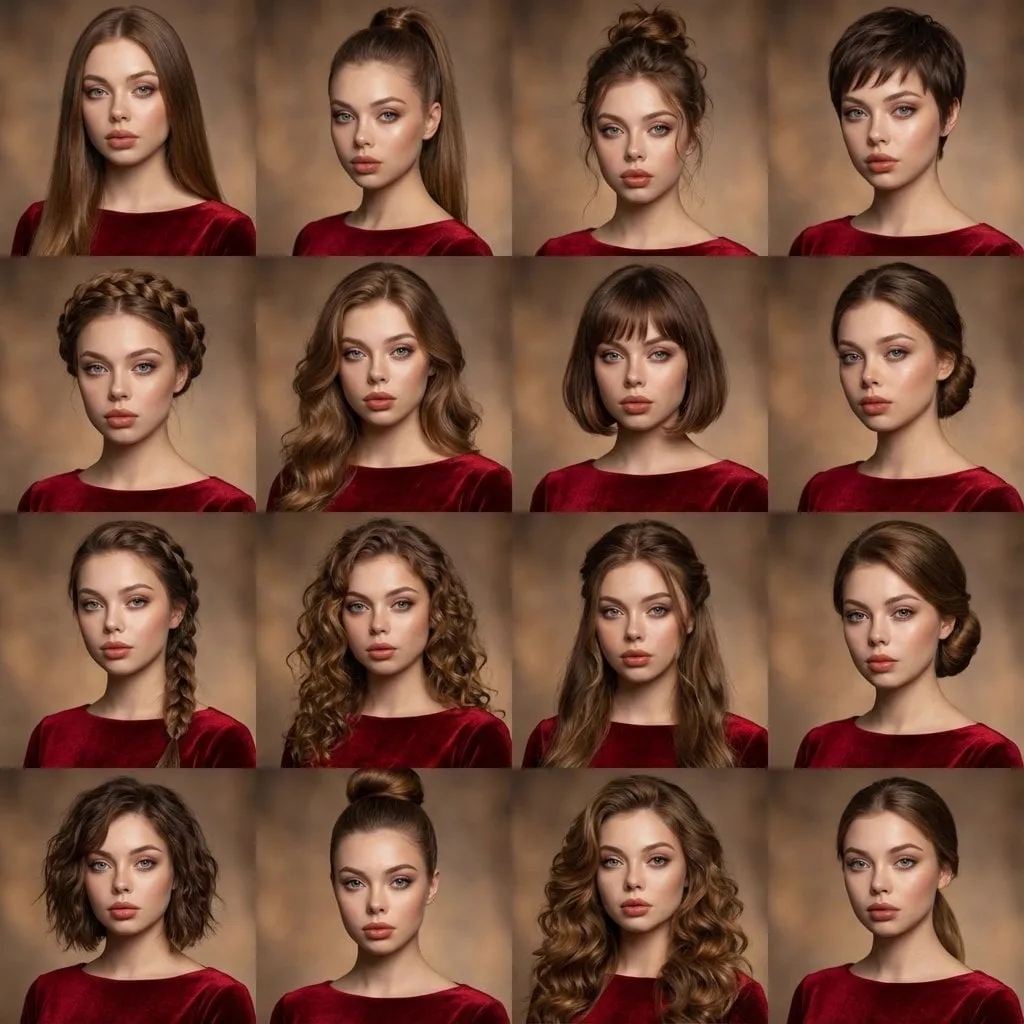

AI video generation moves fast, and PixVerse V4.5 is one of the clearest signs yet that the tools are maturing beyond novelty clips. The update is not just another incremental release. It targets the two things creators complain about most: lack of control and inconsistent characters. If you have been testing text-to-video tools and walking away frustrated because you cannot frame a shot or keep a face recognizable across scenes, this release is worth a close look.
This article breaks down what actually changed in PixVerse V4.5, how the new controls work in practice, where the model stands against the competition, and how to build a workflow that makes the most of it. No hype, no vague claims, just a practical walkthrough of what the update does and whether it deserves a place in your toolkit.
What PixVerse V4.5 Brings to the Table
The headline feature of V4.5 is control. Earlier versions of most AI video tools give you a prompt, a seed, and a prayer. You describe a scene, press generate, and hope the output matches the image in your head. PixVerse V4.5 tries to close that gap by exposing camera behavior, framing, and character references as first-class settings rather than leaving them to chance.
Three changes stand out. First, cinematic lens controls that let you choose depth of field, field of view, and camera movement. Second, multi-image reference support that keeps characters stable across different shots. Third, a meaningful quality jump in motion coherence, which reduces the warping and morphing artifacts that still plague many models.
None of these features are entirely new to the AI video space, but the combination in one model with a reasonably simple interface is what makes V4.5 interesting. You no longer need to hack a prompt with ten camera jargon keywords and hope the model understands. The parameters are explicit, which means your results are more predictable and more repeatable.
Cinematic Lens Controls: Directing Without a Camera
The most immediately useful addition is the set of lens controls. In practice, this means you can specify how the virtual camera behaves the same way a cinematographer would on a real set.
Depth of field is the easiest to understand. A shallow depth of field blurs the background and isolates the subject, which instantly makes generated footage feel more professional. Portraits, product shots, and talking-head scenes benefit the most. A deep depth of field keeps everything in focus and works better for establishing shots, landscapes, and scenes with multiple subjects.
Field of view controls how wide the lens is. A wide field of view gives you that slightly dramatic, space-expanding look you see in action sequences. A narrow field of view compresses the background and pushes the subject forward, which is flattering for close-ups and dialogue scenes. Getting this right matters more than most people expect because it changes the emotional tone of the shot as much as the composition.
Camera movement is where the model really shows off. You can specify pans, tilts, dolly moves, and orbit shots, and the model will actually move the virtual camera during the clip. This turns a static image into something that feels alive. A slow push-in toward a character builds tension. A lateral dolly reveals a scene gradually. An orbit around a product highlights its shape and material.
The practical implication is simple: you can now plan shots the way you would on a real production. Write the camera move into your notes, set it in the interface, and generate. If the result is close but not perfect, adjust one parameter at a time instead of rewriting the whole prompt. That is a huge workflow improvement over the guess-and-check cycle most creators are used to.
Multi-Image Reference: Keeping Characters Consistent
Character consistency has been the biggest weakness of AI video since the beginning. Generate a character in one clip, then generate them again in a different scene, and you often get a different person entirely. The wardrobe might match, the general vibe might match, but the face is subtly wrong. For any creator doing multi-scene storytelling, that is a dealbreaker.
PixVerse V4.5 addresses this with multi-image reference. Instead of describing the character only with words, you provide one or more images of the character from different angles or poses, and the model uses them to lock the visual identity across clips. This is the same idea behind character reference features in image generation, but applied to video, where the difficulty is much higher because the character has to stay consistent across dozens or hundreds of frames, including while moving.
In practice, the workflow looks like this. First, generate or collect reference images of your character: a front view, a side view, and maybe a close-up of the face. Second, upload those images as references when you generate each new scene. Third, review the output for consistency and regenerate any scene where the character drifts.
The results are not perfect. Hair, clothing details, and extreme angles can still slip, especially in fast motion or complex lighting. But the gap between generations is dramatically smaller, and for most short-form content, the consistency is now good enough to tell a coherent story across multiple clips. That unlocks use cases like mini-series, product demos with a recurring presenter, and branded content where the talent needs to look the same in every shot.
How V4.5 Compares With Other Leading Models
It is worth putting PixVerse V4.5 in context. The text-to-video field in any given month is crowded, with OpenAI's Sora line, Runway Gen-4, Kling, and several Chinese models all competing for attention. Each one has strengths, and the honest answer is that none of them wins every category.
Sora remains the benchmark for raw visual quality and physical plausibility. If you need a shot that looks indistinguishable from live action and you have the budget and patience, Sora is hard to beat. Runway Gen-4 is the strongest all-rounder for professionals, especially for editing and iterative refinement, and its control features are excellent. Kling is the best value for many creators, with strong prompt adherence and a much friendlier price point for high-volume work.
Where does PixVerse V4.5 fit? Its differentiators are the lens controls and the multi-image reference workflow. If your project depends on shot planning and character consistency, V4.5 can produce results that are close to the leaders while giving you more directorial control out of the box. If you need maximum photorealism or complex physics, the leaders still have the edge.
The smart approach is not to pick one model and defend it. The best workflows treat models as interchangeable tools and switch based on the shot. Use the model that nails the style and control you need for a given scene, and keep the rest of the pipeline identical. That is exactly why platforms that aggregate many models are becoming popular: you get the choice without the integration work.
Building a Practical PixVerse Workflow
A tool is only as good as the workflow around it. Here is a repeatable process that makes the most of V4.5's new features.
Start with a shot list. Before you generate anything, write down the scenes you need and, for each one, the camera move, the framing, and the subject. This sounds like overkill for a 15-second clip, but it pays off immediately because V4.5 gives you the controls to actually execute a plan.
Second, lock your characters. Generate reference images first and test a couple of clips to confirm the character stays consistent before you commit to a full production. Fixing consistency early is cheap; fixing it after twenty clips is painful.
Third, iterate on one parameter at a time. When a shot is wrong, change the lens control, the reference image, or the prompt wording, but not all three. The whole point of explicit controls is that you can isolate variables and learn what each setting does. Keep a simple log of what worked.
Fourth, do your cleanup in post. AI video is rarely perfect straight out of the model. Even with good controls, you will want to fix small details, stabilize a shaky move, or color grade to match your brand. Plan for that time instead of being surprised by it.
Fifth, build a library of prompts and settings that work. Every successful generation is an asset. Save the prompt, the settings, and the reference images together so you can reproduce the look next month without relearning everything.
Prompting Tips for the New Controls
The new controls reduce your dependence on prompt tricks, but good prompting still matters. A few patterns work especially well with V4.5.
Describe the scene in plain language first, then the subject, then the camera. For example, instead of writing "cinematic shot of a woman walking in a neon city street," write "a woman in a yellow raincoat walks down a neon-lit street at night, medium close-up, shallow depth of field, slow dolly forward." The order helps the model separate the content of the scene from how it is shot.
Use reference images for anything that must stay consistent: characters, products, locations, even specific props. Words alone cannot carry the identity of a specific object across scenes. Images can.
Be explicit about motion. AI models tend to default to subtle or generic movement. If you want a specific action, say what it is, and if you want a specific camera move, set it in the controls. Vague motion prompts produce vague motion.
Finally, do not overload a single prompt. If a scene has too many elements, the model will compromise somewhere. Split complex scenes into foreground, background, and action, and either simplify the prompt or generate elements separately and composite them later.
Who Should Upgrade (and Who Can Wait)
PixVerse V4.5 is not for everyone, and that is fine. If you are a casual user who generates the occasional clip for social posts, the lens controls and multi-image references are nice but not essential. Your existing workflow probably works well enough, and the learning curve is not worth it for low-volume use.
If you are a professional creator, a small studio, or a marketer producing video at scale, the upgrade is more compelling. The shot control alone changes how you plan production, and the character consistency unlocks multi-scene projects that were previously impractical. For anyone doing branded content, mini-series, or product storytelling, the consistency features are close to a requirement.
The middle ground is to test before you commit. Run one small project with the new controls, compare the results to your current model, and measure the difference in both quality and time. If the new controls save you even one regeneration cycle per clip, they are already paying for themselves.
FAQ
Does PixVerse V4.5 work for image-to-video as well as text-to-video?
Yes. The model accepts both text prompts and image inputs, and the multi-image reference feature is specifically designed to combine source images with text descriptions for stronger control.
How many reference images should I use for character consistency?
Two to three is the practical sweet spot: a front view, a side or three-quarter view, and optionally a close-up of the face. More images than that can confuse the model if they conflict.
Is the quality good enough for commercial use?
For most short-form and mid-form content, yes. For high-end advertising or feature work where pixel-level fidelity matters, you will still want to review and clean up the output, and possibly pair V4.5 with a top-tier model for the most demanding shots.
Does the model handle languages other than English in prompts?
Prompt understanding is generally strong across major languages, but the most reliable results come from English prompts, especially for camera and lens terminology.
What about generation costs and speed?
Generation costs and speed depend on resolution, length, and model tier. V4.5 sits in the mid-to-premium range, which makes it a reasonable default for quality work without reserving it only for flagship shots.
