
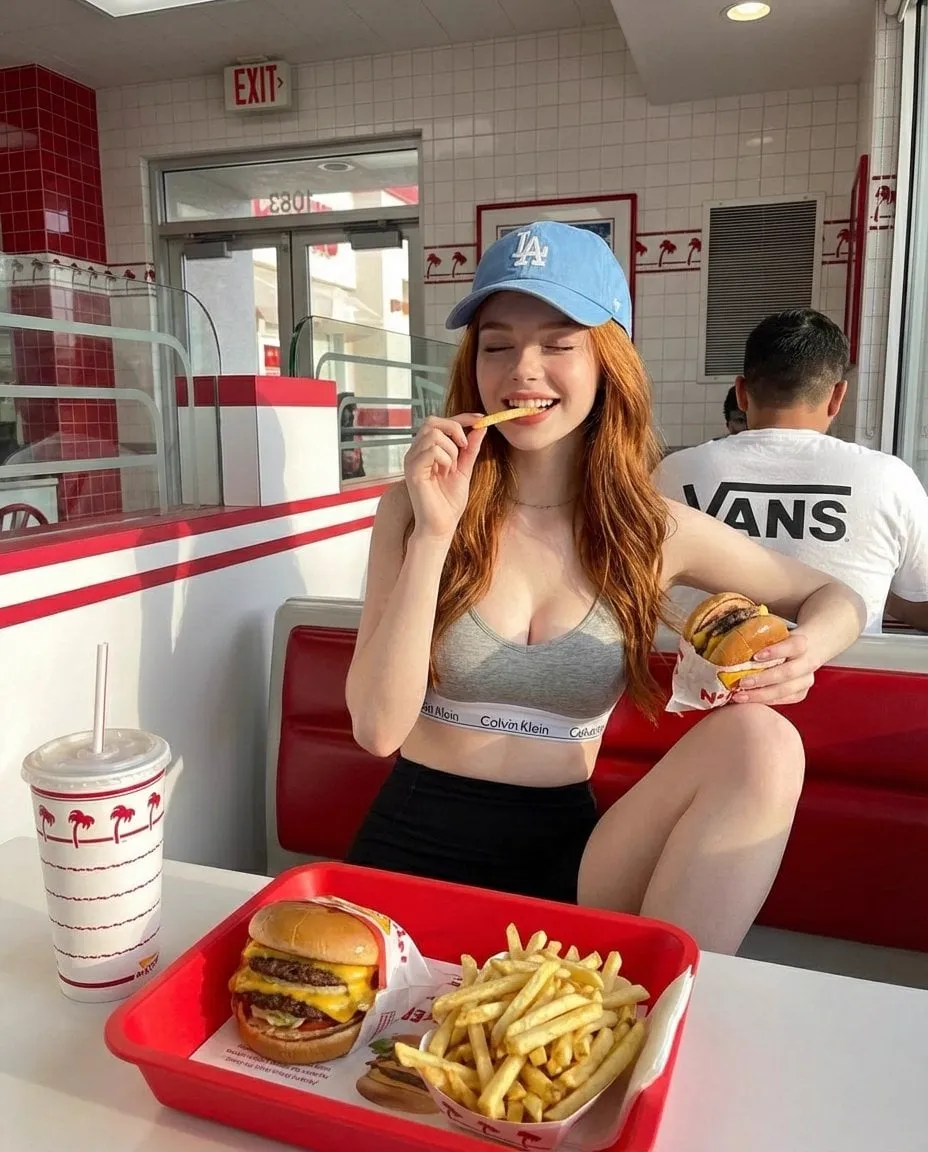
![{ "title": "Whimsical Cozy Portrait", "input_image": "[UPLOAD YOUR IMAGE]",...](https://storage.brightvectorlabs.com/prompts/bright/illustration-and-3d/2029006238101680432-0.webp)
How to Turn Any Video Into a Live Photo With AI
There is a special magic in a Live Photo: the frozen image that breathes. A still photo captures a moment, but a Live Photo captures the moment before and after — the hair moving in the wind, the glass touching the table, the smile arriving in real time. For years, this format was locked to specific devices and specific workflows. You could only create Live Photos on certain phones, of certain moments, under certain conditions.
AI changed that. The same technology that powers modern image generation and video synthesis now lets you take any video clip — from any device, of any subject — and convert it into a seamless, interactive Live Photo. This guide walks through the technical foundations, the step-by-step workflow, and the creative and commercial opportunities this opens up.
What a Live Photo Really Is
Before diving into the how, it helps to be precise about the what. A Live Photo is a hybrid format: a still image paired with a short motion clip, typically around three seconds of video captured around the moment the photo was taken. When the viewer presses or hovers over the image, it plays the motion; when they release, it returns to the still.
The format's appeal is emotional. It sits between photography and video, offering the permanence of a photo with the life of a moving image. That combination makes it ideal for social media, where static images compete with video for attention and lose.
Why AI Changes the Live Photo Game
Historically, Live Photos could only be created at the moment of capture, on hardware that recorded the surrounding frames. Existing photos could not become Live Photos. Existing videos could not become Live Photos. The format was a camera feature, not a creative tool.
AI inverts this. Instead of needing special hardware, you use machine learning models to analyze a video, identify the most meaningful moment, and construct the still-plus-motion combination after the fact. Any video becomes a potential Live Photo, which means every creator's existing library becomes a source of new content.
The demand is real
The appetite for immersive, moving media keeps growing across platforms. Social feeds favor dynamic content, and Live Photos hit a sweet spot: more alive than an image, more shareable than a full video. Creators who can convert old videos into fresh interactive content gain a production advantage without shooting anything new.
The Technical Foundations
Converting video to Live Photo with AI is not a simple crop. It requires intelligent decisions about which frames matter and which motion to preserve. Understanding the pieces helps you get better results.
Analyzing the video for the perfect moment
The first step is finding the still image that will anchor the Live Photo. Naive approaches just pick a middle frame; smarter AI analyzes the whole clip and scores each frame for visual importance. It looks for sharp focus, good composition, and a moment where the subject is at its most expressive. The goal is a frame that works as a photo on its own — because that is what viewers see first.
Extracting the best motion loop
Once the anchor frame is chosen, the next decision is which motion to capture. The ideal motion is subtle, natural, and loopable: hair moving, water rippling, a hand gesturing, steam rising. AI models trained on huge datasets can identify these repeated, small-scale motions and isolate them, producing a short loop that plays smoothly without jarring jumps.
Compositing still and motion cleanly
The technical trick is combining a sharp still with smooth motion without artifacts. The model must keep the moving elements fluid while holding the rest of the image stable. Poor implementations show ghosting, wobble, or a visible seam where motion meets stillness. Good implementations feel like the image simply came to life.
The Step-by-Step Workflow
Here is the practical process for converting a video into a polished Live Photo, whether you use a dedicated tool or a general-purpose AI video platform.
Step 1: Choose the source video
Not every clip is a good candidate. Look for:
- A clear, in-focus subject.
- Moderate motion that repeats or resolves naturally.
- Decent lighting and resolution.
- A moment with emotional or visual impact.
Clips with fast, chaotic motion are harder to convert cleanly. A clip of a person talking, a pet moving, or a landscape with flowing water is ideal.
Step 2: Select the anchor frame
Review the clip and identify the strongest single frame — the one that works as a photograph. Most AI tools will suggest frames, but your eye matters more than the algorithm. The anchor determines the first impression.
Step 3: Configure the conversion
Tell the tool how much motion to preserve. Options usually include:
- Motion duration: how long the loop plays.
- Motion intensity: how much movement to keep.
- Loop behavior: seamless loop versus play-once.
Start conservative: a subtle three-second loop is more elegant than an aggressive one that reveals its seams.
Step 4: Generate and review
Run the conversion, then watch the result on the format you will actually use — phone, feed, website. Check for three things: the anchor frame looks sharp, the motion is smooth, and the loop does not jump. If any of these fail, adjust and regenerate rather than accepting a flawed export.
Step 5: Polish in post-production
A tiny bit of post-production goes a long way. Adjust exposure and color so the image matches your feed's aesthetic. Add subtle stabilization if the source had handheld shake. Consider a gentle zoom or pan for extra life — but only if it improves the loop.
Step 6: Export and distribute
Export in the platform-appropriate format, then publish where the format shines: social profiles, stories, e-commerce product pages, portfolios, and messaging. Test how it renders on both mobile and desktop, because the interaction model differs (touch on mobile, hover on desktop).
Advanced Techniques Worth Knowing
Once you master the basics, these techniques separate beginners from pros.
Converting old photos into Live Photos
The reverse direction is also valuable: AI can take a still photo and synthesize believable motion — swaying hair, moving clouds, a blinking eye. This resurrects old archives into fresh interactive content. The motion is invented rather than captured, so it must be subtle to stay convincing.
Using Live Photos for product marketing
Product pages with interactive images consistently outperform static galleries. A shoe that rotates slightly, a jacket whose fabric shifts in the light, a beverage with visible condensation — these details create a tactile sense that stills cannot. AI conversion makes this affordable for every product catalog, not just high-budget shoots.
Building a Live Photo series
A coherent collection of interactive images — a travel series, a food series, a product line — creates a distinctive feed identity. The format itself becomes your visual signature, and viewers come to expect the movement.
Common Mistakes and How to Avoid Them
- Choosing a busy clip: fast, chaotic motion produces messy loops.
- Picking a weak anchor frame: if the still does not work as a photo, the Live Photo fails.
- Overdoing the motion: aggressive loops reveal artifacts and feel gimmicky.
- Ignoring the loop seam: a visible jump destroys the illusion.
- Neglecting post-production: raw conversions often need color and stabilization.
- Publishing without testing on the target device: the interaction differs by platform.
Creative Ideas for Live Photo Content
Once the workflow is comfortable, the creative possibilities open up. Here are directions worth testing.
Travel and lifestyle storytelling
A travel feed built from Live Photos feels alive in a way static galleries cannot match: waves moving, markets bustling, a train pulling away. Convert the strongest moments from every trip and arrange them as an interactive travelogue. The format preserves the memory of motion that stills lose.
Food and beverage content
Steam rising from a dish, sauce being poured, a drink being stirred — these are perfect Live Photo subjects. They add a sensory layer to menus, recipes, and restaurant pages. Conversion lets you capture these moments from video clips without staging a special shoot.
Fashion and product close-ups
Fabric movement is one of the most convincing AI motions because it is subtle and continuous. A jacket shifting, hair moving, jewelry catching light — these clips convert beautifully and elevate product pages and lookbooks. The tactile quality makes viewers linger longer.
Events and personal memories
Weddings, concerts, family moments: the clips are usually imperfect — shaky, noisy, poorly lit — but the emotion is real. AI conversion can salvage the best second from a messy clip and turn it into a shareable keepsake. For personal use, this is the highest-value application of all.
Series and recurring formats
A weekly "moment of the week" converted from your video library creates a recurring format with a built-in identity. The audience learns to expect the moving image, and the format itself becomes the content.
What Tools to Look For
Not all conversion tools are equal. When evaluating options, look for these capabilities:
- Intelligent frame selection: the tool suggests the best anchor frame, not just the middle of the clip.
- Motion isolation: it separates the moving elements from the static background cleanly.
- Loop quality: the output loops without a visible jump.
- Resolution handling: it preserves the source quality instead of compressing the result.
- Export flexibility: it produces the formats your platforms and devices actually accept.
A general-purpose AI video platform with strong image-to-video capabilities will cover most of these needs; a dedicated Live Photo tool may offer faster, more specialized output. Test both with the same clip and compare.
Frequently Asked Questions
Can I convert any video into a Live Photo?
Practically, yes, with good results depending on the source. Clear, stable clips with moderate motion convert best. Extremely shaky or fast-moving footage will produce lower-quality loops.
Do I need a specific phone or device?
No. The conversion happens with AI tools that run in the browser or on a platform, and the output works across devices. The format's old hardware restrictions no longer apply.
How long should the motion loop be?
Two to three seconds is the sweet spot. Long enough to feel alive, short enough to loop invisibly. Extremely short loops feel like a glitch; extremely long ones feel like a video.
What is the best use case for AI-generated Live Photos?
Social content and product pages, in that order. Both reward the hybrid format, and both benefit from reusing existing video assets without new shooting.
Will the motion ever look fake?
Subtle motion reads as real; exaggerated motion reads as artificial. When in doubt, dial the intensity down. A barely-there movement is far more convincing than a dramatic one.
The Opportunity in Your Existing Library
Most creators sit on thousands of unused video clips. AI Live Photo conversion turns that dormant library into a source of fresh, interactive content — no camera, no studio, no new shoot. The technique is accessible, the workflow is fast, and the format is growing in popularity across platforms.
Start with your best five clips. Convert them, study what works, and build a small library of prompts and settings that reliably produce beautiful results. Pay attention to which subjects, motions, and lighting conditions convert cleanly; those patterns become your personal recipe book. In an afternoon, you can turn yesterday's footage into tomorrow's most engaging posts — and master a format that most creators have not touched yet.
The barrier to entry is low, but the advantage compounds. Every converted clip teaches you something about framing, motion, and loop quality that applies to the next one. The creators who start now build a skill that will only become more valuable as interactive formats spread across more platforms.
