
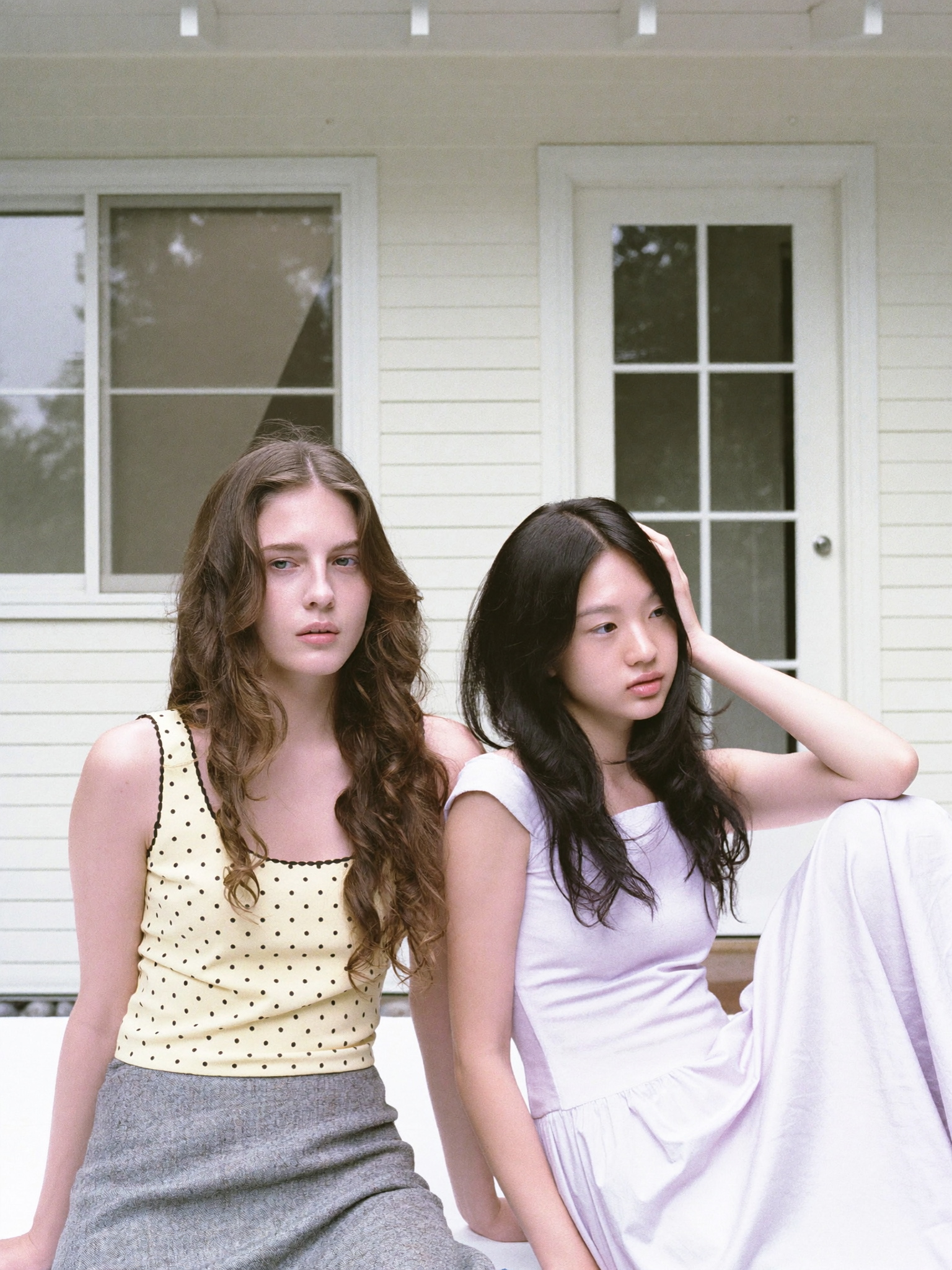
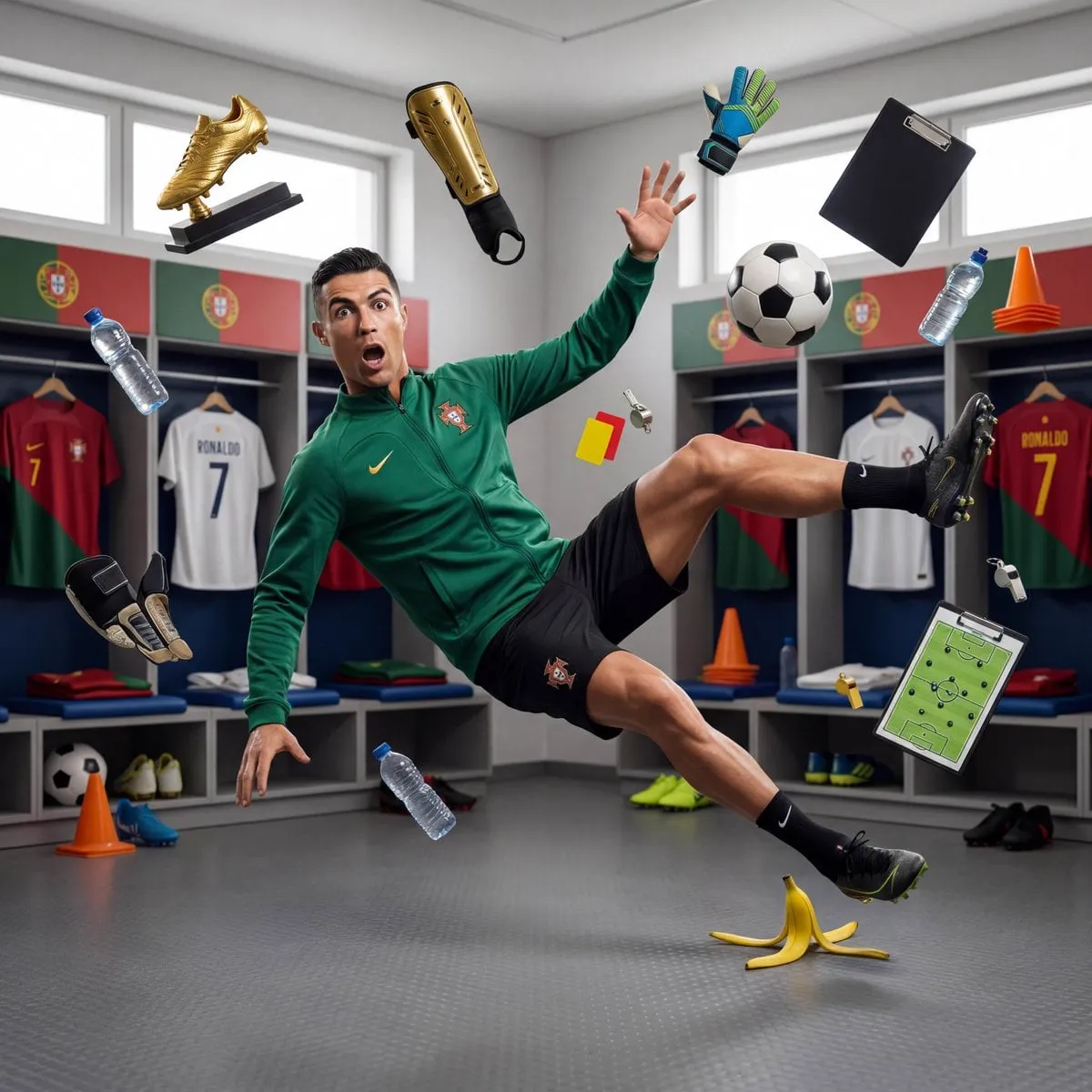
![[BRAND NAME]. Act as a Senior Editorial Designer and Typographer. PHASE 1:...](https://storage.brightvectorlabs.com/prompts/bright/product-and-brand/2028068337427603741-0.webp)
Why the First Seconds Decide Everything
On YouTube, viewers make a decision in the time it takes to scroll: watch or move on. That decision is shaped by two things — the thumbnail and the preview. The preview (sometimes called a trailer, teaser, or sizzle) is the short video that plays before the main content, and it has quietly become one of the highest-leverage pieces of a channel's packaging. A strong preview sets the tone, promises the payoff, and earns the click. A weak one can bury a genuinely good video.
The bar keeps rising. AI tools now let anyone generate photorealistic scenes in seconds, so the technical barrier is gone — which means the difference between videos is now artistic: composition, emotion, and pacing. This guide covers the cinematography principles that make previews work, how to apply them to AI-generated footage, and the practical format details that keep your previews looking sharp on every device.
Start With a Story, Not a Thumbnail
The most common mistake is treating the preview as a highlight reel: five unrelated flashy moments glued together. A preview is not a summary; it is a miniature story with a beginning, a middle, and a hook. The beginning establishes the situation in one or two shots. The middle raises a question or introduces the tension. The end cuts to black at the moment the viewer wants the answer — which is exactly when they click play.
Before you generate a single frame, write down the arc in one sentence: "A quiet room, then a sudden storm, then — what's in the window?" That sentence is your preview script. Every shot you choose should either advance that arc or build its mood. If a shot does neither, it is decoration, and decoration dilutes a preview.
This story-first approach also makes AI tools easier to use. Instead of prompting for "cool shots," you prompt for specific story beats: the establishing shot, the reaction shot, the reveal. Each beat has a clear job, and the model has a clear target to hit.
Rule of Thirds and Composition Basics
The rule of thirds is the oldest trick in visual storytelling, and it still works. Divide the frame into three columns and three rows; place the key subject on one of the intersections. A face at the upper-right third with empty space to the left reads differently than the same face centered — one feels dynamic, the other feels static. For previews, dynamic composition signals "something is happening here," which is exactly the feeling you want to create.
Beyond the rule of thirds, look for compositional balance. If the subject sits on the left third, balance the frame with negative space or a secondary element on the right. Use leading lines — roads, rails, shadows, architecture — that pull the eye toward the subject. And respect the frame's edges: heads cut off at the chin, or key action pushed to the very edge, looks accidental. Give your subject breathing room.
When prompting AI footage, describe composition explicitly: "subject on the left third, looking right, empty space on the right side." Models respond to this language, and the difference between a composed frame and a default center-frame is the difference between professional and amateur.
Color, Contrast, and Mood
Color is the fastest way to tell the viewer how to feel before they process a single action. A warm, golden palette says comfort, nostalgia, or adventure. A cold, desaturated palette says tension, isolation, or dread. High contrast says drama; soft contrast says intimacy or calm.
Pick one dominant mood for the preview and push the color toward it consistently. If the main video is a travel vlog, warm sunset tones in the preview match the promise. If it is a true-crime explainer, muted, cooler tones set the right expectation. The preview is a contract with the viewer: it promises a feeling, and the main video should deliver it.
With AI tools, color direction belongs in the prompt: "golden hour, warm tones," "moody blue hour, high contrast," "soft pastel, dreamy." You can also grade the generated footage afterward, but grading is more reliable when the generation already leans the right way. Two preview frames with mismatched palettes will feel broken even if each looks fine alone.
Faces, Emotion, and Eye Contact
The most powerful element in a preview is a human face — and specifically, a face with a readable emotion. Viewers scan for faces instinctively, and a preview with a clear emotional expression outperforms one without. The emotion should be exaggerated but authentic: a genuine wide-eyed surprise, not a forced grimace. Think of it as stage acting for a three-second moment.
Eye contact with the camera is a direct connection: the subject is looking at the viewer, and the viewer feels seen. This is why talking-head thumbnails and previews perform well. If the subject looks off-camera instead, it creates a different energy — curiosity, tension, anticipation. Decide which emotion your video needs and direct the face accordingly.
When generating faces with AI, check the details carefully: both eyes looking in the intended direction, natural skin texture, hair that does not glitch between frames. A slightly off face destroys trust instantly, no matter how good the composition is. Generate multiple takes and keep only the ones that pass a zoomed-in inspection.
Camera Angles and Scene Scale
Cinematography speaks through angles and shot sizes, and previews can borrow the full vocabulary. A wide shot establishes scale and epicness — a vast landscape, a huge crowd, a lone figure against the sky. A close-up delivers intimacy and emotional detail — the eyes, the hands, the small gesture. A low angle makes a subject feel powerful; a high angle makes them feel vulnerable; a dutch angle injects unease.
For a preview, think in contrasts. Open with a wide shot to set the world, cut to a close-up to make it personal, then end on the angle that carries the hook. The rhythm of wide-to-tight is one of the most reliable patterns in editing, and it works in fifteen seconds as well as it works in a feature film.
AI models understand this language if you name it: "extreme wide shot," "close-up on the eyes," "low angle looking up." The more precisely you specify the angle and scale, the more the generated footage will feel directed rather than accidental.
Lighting That Looks Expensive
Nothing says "low budget" faster than flat, even lighting — and nothing says "cinematic" faster than deliberate light. Three lighting patterns cover most preview needs. Rembrandt lighting (a small triangle of light on the cheek opposite the key light) is the classic flattering portrait setup. Backlighting (a rim of light around the subject's silhouette) separates the subject from the background and creates instant depth. Hard sidelight carves dramatic shadows and suits moody, intense content.
Practical light sources inside the frame — a lamp, neon sign, window, screen glow — add realism and texture. A character lit by a phone screen in a dark room instantly reads as "late night, secret, urgent." Describe the light source and its direction in your prompt: "lit by a neon sign from the left, rim light, dark background." Models produce dramatically better results when the lighting is specified than when it is left to default.
Motion and Energy: The Promise of Action
A preview is a promise of what the viewer will get, and motion is the most direct way to make that promise. A preview that sits still says the video sits still. Even for a calm, thoughtful video, the preview should have controlled motion: a slow push-in, a drifting camera, a subject that turns to the camera at the end.
Match the motion to the video's energy. A high-energy video preview should move: quick cuts, fast pans, whip transitions. A meditative video should move slowly and smoothly. The common failure is mismatched energy — a frantic preview for a slow video, or a static preview for an action video — which sets the wrong expectation and increases abandonment once the viewer clicks.
When generating motion, specify the camera move in the prompt: "slow push-in," "handheld follow," "static tripod shot with the subject moving through frame." Different moves carry different energy, and the model will deliver more usable footage when the move is named.
Using AI Tools to Iterate Fast
The biggest advantage of AI in preview production is iteration speed. You no longer need to shoot and re-shoot to test ideas — you can generate, evaluate, discard, and regenerate in minutes. Use that power deliberately.
Generate a batch of variations for each story beat, not just one. Pick the strongest take per beat, assemble a rough cut, and watch it once without sound. If the story is clear in fifteen seconds without sound, it will work with sound. Then generate replacements only for the beats that failed. This "generate wide, cut tight" loop is far more efficient than trying to perfect each shot before assembling.
One caution: do not let AI erode the art direction. The tool should not decide the mood for you — you decide the mood, and the tool executes it. The creators who get the most out of AI previews are the ones who bring a clear vision to the prompt, not the ones who browse generations until something looks cool.
Format, Resolution, and Platform Checks
The preview has to survive the platform's compression and the viewer's tiny window. Export at the resolution and aspect ratio of the final delivery — vertical 9:16 for Shorts and most social platforms, 16:9 for standard YouTube. A 4K master scaled down is fine, but never upscale a small render.
Text on screen is a special risk: small text crushes under compression, and the preview window is small to begin with. If you use text, keep it to a few large words, high contrast, and well away from the edges where player overlays (progress bar, title, buttons) will cover it. Check the preview on a phone at low brightness before publishing — if the text is unreadable or the key moment is lost, fix it before it goes live.
Finally, respect the format constraints of the platform you are targeting: short previews for feeds, slightly longer teasers for search and suggested, and always end on the hook — the cut-to-black moment that makes the viewer press play.
Building a Preview Review Habit
The fastest way to improve preview quality is a review habit — a short, repeatable checklist you run on every preview before it ships. It does not take long, and it catches the errors that accumulate when you are producing at volume.
Watch the preview three times with a different focus each pass. The first pass is story: without sound, is the arc clear? Could a stranger describe what the video promises after fifteen seconds? The second pass is craft: does the composition hold up, does the color match the promised mood, does the motion support the energy? The third pass is the hard one: at arm's length on a phone, at low brightness, does the key moment still land? That third pass is how your actual viewers will see it, and it is the pass most creators skip.
Keep a simple log of what you tested and what happened: which hooks earned clicks, which angles flopped, which styles matched their promise. After a few weeks the log becomes a personal playbook, and your previews stop being guesses and start being informed bets. The habit costs minutes per video and returns a compounding improvement in click-through.
FAQ
How long should a YouTube video preview be?
For Shorts and social feeds, 10–20 seconds. For standard YouTube videos, 20–45 seconds. The preview should be long enough to tell a micro-story and short enough to leave the viewer wanting more.
Do I need a real camera to make a good preview?
No. AI-generated footage can carry a preview if the art direction is strong — composition, color, emotion, and pacing matter more than the capture device. But the story-first discipline applies the same either way.
What is the one thing that makes previews fail?
Lack of a clear emotional promise. A preview that is technically fine but emotionally flat gives the viewer no reason to click. Fix the emotion before you fix the pixels.
Should the preview show the best moment of the video?
Not necessarily the best — the most intriguing. Tease the conflict or question rather than revealing the payoff. A preview that spoils the best moment kills the curiosity that drives the click.
Can I use the same preview for every platform?
You can, but you will lose performance. Vertical for Shorts/reels, horizontal for standard YouTube, and adapt the pacing to each platform's feed behavior. The extra minute of work per platform pays off in click-through.
